ADOBE AFTER EFFECTS 7.0
User Guide
559
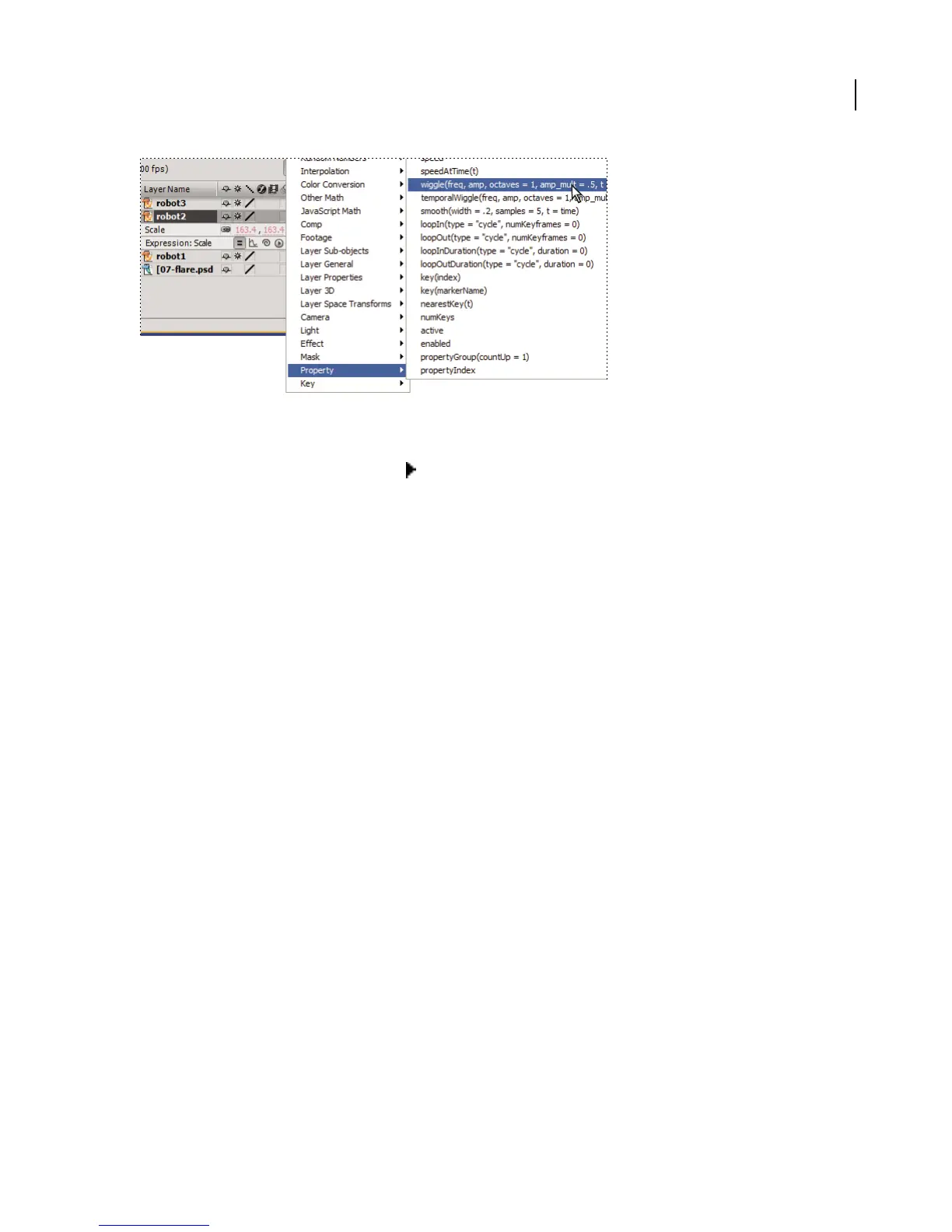
Add expression elements to the expression field by choosing them from the Expression Language menu.
1 Select a layer property and choose Animation > Add Expression.
2 Click the Expression Language menu icon and choose Global > thisComp. The element appears in the
expression field at the location of the cursor:
thisComp
3 To continue the expression, add a period (.) to the end, click the Expression Language menu icon, and then choose
an attribute from the Comp menu, such as layer(index) :
thisComp.layer(index)
4 Insert the specific layer information you want. For example, if you want to use the keyframe information from
Layer 1, change
index to 1 as follows:
thisComp.layer(1)
5 Next, add a period and choose an attribute or method from any of the Layer, Light, or Camera menus. For
example, if Layer 1 has Position keyframes that you want to use in your expression, choose position from the Layer
Properties menu, and so on.
thisComp.layer(1).position
See also
“About animation and layer properties” on page 188
Example: Writing a simple expression
Do the following to construct a simple expression that copies position values from one layer to another:
1 Create two solid layers: Solid 1 and Solid 2.
2 Animate the Position property values for Solid 1. (See “Using keyframes” on page 192.)
3 Select the Position property for Solid 2 and choose Animation > Add Expression. The following expression
appears by default:
transform.position
4 Type the following directly over transform.position:
thisComp



 To Next Page