ADOBE AFTER EFFECTS 7.0
User Guide
167
Switches
Audio/Video and Layer switches
The Timeline panel contains two kinds of switches: Audio/Video Switches and Layer Switches. By default, these
columnsappeartotheleft(Audio/VideoSwitches)andright(LayerSwitches)sidesofeachlayername,butyoucan
hide a column or arrange columns in a different order.
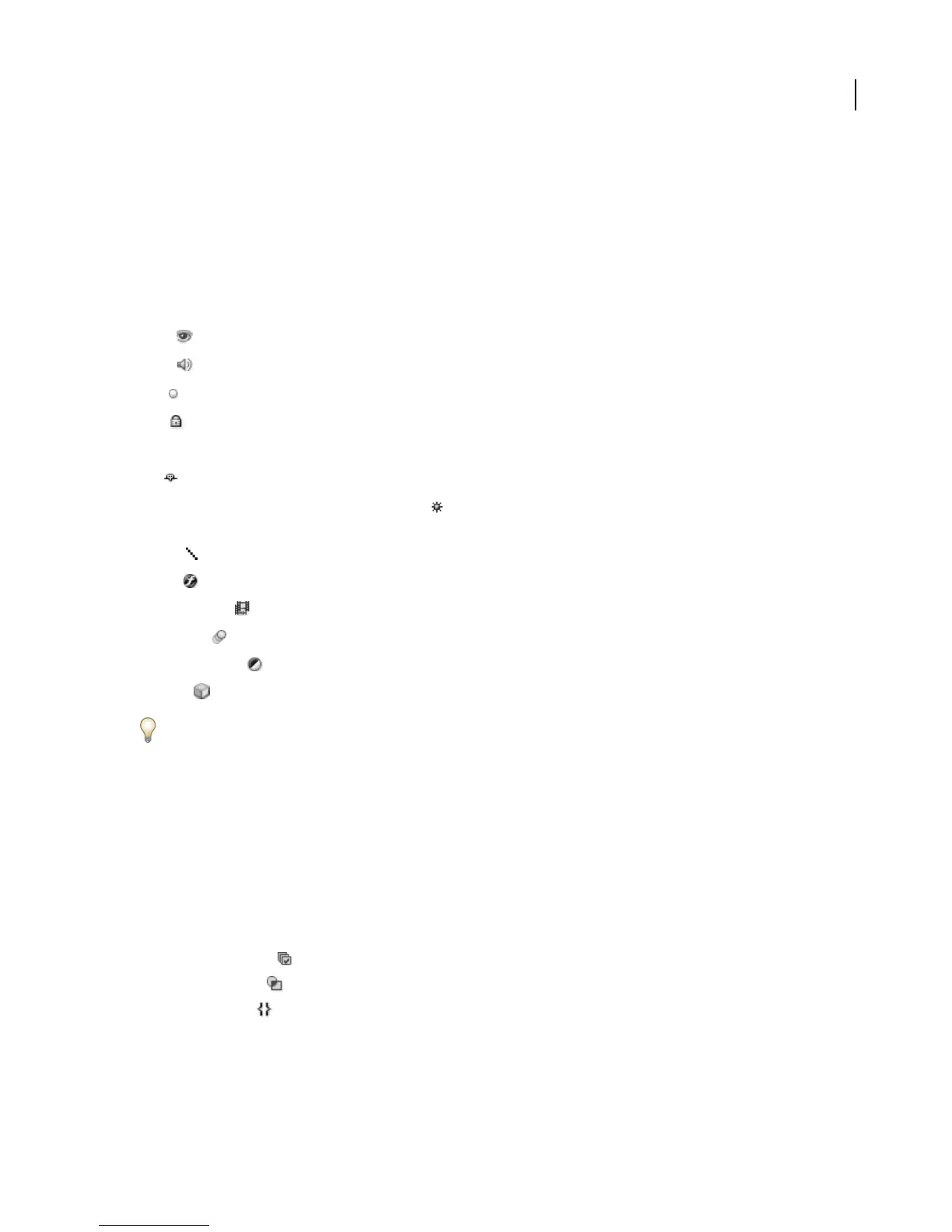
The Audio/Video Switches column includes the following switches:
Video Toggles layer visuals on or off.
Audio Toggles layer sounds on or off.
Solo Selects only the current layer for previewing, ignoring all others.
Lock Locks layer contents, preventing all changes.
The Layer Switches column contains the following switches:
Shy Hides the current layer when the Hide Shy Layers button is pressed.
Collapse Transformations/Continuously Rasterize Collapses transformations if the layer is a composition; contin-
uously rasterizes if the layer contains vector graphics or masks.
Quality Toggles options for layer preview quality.
Effects Toggles layer effects on or off.
Frame Blending Toggles frame blending on or off.
Motion Blur Toggles motion blur on or off.
Adjustment Layer Identifies the layer as an adjustment layer, which modifies all layers below it.
3D Layer Identifies the layer as a 3D layer, enabling three-dimensional movement, lighting, and effects.
Quicklychangeswitchesformultiplelayersbyclickingtheswitchforonelayeranddraggingupordownthatcolumn
for the adjacent layers.
Bydefault,theLayerSwitchescolumnsharesspaceintheTimelinepanelwiththeModescolumn,sooneortheother
is visible—but not both. You can toggle between the two columns or show both columns simultaneously.
See also
“To work with columns in the Timeline panel” on page 119
To toggle the Switches, Modes, and Trim columns
❖ Click one of the following:
• The Switches button to toggle the Switches column on or off.
• The Modes button to toggle the Modes column on or off.
• The Trim button to toggle the Trim column on or off.



 To Next Page