ADOBE AFTER EFFECTS 7.0
User Guide
390
Blur & Sharpen effects
Box Blur effect
TheBoxBlureffectblursanimagebasedontheaveragecolorvalueofneighboringpixels.Youcanadjustthesizeof
the area that the effect uses to calculate the average value for a given pixel; a larger radius makes the image blurrier.
You can also make the effect perform one to five iterations; a higher number of iterations creates smoother transi-
tions between colors and increases the blur but also increases the render time.
This effect works with 8-bpc, 16-bpc, and 32-bpc color.
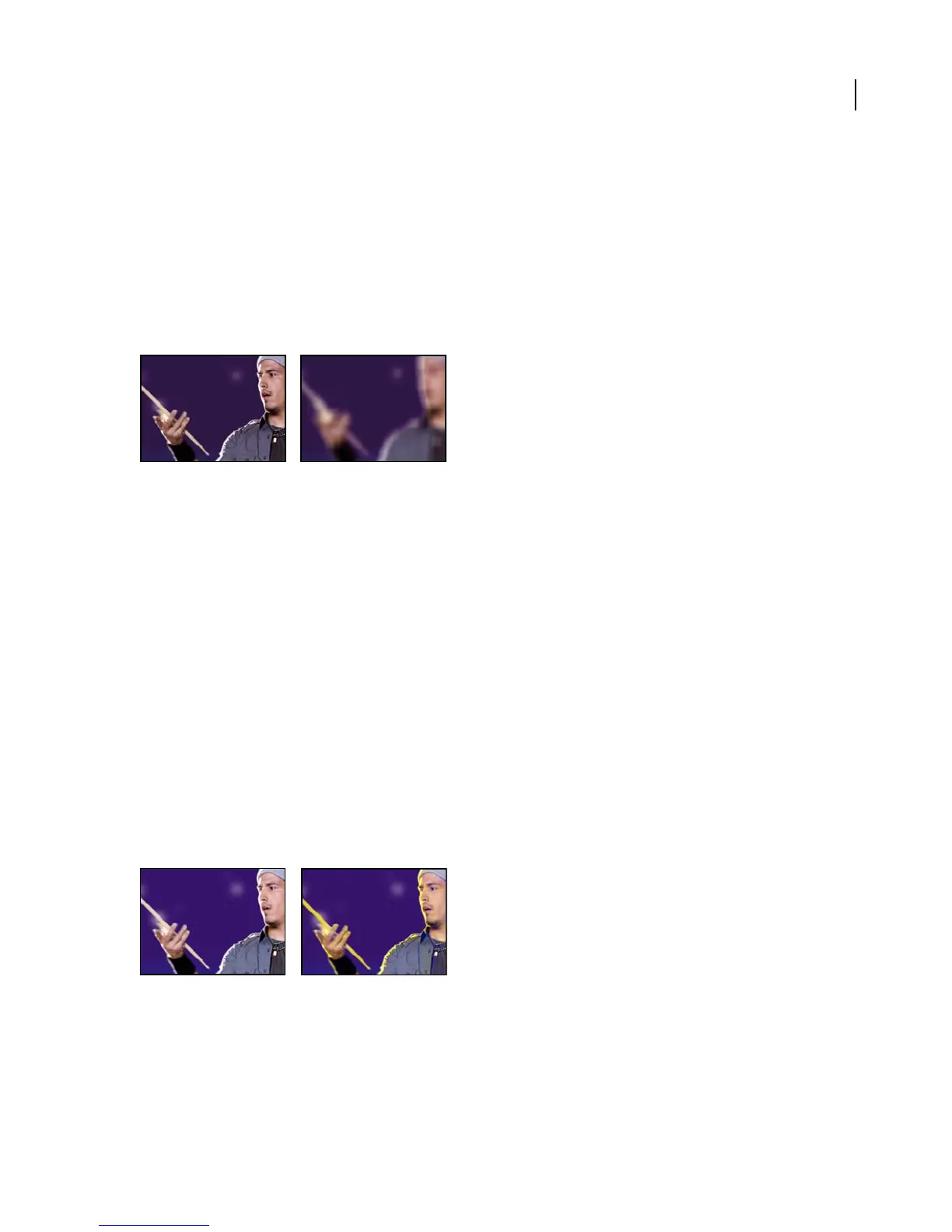
Original (left), and with effect applied (right)
Adjust the following properties:
Blur Radius Determines the size of the area the effect uses to calculate the average color value.
Blur Dimensions The axis on which to apply the blur.
Iterations Specifies how many times the effect is applied to the image.
Repeat Edge Pixels Repeats the pixels around the edges, preventing the edges from darkening and becoming more
transparent.
Channel Blur effect
The Channel Blur effect blurs a layer’s red, green, blue, or alpha channels individually. You can specify that the blur
is horizontal, vertical, or both. At Best quality, the blur is smooth. Use this effect for glow effects or if you want a blur
that does not become transparent near the edges of the layer. Edge Behavior describes how to treat the edges of a
blurredimage.IfyoudeselectEdgeBehavior,pixelsoutsidetheimagearetransparent,whichmakestheedgesofthe
blurred image semitransparent. Select Repeat Edge Pixels to repeat the pixels around the edges, preventing the edges
from darkening and becoming more transparent.
This effect works with 8-bpc, 16-bpc, and 32-bpc color.
Original (left), and with effect applied (right)



 To Next Page