ADOBE AFTER EFFECTS 7.0
User Guide
267
To designate a vertex as the first vertex
1 Create an animated mask shape.
2 In the Timeline panel, move the current-time indicator to the point where you want to designate a new first vertex.
3 Select the vertex you want to designate as the first vertex.
4 Choose Layer > Mask > Set First Vertex.
Note: The vertex designated as the first vertex appears slightly larger than the other vertices in the Composition panel.
Using Smart Mask Interpolation (Pro only)
Smart Mask Interpolation provides a high level of control for creating mask shape keyframes and smooth, realistic
animation. Once you select the mask shape keyframes to interpolate, Smart Mask Interpolation creates intermediate
keyframes based on settings you provide. The Info panel displays the progress of the interpolation and the number
of keyframes created.
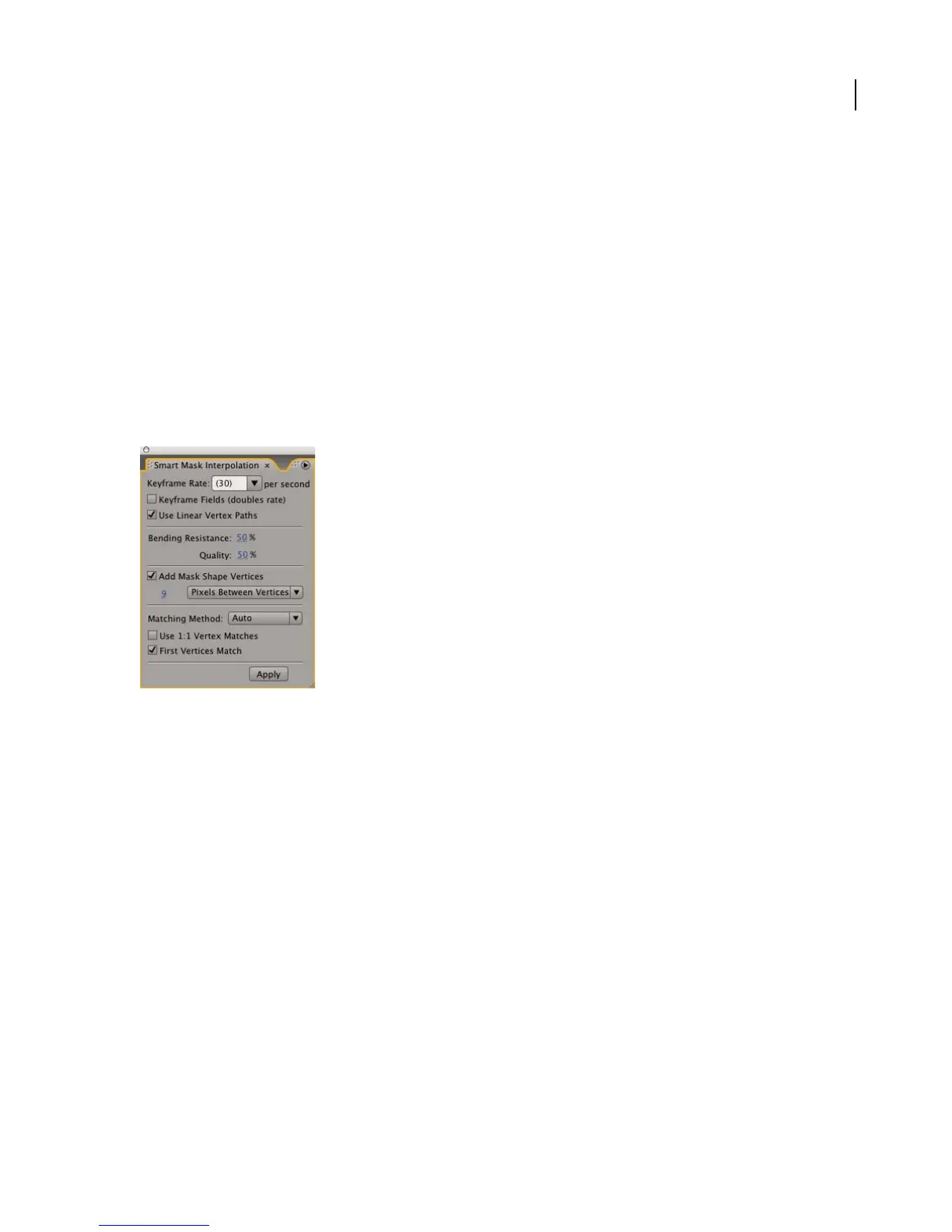
The Smart Mask Interpolation panel
See also
“About interpolation” on page 218
To use Smart Mask Interpolation
1
Choose Window > Smart Mask Interpolation.
2 Select at least two adjacent mask shape keyframes.
3 Set options in the Smart Mask Interpolation panel and click Apply.
Note: To interrupt the interpolation process, press Esc. The Info panel indicates that the process has been interrupted and
reports the number of keyframes created.
Smart Mask Interpolation options
Keyframe Rate Specifies the number of keyframes that Smart Mask Interpolation creates per second between the
selected keyframes. For example, a value of 10 creates a new keyframe every 1/10 of a second. Choose Auto to set the
keyframe rate equal to the composition frame rate, which appears in parentheses. Create more keyframes for
smoother animation; create fewer keyframes to reduce render time.



 To Next Page