ADOBE AFTER EFFECTS 7.0
User Guide
587
Pick-whip expression examples
Example: To turn a dial and illuminate a lamp
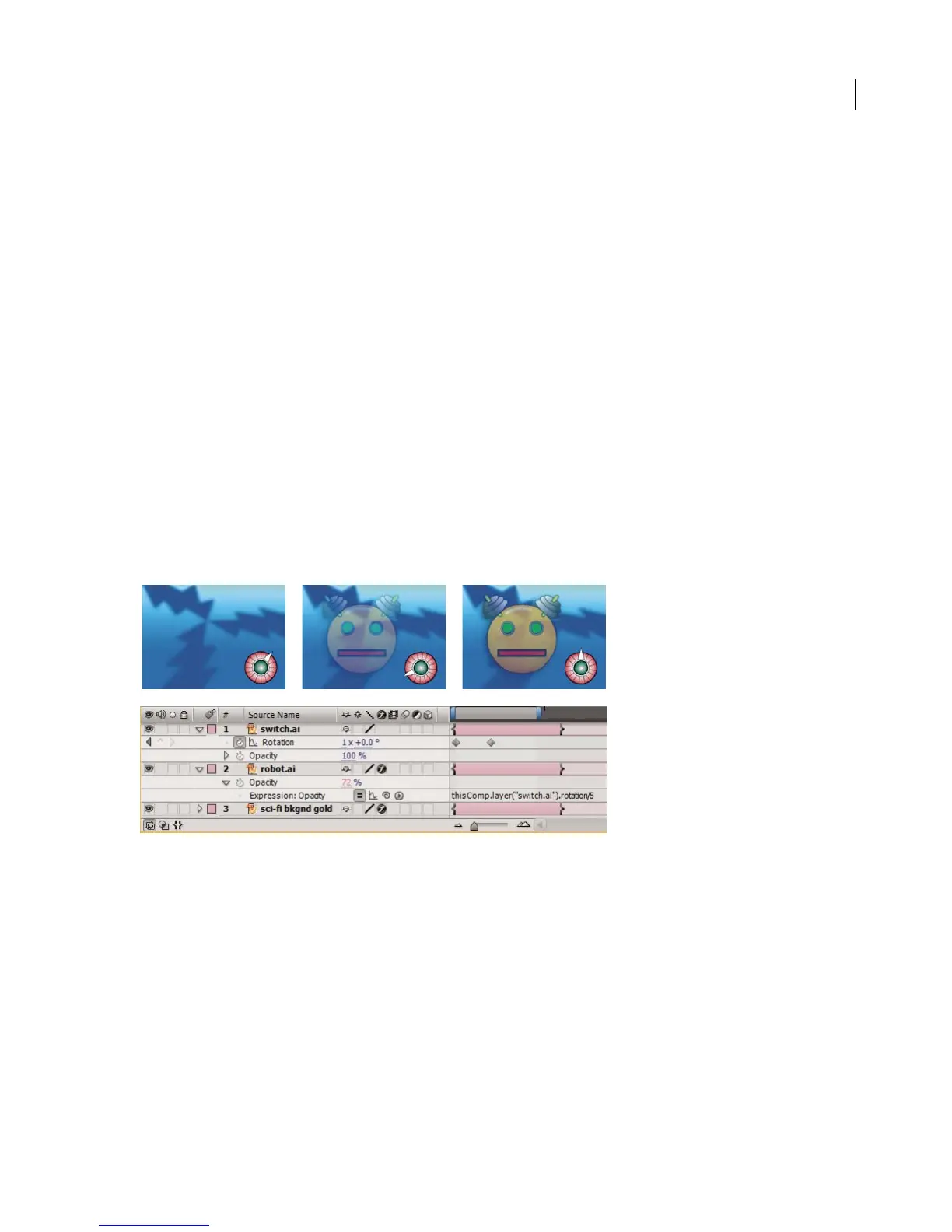
The following example shows how to use the pick whip to link opacity values to rotation values so that as rotation
changes, opacity changes, too. This expression could be used to simulate dimming a light bulb while rotating a dial.
1 Start with a composition containing two layers: one to be used as the switch that you’ll rotate, and one to be used
as the object that changes in opacity as you rotate the switch. This example uses two Adobe Illustrator files and
named one “robot” and the other “switch”. (See “About layers” on page 149.)
2 Create keyframes to animate the rotation of the switch layer. (See “Using keyframes” on page 192.)
3 Select the Opacity property for the robot layer and choose Animation > Add Expression. A default expression
appears under the property.
4 Click the pick whip next to the Opacity expression and drag it to the Rotation property for the switch layer. After
Effects automatically fills in the following expression:
thisComp.layer("switch.ai").rotation
5 Preview the animation. Notice that the Opacity property of the robot layer is animated, yet there are no opacity
keyframes. (See “Methods for previewing compositions” on page 134.)
Note: Make sure to use rotation values that are compatible with the Opacity property. For example, opacity values range
from 0 to 100, so rotating the switch layer backward using a negative value results in an opacity value of 0.
Expression linking opacity and rotation.
Example: To rotate the hands of a clock
The following example shows how to use the pick whip to link rotation values between layers. Quickly animate the
handsonaclocksothatasthehourhandmovesfromhourtohour,theminutehandrotatesthefullcircumference
of the clock face. This type of animation would take a long time to create if you had to set each keyframe for both
hand layers, but with the pick whip, you can do it in a matter of minutes.
1 Import or create two layers: an hour hand and a minute hand. (See “About layers” on page 149.)
2 Position them as if they were hands on a clock, and then set the anchor points for the hands at the center of the
clock. (See “About anchor points” on page 206.)
3 Set Rotation keyframes for the hour hand. (See “Using keyframes” on page 192.)
4 Select the Rotation property for the minute hand and choose Animation > Add Expression.



 To Next Page