ADOBE AFTER EFFECTS 7.0
User Guide
446
Evolution Options Because of the complexity of the cell shapes that generate the cell patterns, render time can be
great. For this reason, Evolution Options provide controls that render the effect for one short cycle and loop it for
the duration of your project. Use the controls below to create a smooth, progressive loop segment.
• Cycle Evolution Creates a loop that forces the evolution state to return to its starting point.
• Cycle Is available if Cycle Evolution is selected. Cycle specifies the number of revolutions (of the Evolution setting)
that the cell pattern cycles through before it repeats. For example, if you set the evolution to occur over five revolu-
tions and you set the Cycle value to 2, the evolution loops twice. The timing or speed of these Evolution cycles is
determined by the amount of time allowed between Evolution keyframes.
Note: The Cycle control affects only the state of the cell pattern, not geometrics or other controls. For example, two
identical states of the cell pattern don’t appear the same if viewed with different Size or Offset settings.
• Random Seed Specifies a unique random value from which to generate the pattern. Animating this control results
in flashing from one set of cell shapes to another of the same cell pattern type. For smooth transition of the cell
pattern, use the Evolution control.
Create new cell pattern animations by reusing previously created Evolution cycles and changing only the Random
Seed value. Typing a new Random Seed value alters the cell pattern without disturbing the evolution animation.
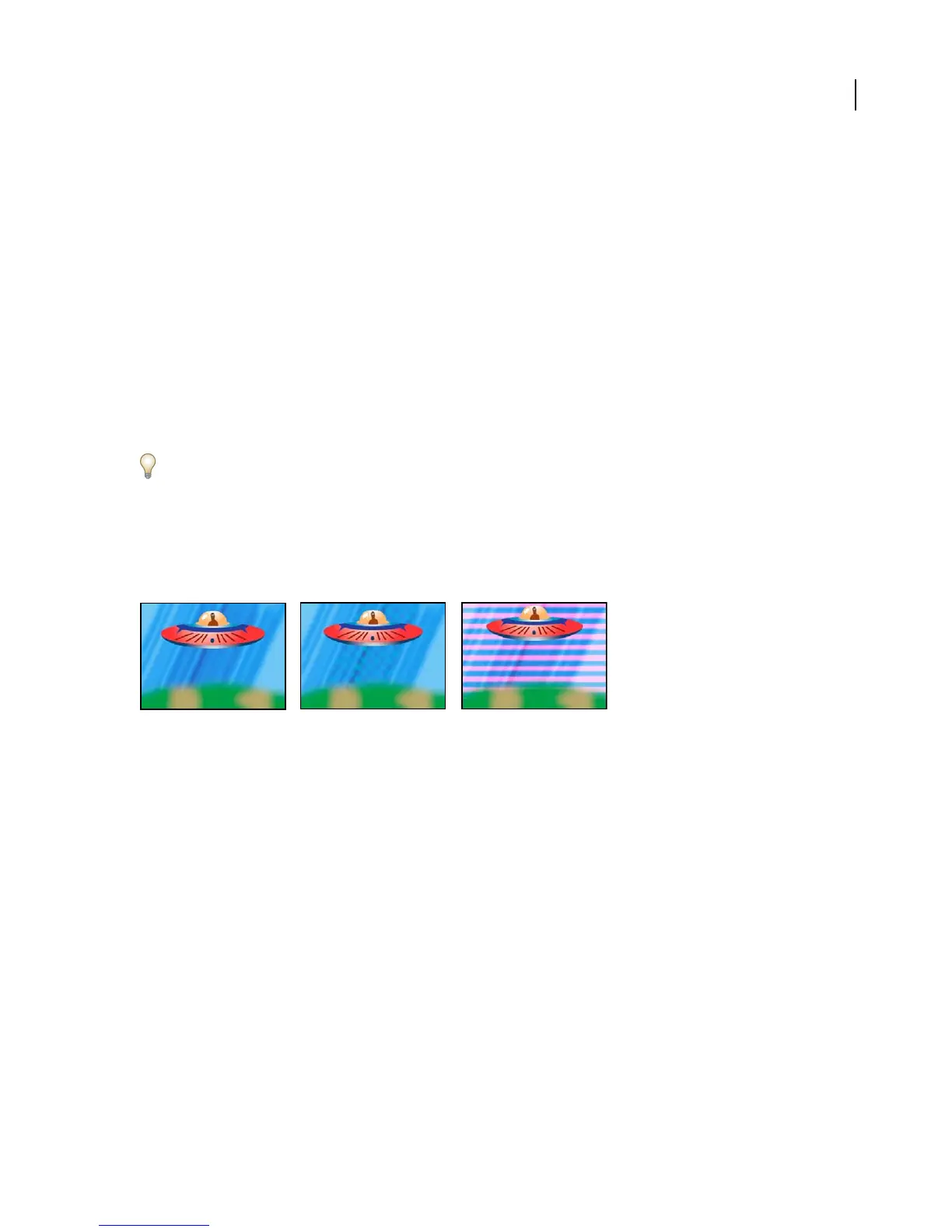
Checkerboard effect
The Checkerboard effect creates a checkerboard pattern.
This effect works with 8-bpc color.
A matching color produces a subtle effect (center); using red with high Width and low Height settings (right) creates a striped effect.
Adjust the following controls for the Checkerboard effect:
Anchor Specifies the point of origin, or anchor point, of the Checkerboard pattern. Moving the anchor point offsets
the pattern.
Size From Specifies how the effect defines the size of the squares. Choose one of the following options from
the menu:
• Corner Point Specifies that the spatial relationship between the corner point and anchor point controls deter-
mines the checkerboard size.
• Width Slider Specifies that the Width value determines the checkerboard pattern size and shape. The individual
checkered shape remains square because the Width value determines both width and height of the checkers.
• Width & Height Sliders Specifies that the Width and Height values determine the checkerboard pattern size and
shape. Choose this option to set the width and height of the checkered shapes independently.
Corner Specifiesthespatialrelationshipbetweenthecornerpointandtheanchorpoint.Theeffectusestheposition
of these two points to define the size of the checkerboard pattern if you choose Corner Point in the Size From menu.



 To Next Page