ADOBE AFTER EFFECTS 7.0
User Guide
525
This effect works with 8-bpc color.
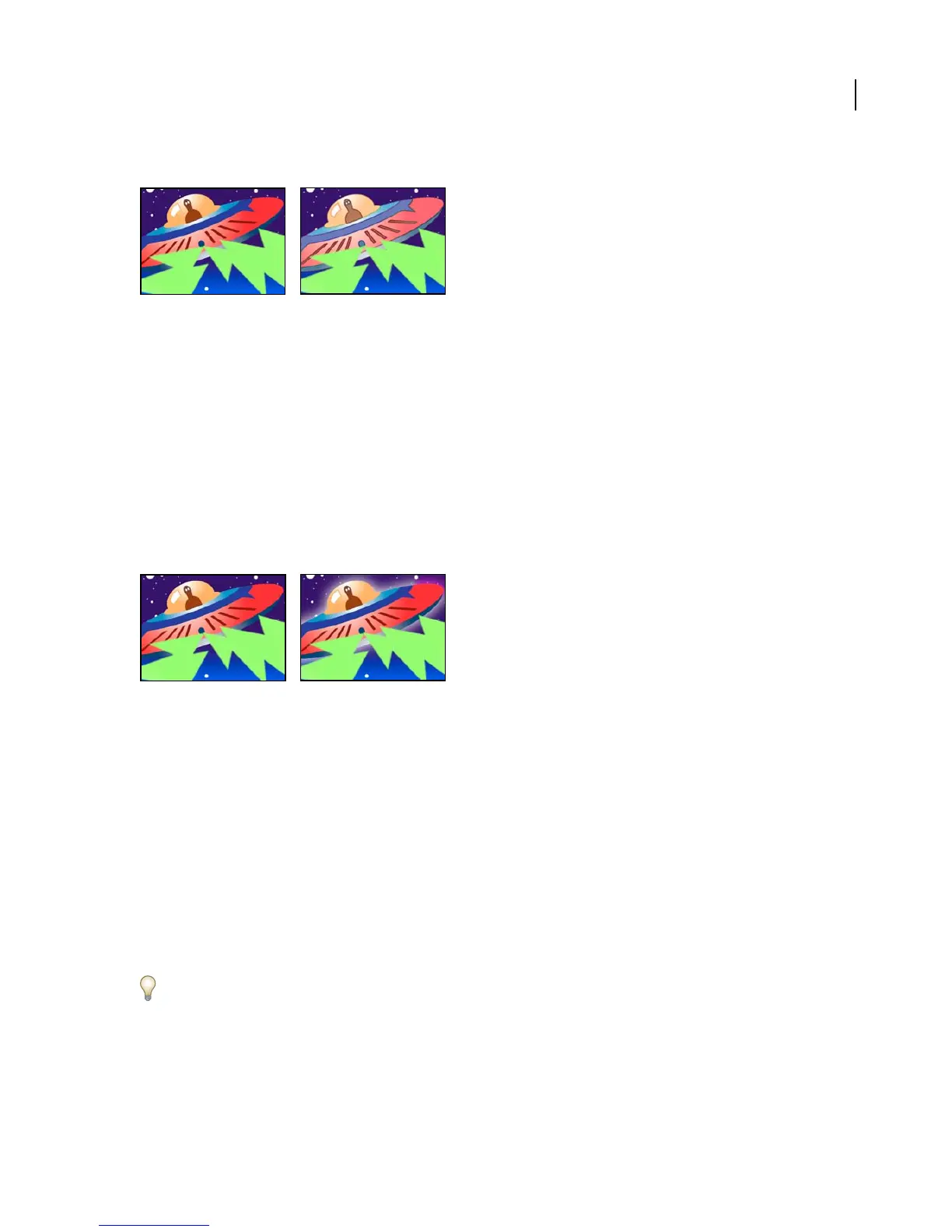
Original (left), and with effect applied (right)
Glow effect (Pro only)
The Glow effect finds the brighter parts of an image and then brightens those and surrounding pixels to create a
diffuse, glowing halo. The Glow effect can also simulate overexposure of brightly lit objects. You can base the glow
on either the original colors of the image or on its alpha channel. Glows based on alpha channels produce diffuse
brightness only at the edges of the image, between the opaque and transparent regions. You can also use the Glow
effect to create a gradient glow between two colors and to create multicolor effects with looping.
Rendering the Glow effect at Best quality can change the appearance of the layer. This is especially true if you are
using Adobe Photoshop arbitrary maps to color your glows. Be sure to preview your Glow effect at Best quality
before you render it.
This effect works with 8-bpc, 16-bpc, and 32-bpc color.
Original (left), and with effect applied (right)
Adjust the following controls for the Glow effect:
Glow Based On Specifies the properties on which you want to apply the glow.
Glow Threshold Sets a threshold as a percentage brightness to which the glow is not applied. A lower percentage
produces more glow; a higher percentage produces less.
Glow Radius Specifies the radius, in pixels, that the glow extends out from the bright areas of the image. Larger
values produce diffuse glows; smaller values produce glows with sharp edges.
Glow Intensity Sets the brightness of the glow. Higher values produce brighter glows.
Composite Original Specifieshowtocompositetheeffectwiththelayer.OnTopplacestheglowontopoftheimage,
using the blending method selected for Glow Operation. Behind places the glow behind the image, creating a
backlighting effect. None separates the glow from the image.
To reduce the layer to the glow only, choose None for Composite Original and None for Glow Operation. To achieve
a glow effect for text that knocks out (blocks) all layers below it, choose Silhouette Alpha for Glow Operation. These
glow effects are more noticeable when the image has a feathered edge.
Glow Colors Specifies the colors that glow. A & B Colors creates a gradient glow using the colors specified by using
the Color A and Color B controls. Arbitrary Map creates a gradient glow using colors specified in an arbitrary map



 To Next Page