ADOBE AFTER EFFECTS 7.0
User Guide
165
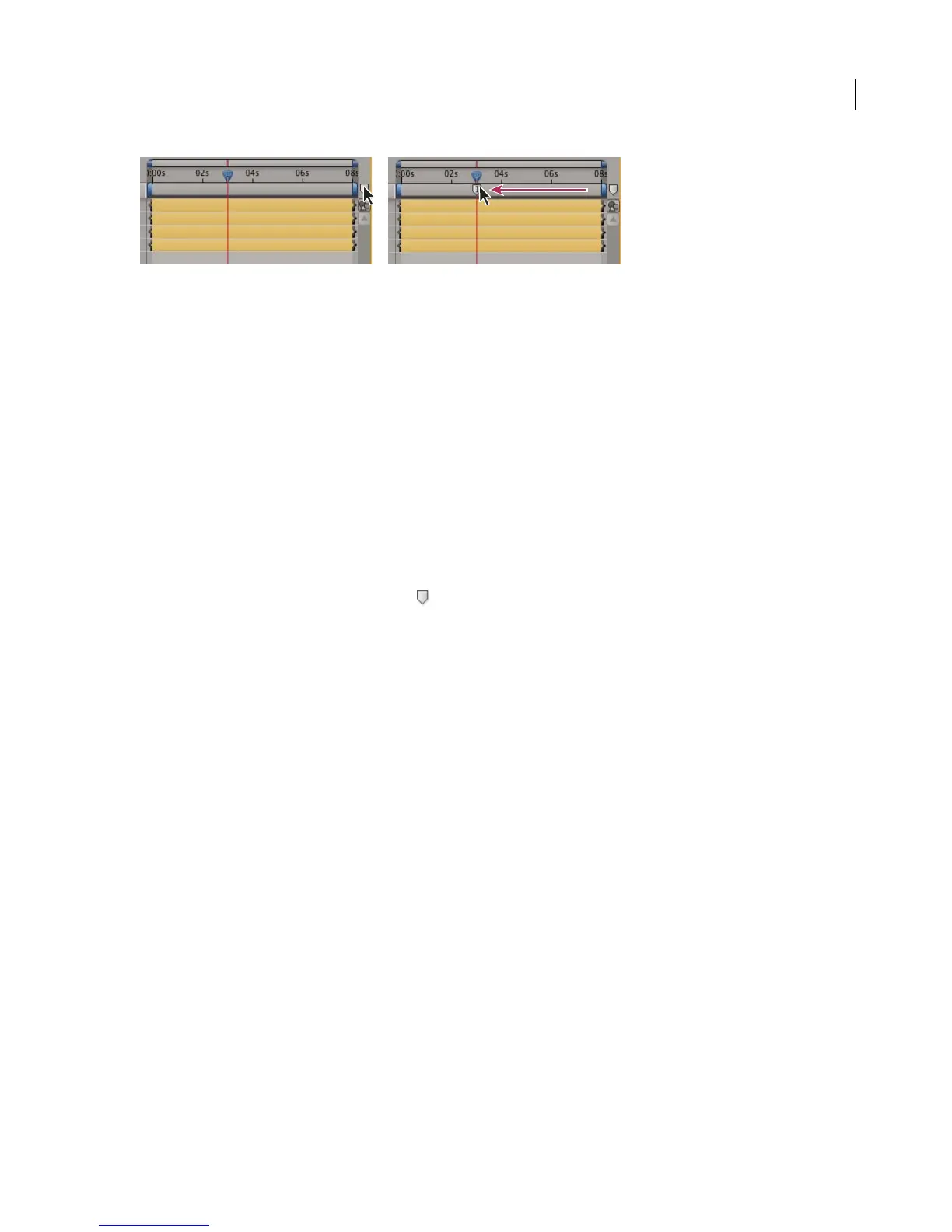
Dragging a composition time marker from the Comp marker bin.
• Move the current-time indicator to the position you want to mark and press Shift + a number key (0-9) on the
main keyboard.
Note: If the number you press is already used by another composition-time marker, After Effects does not create a new
marker. Instead, it moves the existing marker with that number to the new position.
To move a composition-time marker
Do one of the following:
• Drag the composition-time marker to another position in the Timeline panel.
• Move the current-time indicator to the position you want, and then press Shift + the number of the composition-
time marker you want to move.
To remove a composition-time marker
❖ Drag the marker onto the Comp marker bin on the Timeline panel.
Note: To delete markers on a layer, right-click (Windows) or Command-click (Mac OS) on a marker and choose Delete
This Marker or Delete All Markers from the menu that appears.
To add a layer-time marker
1 With the appropriate layer selected, move the current-time indicator to the frame you want marked.
2 Choose Layer > Add Marker.
3 Double-click the layer-time marker.
4 In the Marker dialog box, type a name or comment in the Comment box and click OK.
To move a layer-time marker
Do one of the following in the Timeline panel:
• Drag the layer-time marker to the desired time.
• Double-click the layer-time marker, and enter the desired time in the Marker dialog box.
To remove a layer-time marker
1 Press Ctrl (Windows) or Command (Mac OS) and move the pointer near the marker you want to remove.
2 When the pointer appears as a pair of scissors, click the layer-time marker.
Note: To delete all markers on a layer, right-click (Windows) or Ctrl-click (Mac OS) on a marker and choose Delete All
Markers from the menu that appears.



 To Next Page