ADOBE AFTER EFFECTS 7.0
User Guide
213
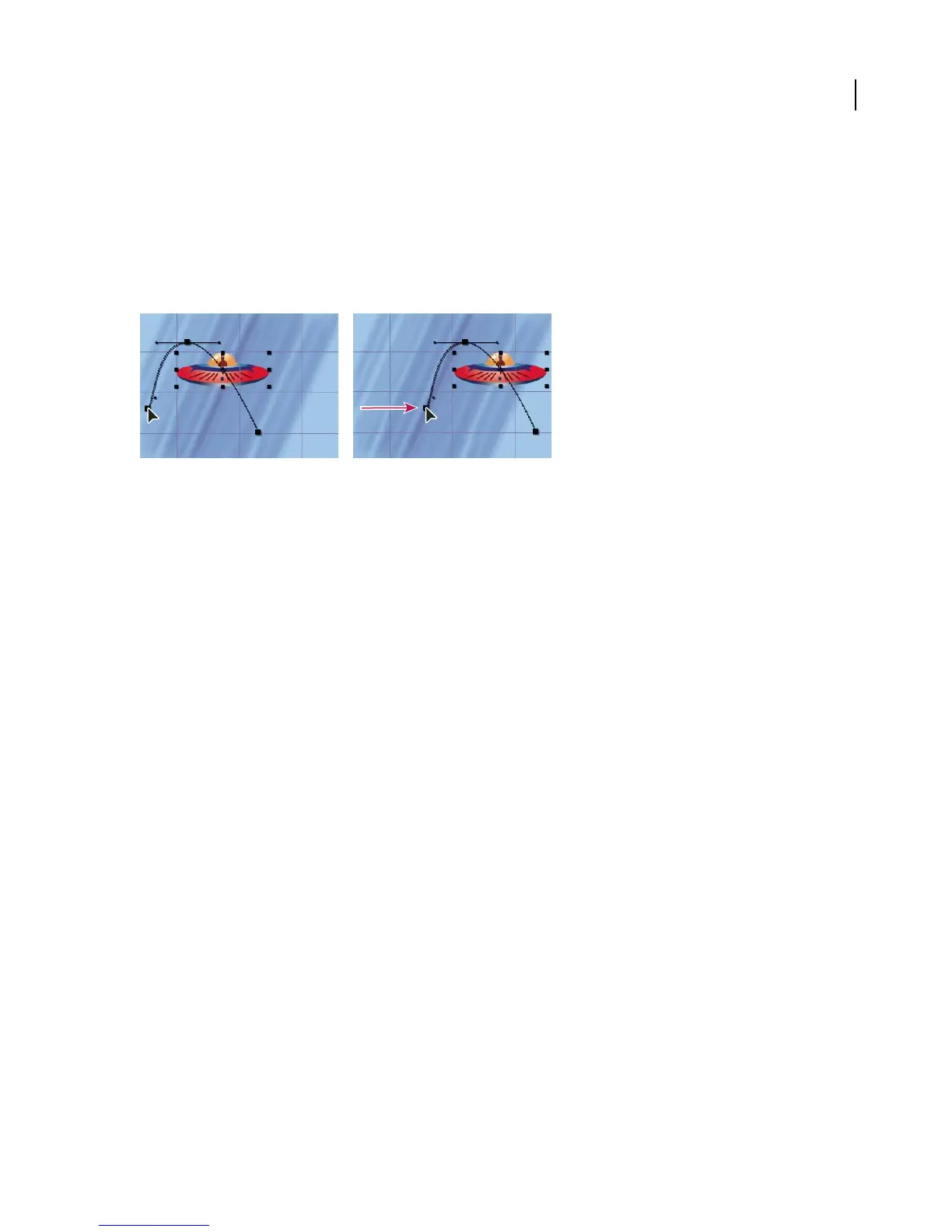
To move all points on a motion path in unison
1 Display the Composition and Timeline panels for a composition.
2 In the Timeline panel, select the layer containing the motion path you want to move.
3 Press P to open the Position property.
4 Click the word “Position” to select all Position keyframes.
5 In the Composition panel, click a keyframe with the Selection tool and drag the path to a new position.
Dragging the motion path by a keyframe
To sketch a motion path with Motion Sketch
You can draw a path for the motion of a selected layer using Motion Sketch, which records the position of the layer
andthespeedatwhichyoudraw.Asyoucreatethepath,AfterEffectsgeneratesapositionkeyframeateachframe,
using the frame rate specified in the composition.
Motion Sketch does not affect keyframes that you have set for other properties. For example, if you set rotation
keyframes for an image of a ball, you can use Motion Sketch to generate position keyframes, so that the ball appears
to roll along the path you created.
For a more fluid animation after you create a motion path using Motion Sketch, use the Smoother to eliminate
unnecessary keyframes.
1 In the Composition or Timeline panel, select the layer for which you want to sketch a motion path.
2 In the Timeline panel, set the work-area markers to the area in which you want to sketch motion.
3 Choose Window > Motion Sketch.
4 Select the appropriate Motion Sketch options:
Show Wireframe Displays a wireframe view of the layer as you sketch the motion path. In addition, you can see any
rotation or scaling that you have applied to the layer.
Show Background Displays the contents of the Composition panel while you sketch. This is useful if you want to
sketch motion relative to other images in your composition. After Effects does not show the animation of other
layers; however, while you sketch, After Effects displays only the first frame at the time you start sketching. If you do
not select this option, After Effects displays the motion path as a series of white dots on a black background.
5 If the composition contains audio, choose Window > Time Controls and click the Audio button to play all audio
in the composition as you sketch.
6 For Capture Speed At, set the capture speed of the motion by specifying a percentage for how fast the motion plays
back in relation to how fast you draw the path. Set the playback speed in one of the following ways:
• To set the playback speed to the exact speed at which you sketch, set the capture speed to 100%.
• To set the playback speed faster than the sketching speed, set the capture speed greater than 100%.



 To Next Page