149
Chapter 8: Layers
Creating and adding layers
About layers
Layers are the components you use to build a composition. Any item that you add to a composition—such as a still
image, moving image file, audio file, light layers, camera layers, or even another composition—becomes a new layer.
Without layers, a composition consists only of an empty frame.
Using layers, you can work with specific footage items in a composition without affecting any other footage. For
example, you can move, rotate, and draw masks for one layer without disturbing any other layers in the composition,
or you can use the same footage in more than one layer and use it differently in each instance.
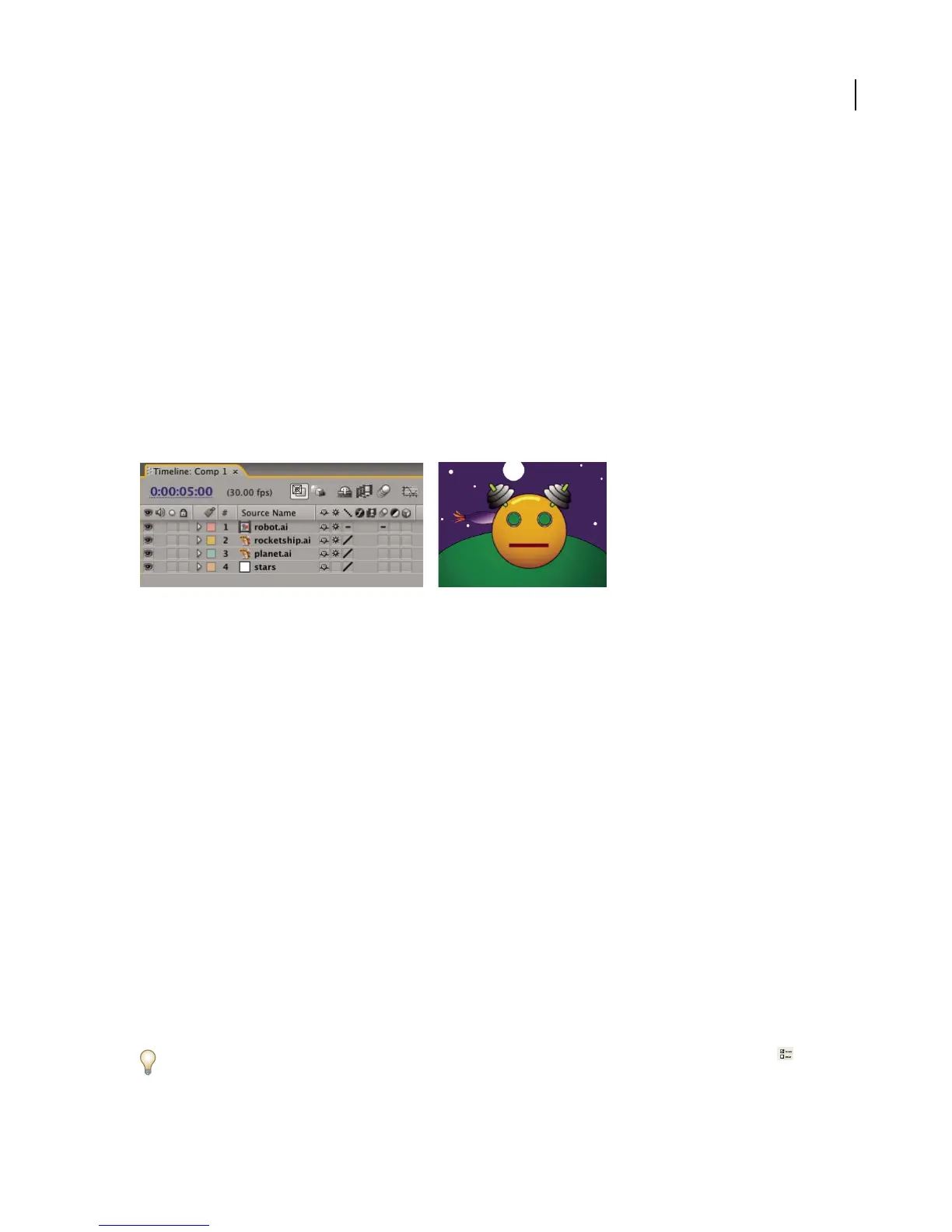
Four layers as viewed in the Timeline panel (left) and the Composition panel (right)
You can duplicate layers within a composition or even copy and paste layers from one composition to another. Use
as many layers as necessary to create your composition.
A layer can be any of the following:
• Any footage item in the Project panel list (including audio)
• Another composition in the project
• A text layer
• A solid, camera, or light layer
• An adjustment layer, which modifies all layers below it
• A duplicate of another existing layer
• A split layer
• A null object
After Effects automatically numbers all layers in a composition. By default, these numbers are visible in the Timeline
panel next to the layer name. The number reflects the position of that layer in the stacking order. When the stacking
order changes, After Effects changes all numbers accordingly.
Guide layers help you position or adjust the appearance of your other layers, but they don’t render to final output.
For additional information, go to Adobe Studio on the Adobe website.
Adobe periodically provides updates to software and Help. To check for updates, click the Preferences button in
Adobe Help Center, and then click Check For Updates. Follow the on-screen instructions.



 To Next Page