ADOBE AFTER EFFECTS 7.0
User Guide
269
matches the first vertices, the second vertices, the third vertices, and so forth. If the two shapes have unequal
numbers of vertices, this action may produce undesirable results.
First Vertices Match Specifies that Smart Mask Interpolation matches the first vertices in the two mask shape
keyframes. If not selected, Smart Mask Interpolation searches for the best first-vertex match between the two input
mask shapes.
Note: To ensure good results, make sure that the first vertices of the input mask shapes match, and then select First
Vertices Match.
Adjusting a mask and panning a layer behind a mask
YoucanadjusttheareathatisvisiblethroughamaskbyeithermovingthemaskintheLayerorCompositionpanel
or panning (moving) the layer behind the mask in the Composition panel. When you move a mask, the mask layer’s
Position values remain constant, and the mask moves in relation to other objects in the Composition panel.
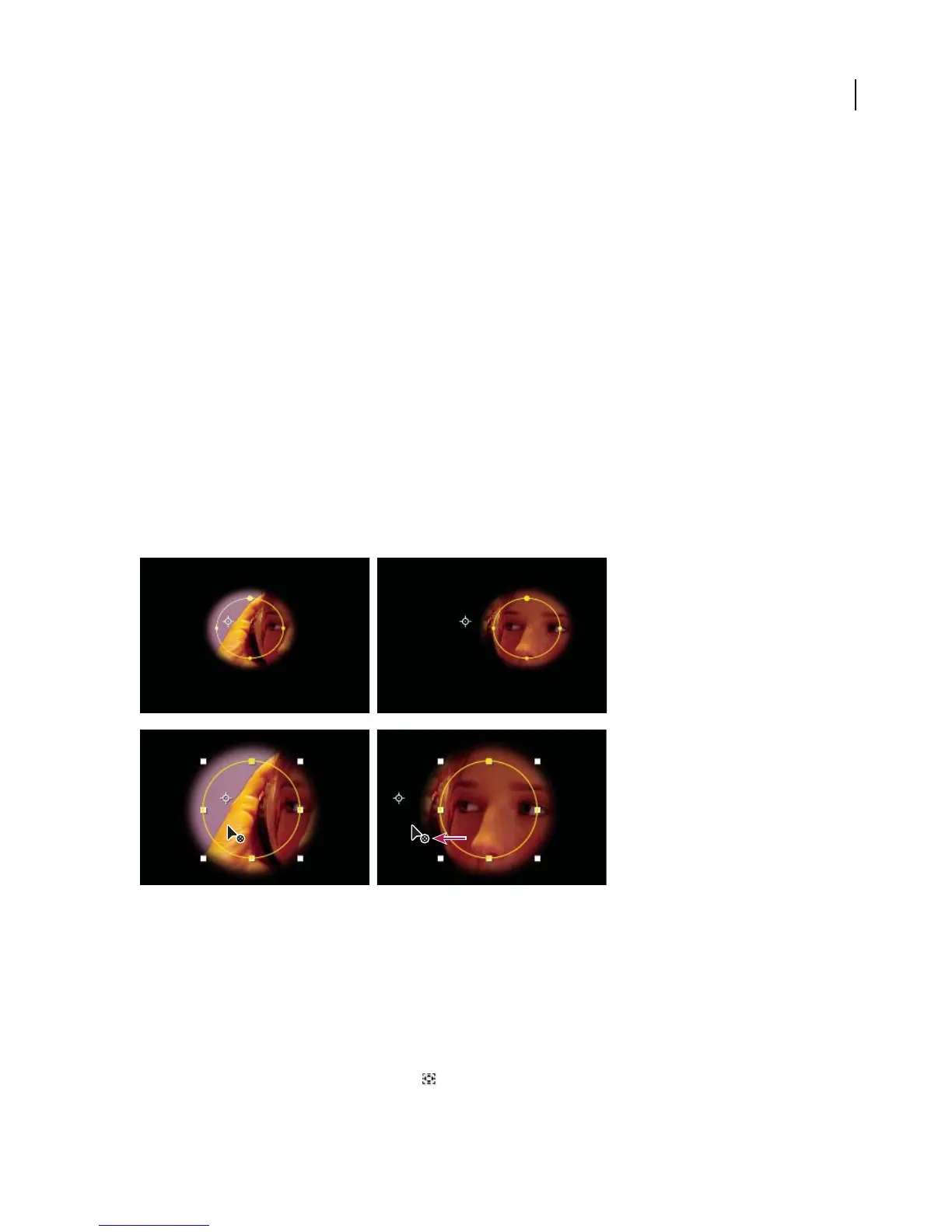
When you use the Pan Behind tool to pan a layer behind a mask, the mask’s position remains constant in the Compo-
sitionpanelbutchangesintheLayerpanel.Themaskedlayer’sPositionvalueschangeinrelationtothecomposition.
As you pan past the edges of the layer’s frame, the layer’s Mask Shape values also change. Using the Pan Behind tool
saves steps; without it, you would have to change the masked layer’s Position and Mask Shape properties manually.
Youcananimatealayerpanningbehindanotherlayerbysettingkeyframesforthemaskedlayer’sPositionandMask
Shape properties.
When you use the Pan Behind tool in the Composition panel, After Effects automatically makes two adjustments for you. In the Layer panel,
the mask is moved in relation to its layer (top), while in the Composition panel, the layer is moved in relation to the composition (bottom).
To move a mask
1
Select the mask or masks you want to move.
2 In the Composition panel, drag the mask or masks to a new location. To constrain the movement of the mask or
masks to horizontal or vertical, hold down Shift after you start dragging.
To pan a layer behind its mask
1
Select the Pan Behind tool in the Tools panel .



 To Next Page