ADOBE AFTER EFFECTS 7.0
User Guide
175
Using masks with 3D layers
You can draw a mask on any 3D layer in After Effects. The mask coordinates correspond to the layer coordinates in
2D space. However, the mask itself has no 3D properties except those of the layer itself, so you cannot draw a mask
along the z axis. However, once you’ve drawn the mask on the layer, the entire layer can be animated along the z axis.
Note: Applying masks or effects to a collapsed 3D composition may make it behave like a 2D layer. To avoid this, turn
off the Collapse Transformations switch in the Timeline panel.
Working with 3D layers
To designate a layer as 3D
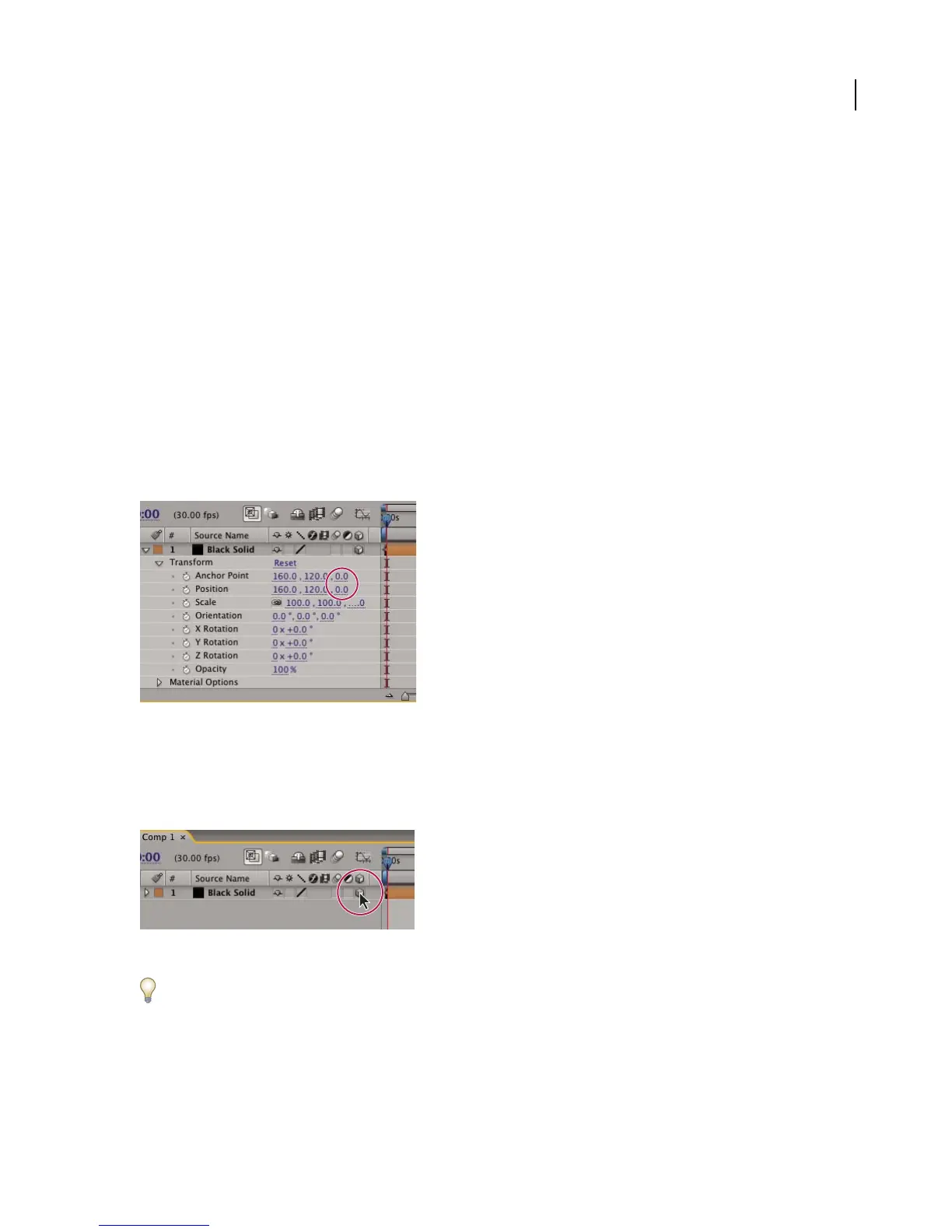
Designating a layer as 3D activates the additional layer properties: Position (z), Anchor Point (z), Orientation, X
Rotation, Y Rotation, Z Rotation, and Material Options. Material Options specify how the layer interacts with light.
When you use the 3D switch for a layer, you can add camera and light layers to take full advantage of the additional
dimension.
Z-axis values highlighted
❖ Do one of the following:
• Select the layer, and choose Layer > 3D Layer.
• In the Timeline panel, click the 3D layer switch for the layer.
3D layer switch
To view a set of persistent 3D reference axes in the Composition panel, select 3D Reference Axis from the Grids And
Guides menu. This option is only available if the current composition contains a 3D layer.
See also
“Material Options properties” on page 185



 To Next Page