ADOBE AFTER EFFECTS 7.0
User Guide
303
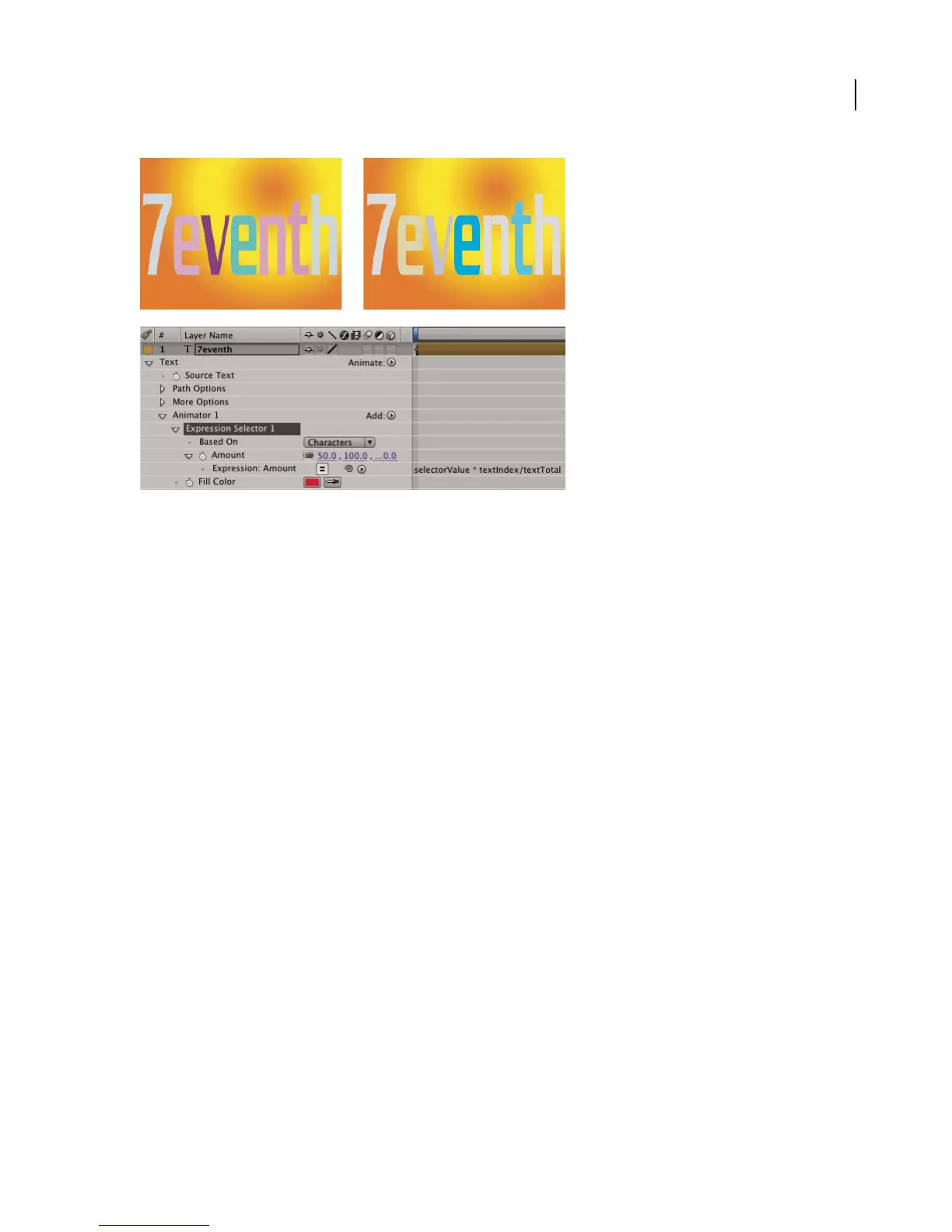
Fill color changes randomly using an expression animator.
See also
“About expressions” on page 555
To add an Expression selector to an animator group
1 In the Timeline panel, select an animator group.
2 Choose Selector > Expression from the Add menu.
Expand the Expression Selector property group and the Amount property group to reveal the expression field in the
timeline. By default, the Amount property begins with the expression
selectorValue * textIndex/textTotal.
See also
“About expressions” on page 555
Working with masks in text layers
Creating and animating text on a path
Once you create a mask in a text layer, you can make the text follow the mask as a path. You can then animate the
text along that path, or animate the path itself. You can use open or closed masks to create paths for text. After you
create the path, you can modify it at any time. When using a closed mask as a text path, make sure to set the mask
mode to None.
See also
“Creating masks” on page 244
“About mask modes” on page 264



 To Next Page