ADOBE AFTER EFFECTS 7.0
User Guide
430
4 Select Reverse Lens Distortion.
5 Remove Optics Compensation from the footage layer.
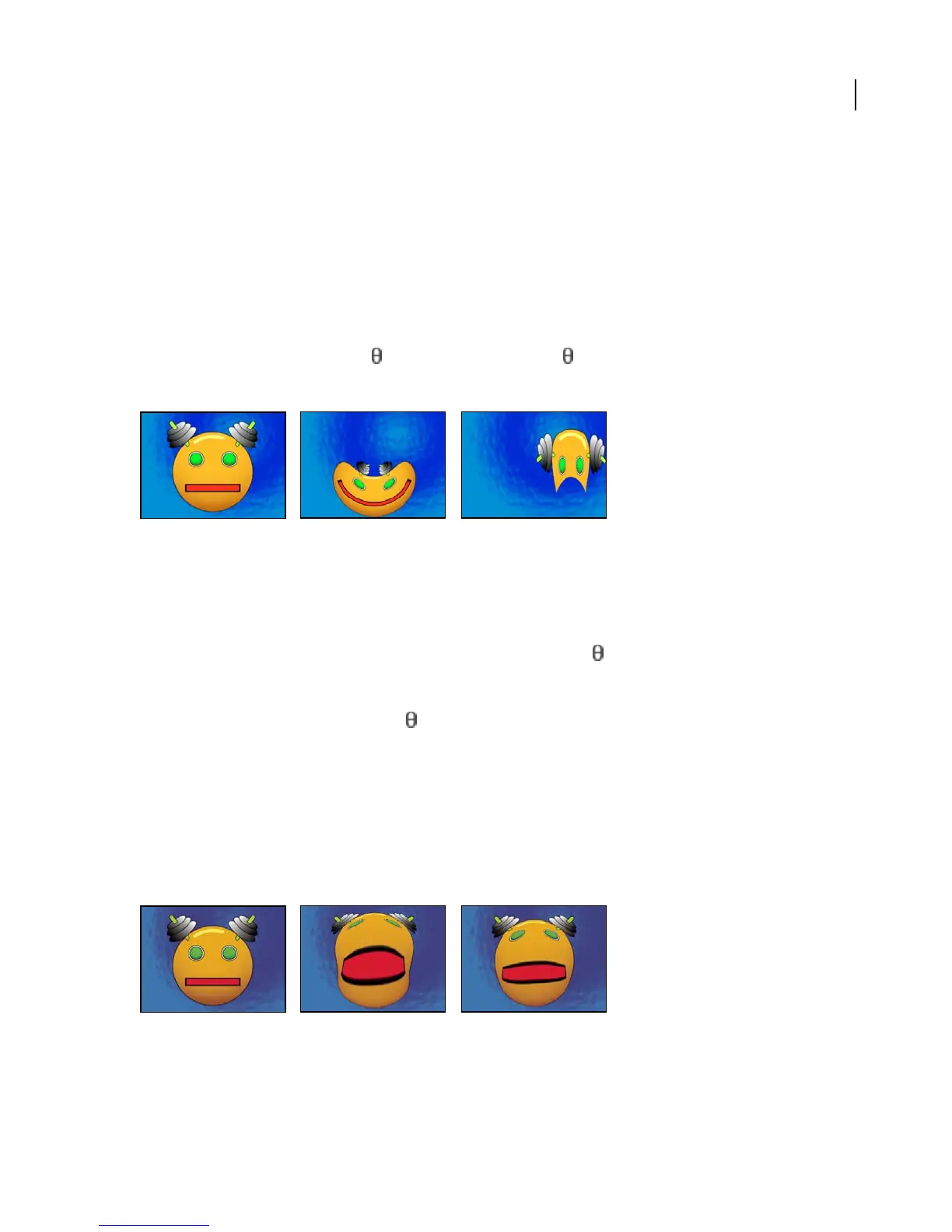
Polar Coordinates effect
The Polar Coordinates effect distorts a layer by transposing each pixel in the layer’s (x,y) coordinate system to the
corresponding position in the polar coordinate system, or the reverse. This effect produces unusual and surprising
distortions that can vary greatly depending on the image and the controls you select. The standard coordinate system
specifies points by measuring the horizontal distance (x axis) and the vertical distance (y axis) from the origin. Each
point is specified as (x,y). The polar coordinate system specifies points by measuring the length of a radius from the
origin (r) and its angle from the x axis ( ). Each point is specified as (r, ).
This effect works with 8-bpc and 16-bpc color.
Original (left) and with variations of Polar Coordinates applied (center and right)
Adjust the following controls for the Polar Coordinates effect:
Interpolation Specifies the amount of distortion. At 0% there is no distortion.
Type of Conversion Specifies the conversion process to use. Choose one of the following options:
• Rect To Polar Moves pixels by using (x,y) coordinates from each pixel as (r, ) coordinates. For example, an (x,y)
coordinate of (2,3) becomes a polar coordinate with a radius of 2 and a degree of 3. Horizontal lines distort into
circles, and vertical lines into radial lines.
• Polar To Rect Moves pixels by using the (r, ) coordinates from each pixel as the (x,y) coordinates. For example,
a polar coordinate of radius 10 and 45 degrees becomes an (x,y) coordinate of (10,45).
Reshape effect (Pro only)
The Reshape effect transforms one shape into another shape on the same layer, dragging the underlying image with
it. The image is distorted to fit the shape of the new area. You create or import up to three masks to define the area
you want to distort: the source mask, the destination mask, and the boundary mask (optional).
This effect works with 8-bpc and 16-bpc color.
Original including three masks (left) and with variations of Reshape applied (center and right)



 To Next Page