ADOBE AFTER EFFECTS 7.0
User Guide
423
Bottom Right Tangent, Bottom Left Tangent Specify the ending and starting tangents for the bottom segment.
Left Bottom Vertex Specifies the ending vertex for the bottom segment or the starting vertex for the left segment.
Left Bottom Tangent, Left Top Tangent Specify the ending and starting tangents for the left segment.
Quality Specifies how closely the image follows the shape defined by the curve. The higher the quality value, the
more closely the image follows the shape. Higher quality settings require more rendering time.
Bulge effect (Pro only)
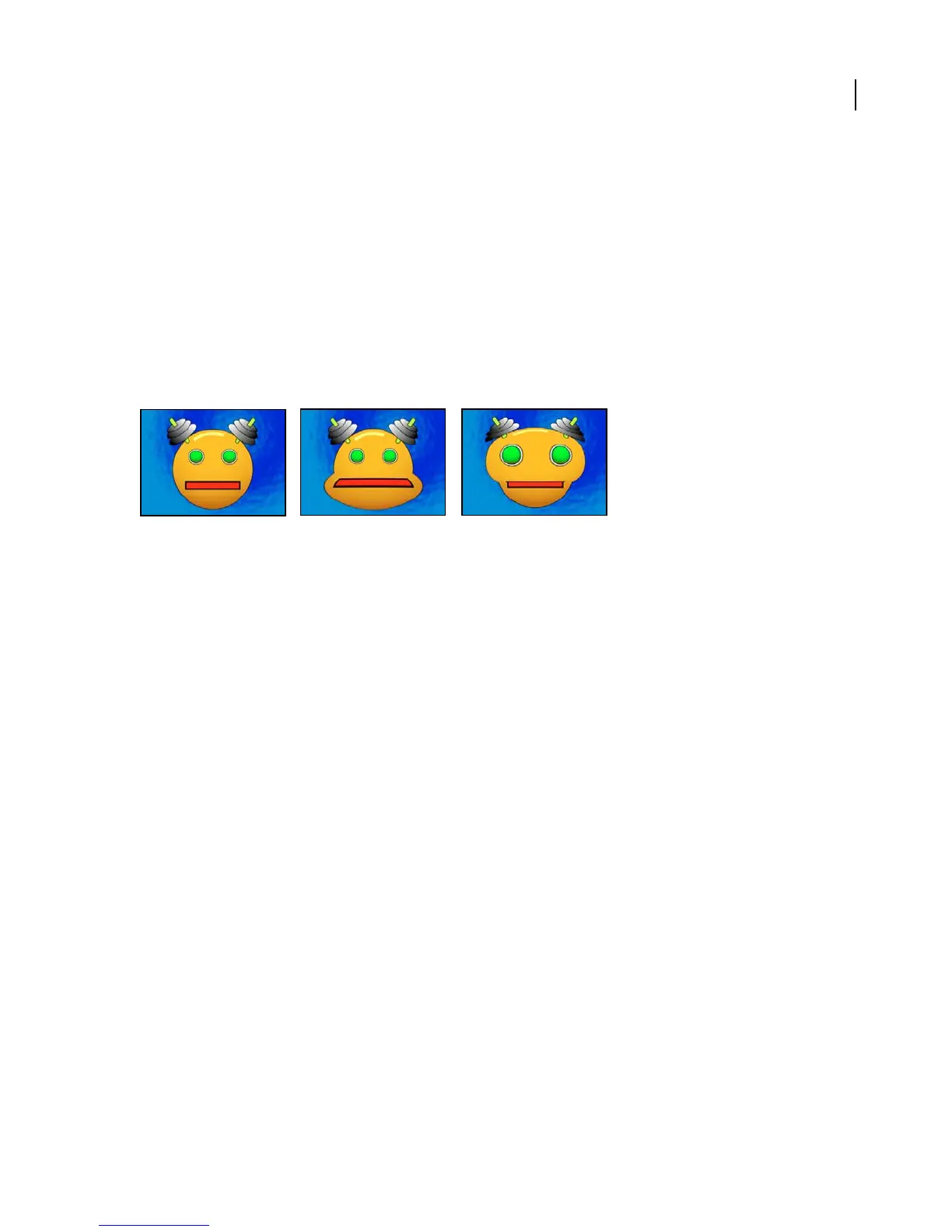
The Bulge effect distorts an image around a specified point, making the image appear to bulge toward or away from
the viewer, depending on the options you select.
This effect works with 8-bpc and 16-bpc color.
Original (left) and with variations of Bulge applied (center and right)
Adjust the following controls for the Bulge effect:
Horizontal Radius Sets the width of the bulge, measured in pixels. You can also set the radius values by dragging the
selection handles in the layer.
Vertical Radius Sets the length of the bulge, measured in pixels. You can also set the radius values by dragging the
selection handles in the layer.
Bulge Center Sets the center point from which the bulge is created.
Bulge Height Sets the depth of the bulge. Positive values push the bulge toward the viewer. Negative values pull the
bulge away from the viewer. A bulge height of 0 produces no bulge, which can be useful for setting keyframes so the
bulge fades in over time.
Taper Radius Sets the steepness of the sides of the bulge. A taper radius of 0 produces a steep, pronounced bulge.
Increasing the taper radius produces a more gradual bulge.
Antialiasing Sets the amount of edge smoothing (blending of colors) at the boundaries of the bulge. Anti-aliasing is
applied only when Best quality is selected for the layer. For many layers, Low produces satisfactory results. High
produces more smoothing but can significantly increase rendering time.
Pin All Edges Prevents the edges of the layer from bulging.
Corner Pin effect (Pro only)
The Corner Pin effect distorts an image by repositioning each of its four corners. Use it to stretch, shrink, skew, or
twistanimageortosimulateperspectiveormovementthatpivotsfromtheedgeofalayer,suchasadooropening.
YoucanalsouseittoattachalayertoamovingrectangularregiontrackedbytheMotionTracker.Youcanmovethe
corner pins in the Composition panel or the Effect Controls panel.
This effect works with 8-bpc and 16-bpc color.



 To Next Page