ADOBE AFTER EFFECTS 7.0
User Guide
338
Adding new track points (Pro only)
To use tracking data with expressions, you may want to track additional features. You can add track points by
choosing New Track Point from the panel options menu. Each new point tracks position only. You cannot apply the
additional tracking data directly to a target layer, but you can refer to the data in expressions. As with any tracking
data, it is stored with the motion source in a track and appears as keyframes in the Timeline panel. You generally
select the Raw tracking type if you plan to add track points and later use the data in expressions.
See also
“About expressions” on page 555
To move or resize the track point (Pro only)
In setting up motion tracking, it’s often necessary to refine your track point by adjusting the feature region, search
region, and attach point. You can resize or move these items independently or in groups by dragging with the
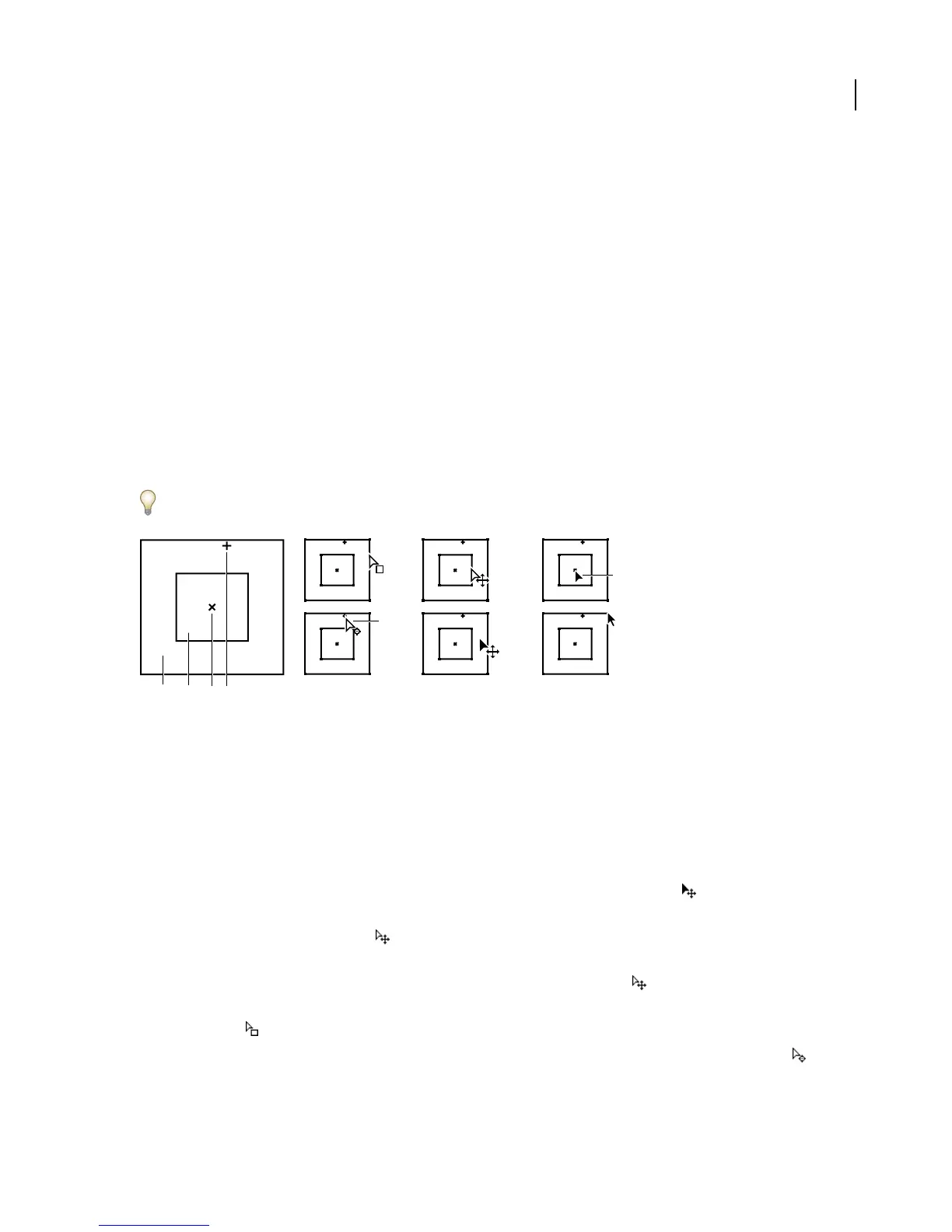
Selection tool, whose pointer icon changes to reflect one of many different activities. To help you define the area to
be tracked, the image area within the feature region is magnified to 400% while you move the region.
To zoom into or out of the feature region in a Layer panel, push your mouse wheel forward or backward.
Track point components (left) and Selection tool pointer icons (right)
A. Search region B. Feature region C. Keyframe marker D. Attach point E. Moves search region F. Moves both regions G. Moves entire track
point H. Moves attach point I. Moves entire track point J. Resizes region
Note: Beforeyoumoveorresizetheregions,ormovetheattachpoint,alwaysmakesurethatyourworkareadefinesthe
frames you want to track and that the current-time indicator is at the first frame.
• To turn on or off feature region magnification, choose Magnify Feature When Dragging from the Tracker
Controls panel menu. A check mark appears next to the option when it’s on.
• To move the feature region, search region, and attach point together, using the Selection tool, drag inside the track
point area (avoiding the region edges and the attach point); the Move Track Point pointer appears.
• To move just the feature and search regions together, drag the edge of the feature region with the Selection tool;
and then Move Both Regions pointer appears.
• To move just the feature and search regions together, Alt-drag (Windows) or Option-drag (Mac OS) with the
Selection tool inside the feature or search region; the Move Both Regions pointer appears.
• To move only the search region, using the Selection tool, drag the edge of the search region; the Move Search
Region pointer appears.
• To move only the attach point, using the Selection tool, drag the attach point; the Move Attach Point pointer
appears.
C DA
E
F
H
G
I
J
B



 To Next Page