ADOBE AFTER EFFECTS 7.0
User Guide
316
Clone Time Shift Specifies the number of seconds between the sample and the clone stroke. This property appears
only when Lock To Source is not selected.
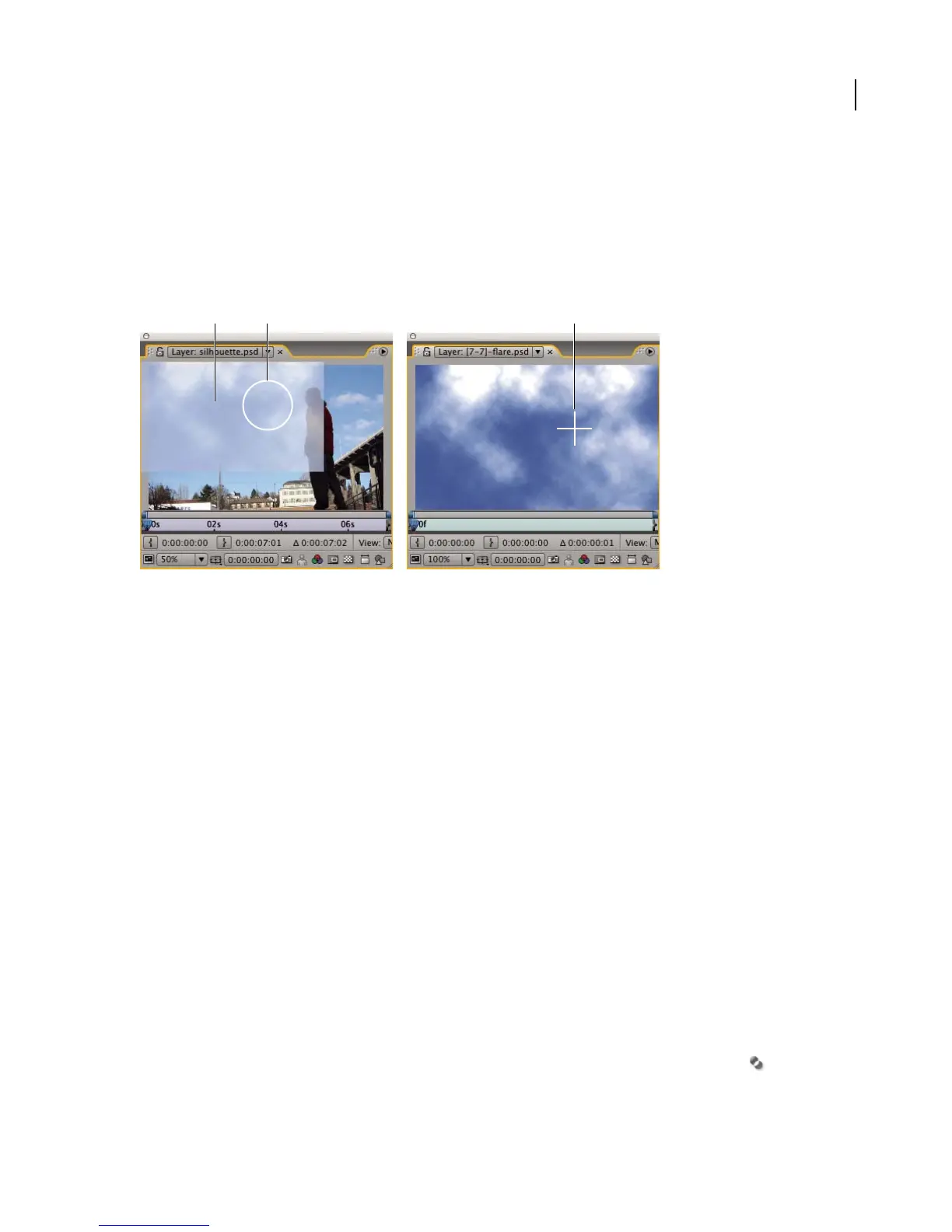
When using the Clone Stamp tool, you set a starting sample point (Source Position) in the source layer and then drag
inthetargetlayertoapplythesample.TohelpyouidentifywhattheCloneStamptoolissamplingasyouapplycloned
strokes, a cross-hair appears in the source layer wherever a point is sampled. You can identify the sampled area more
easily with the Clone Source Overlay option, which displays a semi-transparent image of the source layer over the
target layer as you work.
Displaying the clone source overlay while cloning between two different layers
A. Clone Source Overlay B. Current stroke point C. Current sampling point
The Aligned option affects the Clone Stamp tool’s sampling behavior. If Aligned is selected, the source layer is fixed
in position no matter how many strokes you apply; you can release the mouse button without losing the current
sampling point. As a result, the sampled pixels are applied continuously to reproduce the entire sampled area, no
matter how many times you stop and resume painting. If Aligned is deselected, each new stroke in the target layer,
no matter where they are applied, begins sampling from the same starting sample point (Source Position) in the
source layer.
To use the Clone Stamp tool with the Paint panel
1
Open a composition that contains both the source layer and the target layer.
2 Open the target layer in a Layer panel.
3 Move the current-time indicator in the Layer panel to the frame to which you want to apply the sample.
4 Select the Clone Stamp tool from the Tools panel.
5 Select a brush in the Brush Tips panel, and set brush options. Optionally, set the opacity, flow, blending mode,
channel, and duration in the Paint panel.
6 InthePaintpanel,choosethenameofthelayertosamplefromtheSourcemenu,orchooseCurrentLayertouse
the target layer as the source layer.
7 If you want to view the source layer as you apply strokes in the target layer, select Clone Source Overlay in the
Paint panel, and do any of the following:
• To change the clone source overlay’s transparency, adjust the % value next to the Clone Source Overlay option.
• To apply the Difference blending mode to the clone source overlay, click the Difference Mode button .
A
B
C



 To Next Page