ADOBE AFTER EFFECTS 7.0
User Guide
234
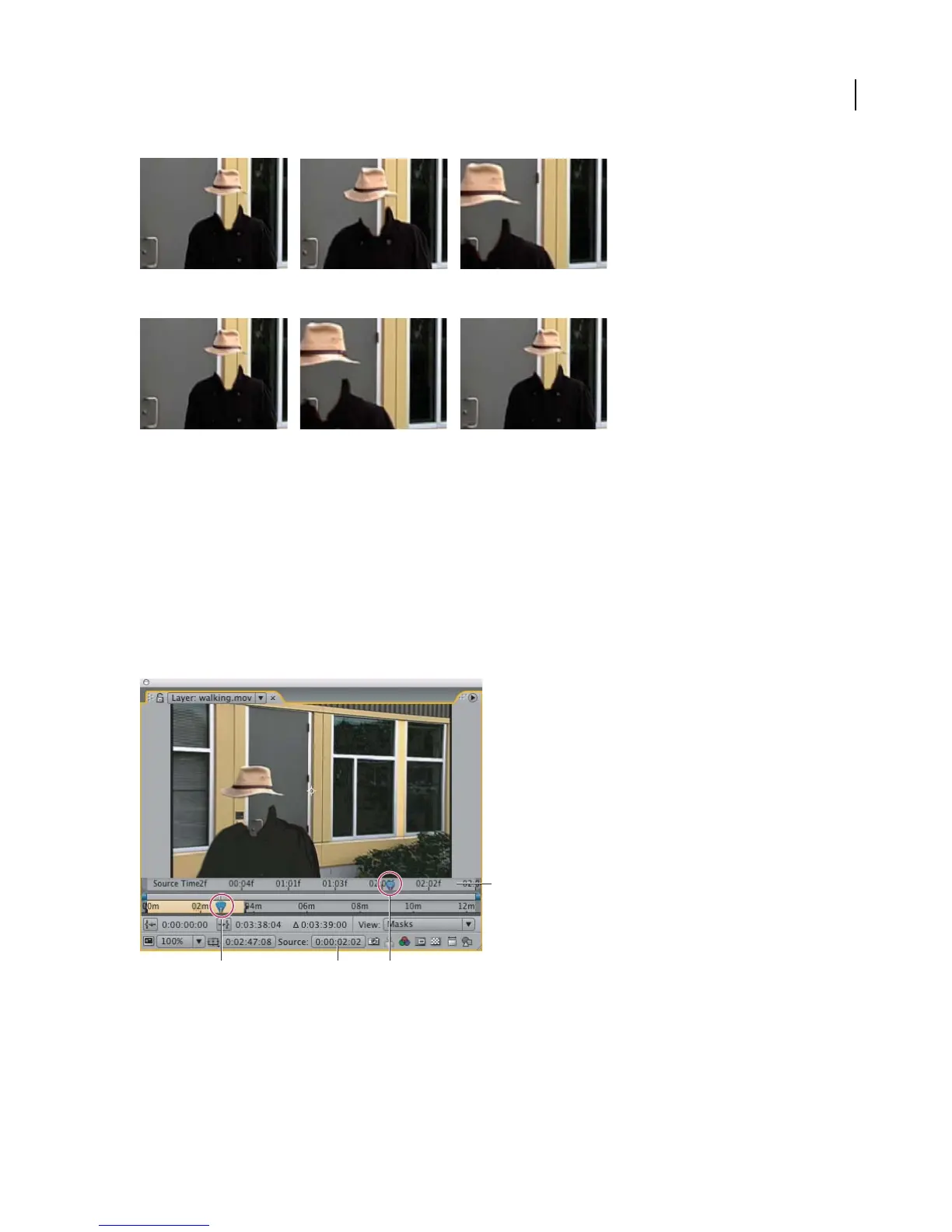
Footage is usually displayed at a constant speed in one direction.
Time-remapping distorts time for a range of frames within a layer.
You can also time-remap layers containing audio or both audio and video. When you apply time-remap to a layer
containing audio and video, the audio and video remain synchronized. You can remap audio files to gradually
decrease or increase the pitch, play audio backwards, or create a warbled or scratchy sound. Still-image layers cannot
be time-remapped.
YoucanremaptimeineithertheLayerpanelortheGraphEditor.Remappingvideoinonepaneldisplaystheresults
in both. Each provides a different view of the layer duration:
• The Layer panel provides a visual reference of the frames you change, as well as the frame number. The panel
displays the current-time indicator and a remap-time marker, which you move to select the frame you want to play
at the current time.
Layer panel for time remapping
A. Current-time indicator B. Time-remap value C. Remap-time marker D. Navigator bar
• The Graph Editor provides a view of the changes you specify over time by marking your changes with keyframes
and a graph similar to the one displayed for other layer properties. You must be familiar with using keyframes to
remap time in the Graph Editor.
A
B
C
D



 To Next Page