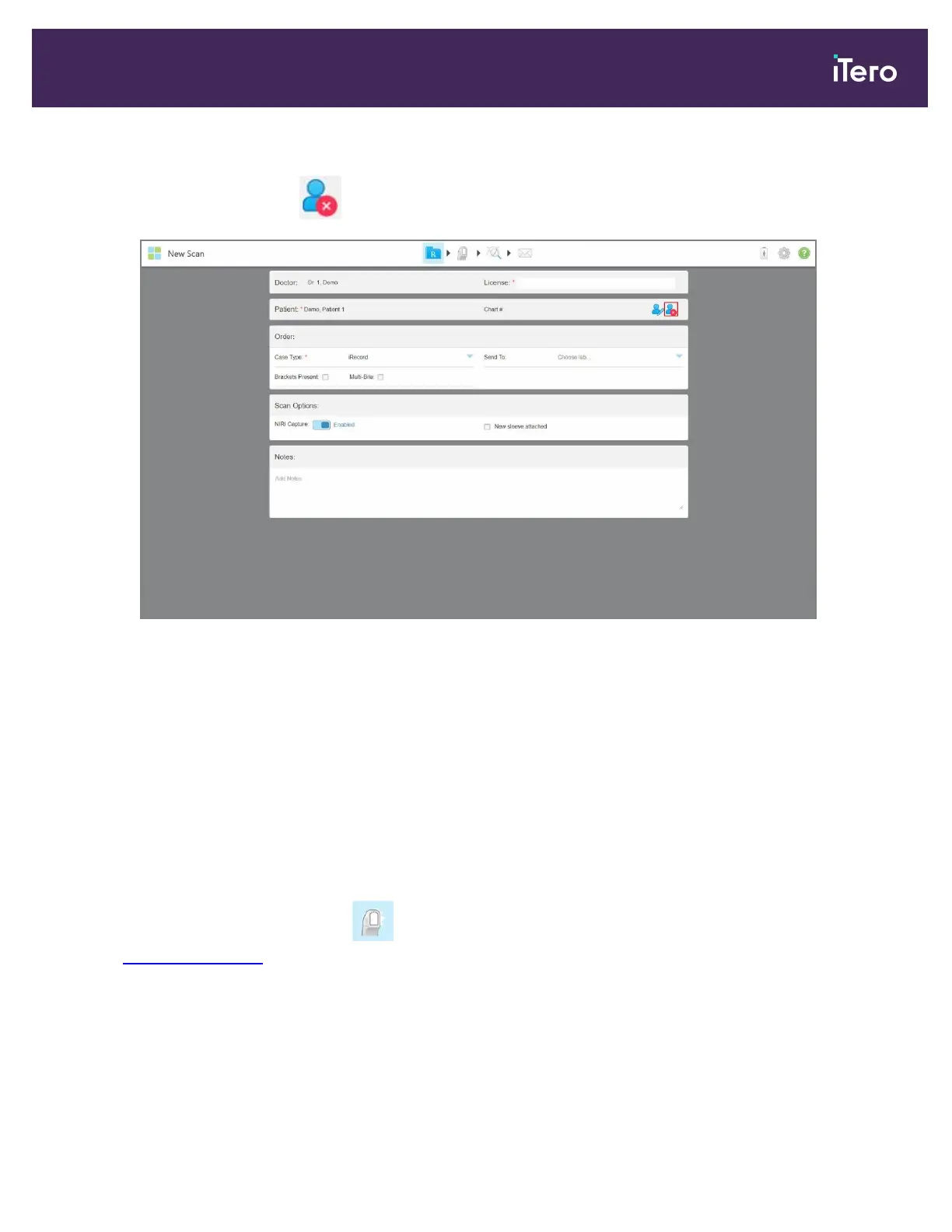
To clear the patient details from the New Scan window:
l
In the Patient area, tap .
Figure 92: Clear patient data button
All data is cleared from the New Scan window, and you can now add a new user or search for an existing user, if
required.
5.4 Filling in the Rx
The first step in the scanning process is filling in the Rx (prescription). The New Scan window enables you to
create a new patient or search for an existing patient. It also enables you to enter the details about the case type,
select whether to include NIRIdata in the scan, as well as add notes about the case. Fields marked with a red
asterisk are mandatory.
Note: NIRI technology is not supported by iTero Element 5D Plus Lite systems.
After you have filled in the Rx, tap to move to Scan mode and scan the patient, as described in
Scanning the patient.
iTero Element 5D and iTero Element 5D Plus imaging systems User manual
© 2022 Align Technology, Inc. All rights reserved. 95


 To Next Page