4.5.1 Scanner toolbar
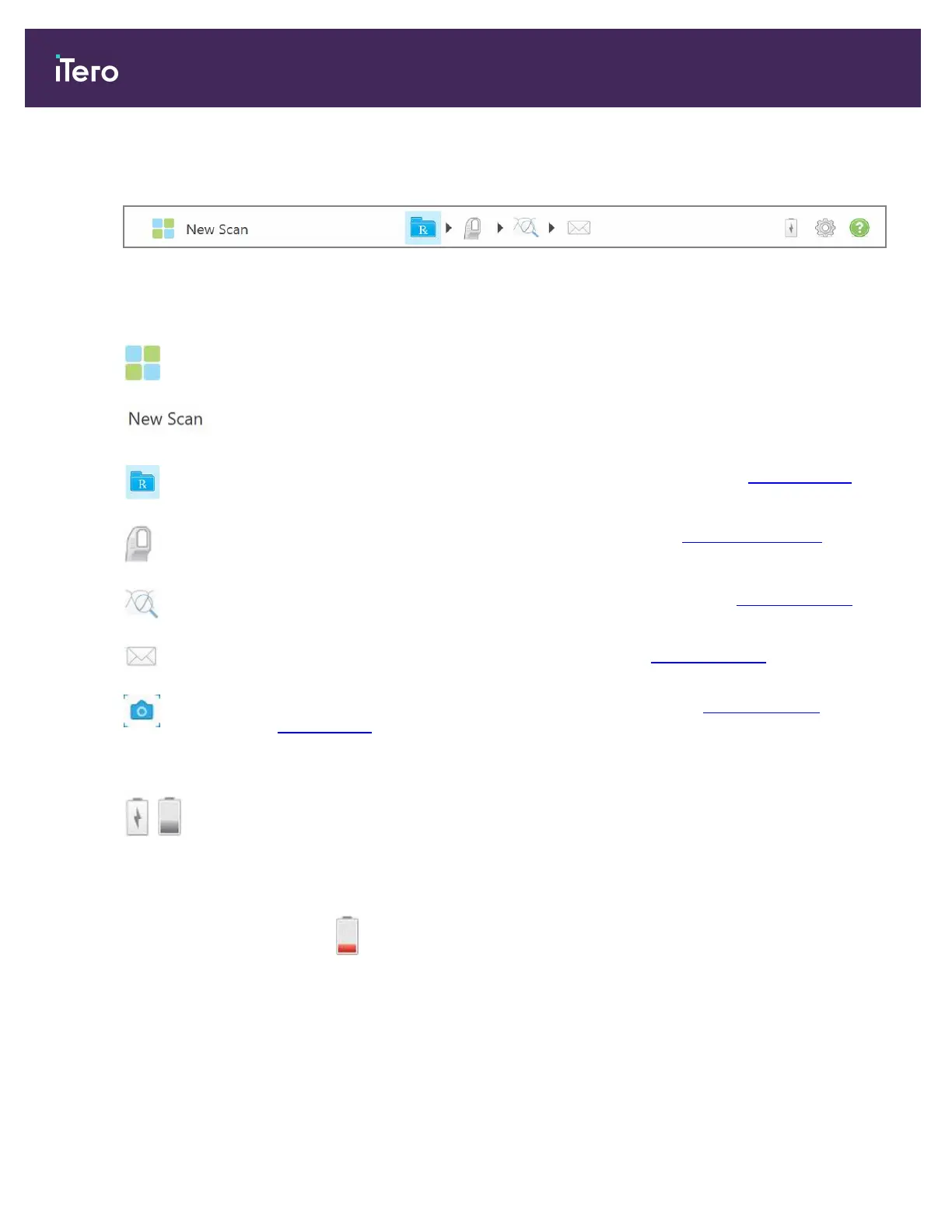
The following toolbar is displayed on the top of each of the scanner windows:
Figure 53: Scanner toolbar
The 4 center buttons indicate the current status of the scan process. Tap the buttons to navigate through the scan
flow.
Tap to return to the home screen.
Displays the current stage in the scanning process, also indicated by the relevant
highlighted button in the toolbar.
Tap to return to the New Scan window to view the Rx, as described in Filling in the Rx.
Tap to move to Scan mode to scan the patient, described in Scanning the patient.
Tap to move to View mode to view the scanned model, described in Viewing the scan.
Tap to send the scanned model to the lab, described in Starting the scan.
Tap to create a screenshot of the scanned model, described in Working with the
Snapshot tool.
Note: This button is displayed in View mode only.
/
Displays the status of the external battery:
l
A lightning bolt indicates that the scanner is connected to the power, and the battery
is charging.
l
When using battery power, the remaining charge level is displayed on the battery
icon. When the remaining charge level falls below 25%, the battery icon is displayed
in red .
iTero Element 5D and iTero Element 5D Plus imaging systems User manual
60 © 2022 Align Technology, Inc. All rights reserved.


 To Next Page