10.11.2Adjusting the brightness and contrast of images in the image pane
You can set the brightness and contrast of each of the images displayed in the image pane by adjusting the
relevant sliders in the brightness and contrast toolbar.
l
Brightness refers to the overall lightness or darkness of an image. Increasing thebrightnessmakes every pixel
in the image lighter, and vice versa.
l
Contrastis the difference inbrightnessbetween objects in an image. Increasing thecontrastmakes light
areas lighteranddark areas darker, and vice versa.
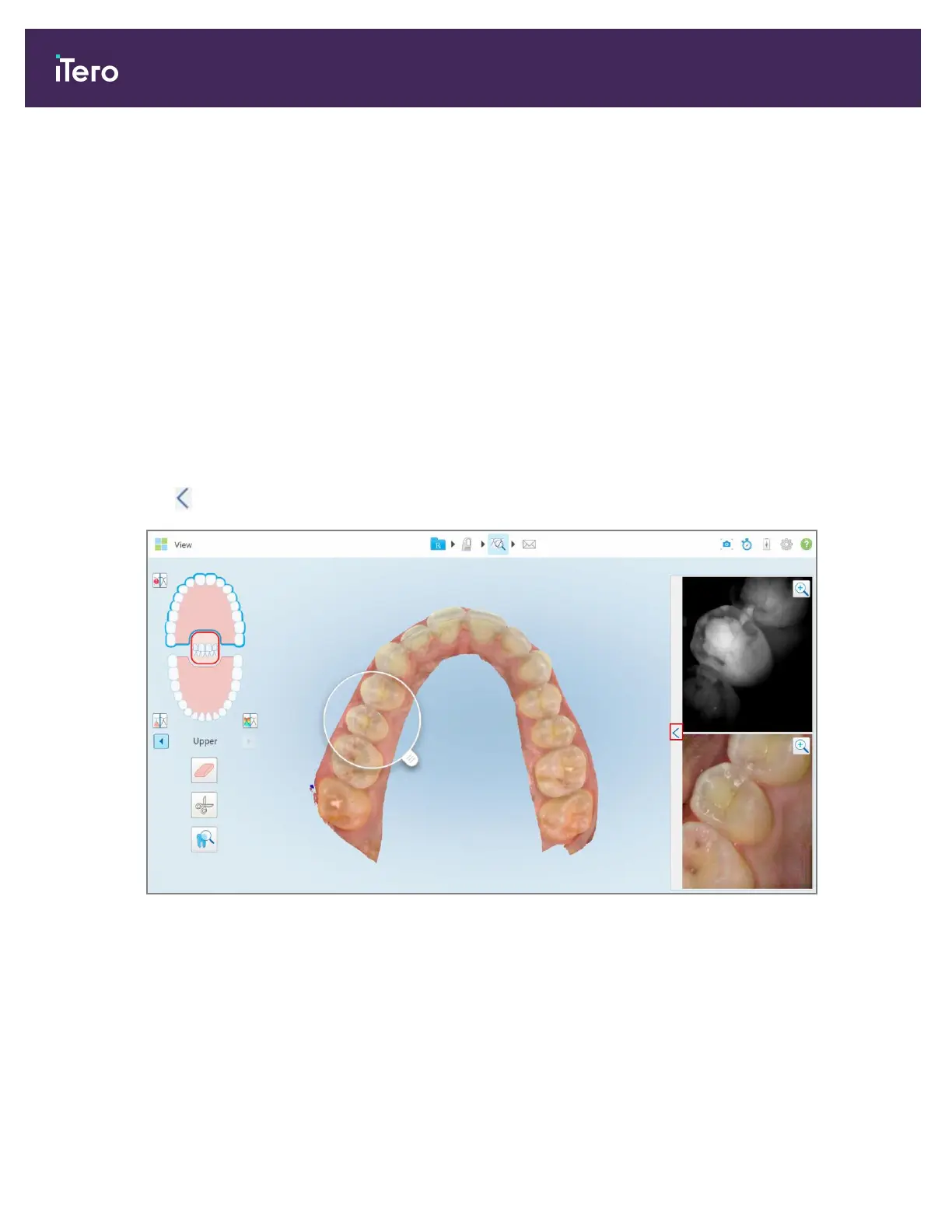
By default, the brightness and contrast toolbar is collapsed.
Note: The color and brightness controls are displayed only when images are displayed in the image pane, and not
when the loupe is in its default position in the right pane.
The contrast and brightness image controls are reset to their default values when selecting a different jaw, pushing
the loupe back to its default position, or when exiting the tool.
To adjust the brightness and contrast of the images in the image pane:
1.
Tap on the left edge of the image pane to display the brightness and contrast adjustment toolbar.
Figure 184: Brightness and contrast toolbar is collapsed
iTero Element 5D and iTero Element 5D Plus imaging systems User manual
170 © 2022 Align Technology, Inc. All rights reserved.


 To Next Page