4.1.2 Installing Windows security updates
Whenever the iTero software is upgraded, any relevant Windows security updates will be downloaded on the
scanner and will be available for installation, in order to support the continuous cyber security of the scanner.
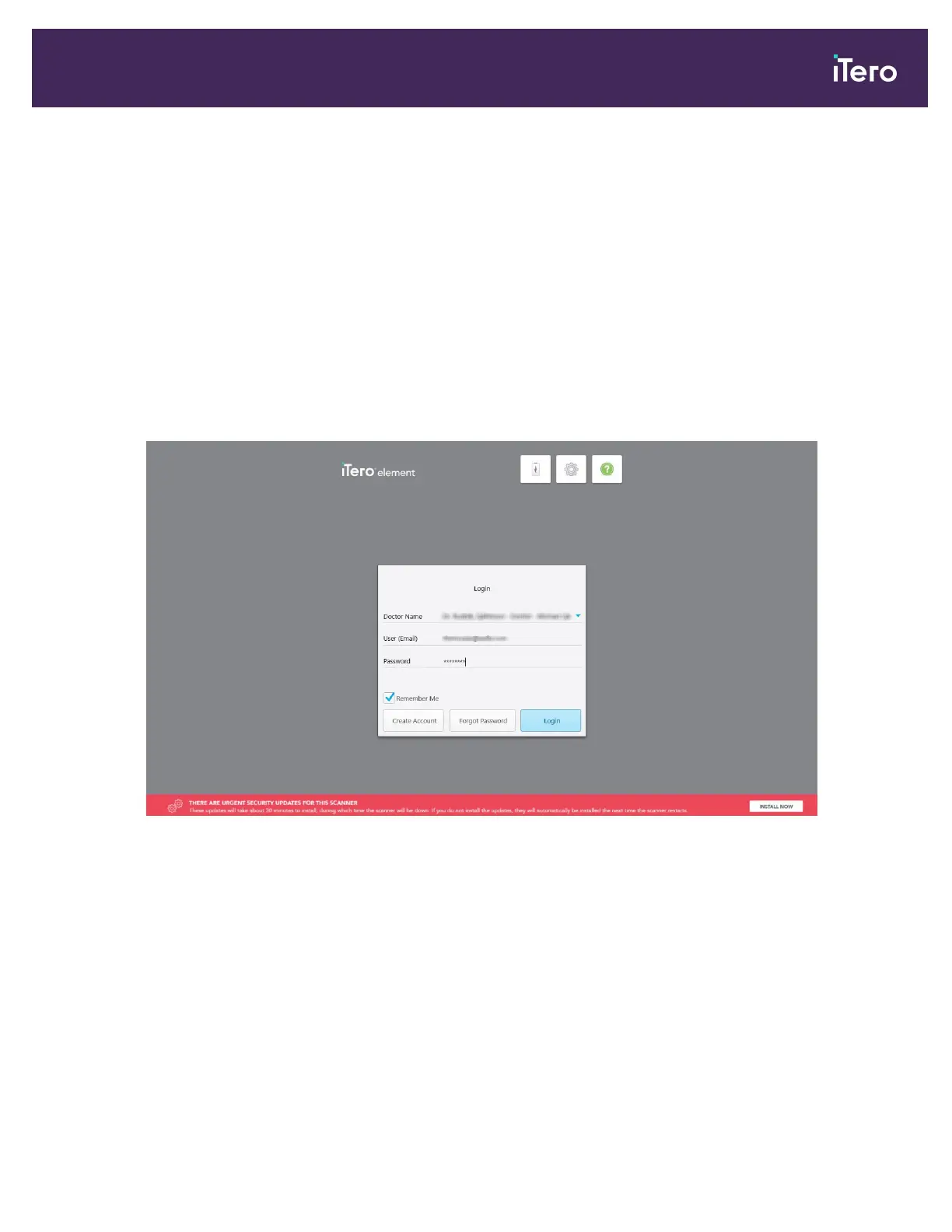
As soon as these Windows security updates are ready to be installed, you will receive a notification on the scanner
Login window and the home screen.
Installing the updates should take about half an hour, during which time the scanner cannot be used. It is
recommended to install them after your last patient of the day, or at any time that is convenient for you.
Note: If you ignore the message and do not install the updates, they will be installed automatically the next time
the scanner is restarted. Once the installation starts, it cannot be paused or canceled.
To install the security updates:
1. In the Login window or the home screen, tap INSTALL NOW.
Figure 44: Login window with notification about Windows security updates
iTero Element 5D and iTero Element 5D Plus imaging systems User manual
© 2022 Align Technology, Inc. All rights reserved. 51


 To Next Page