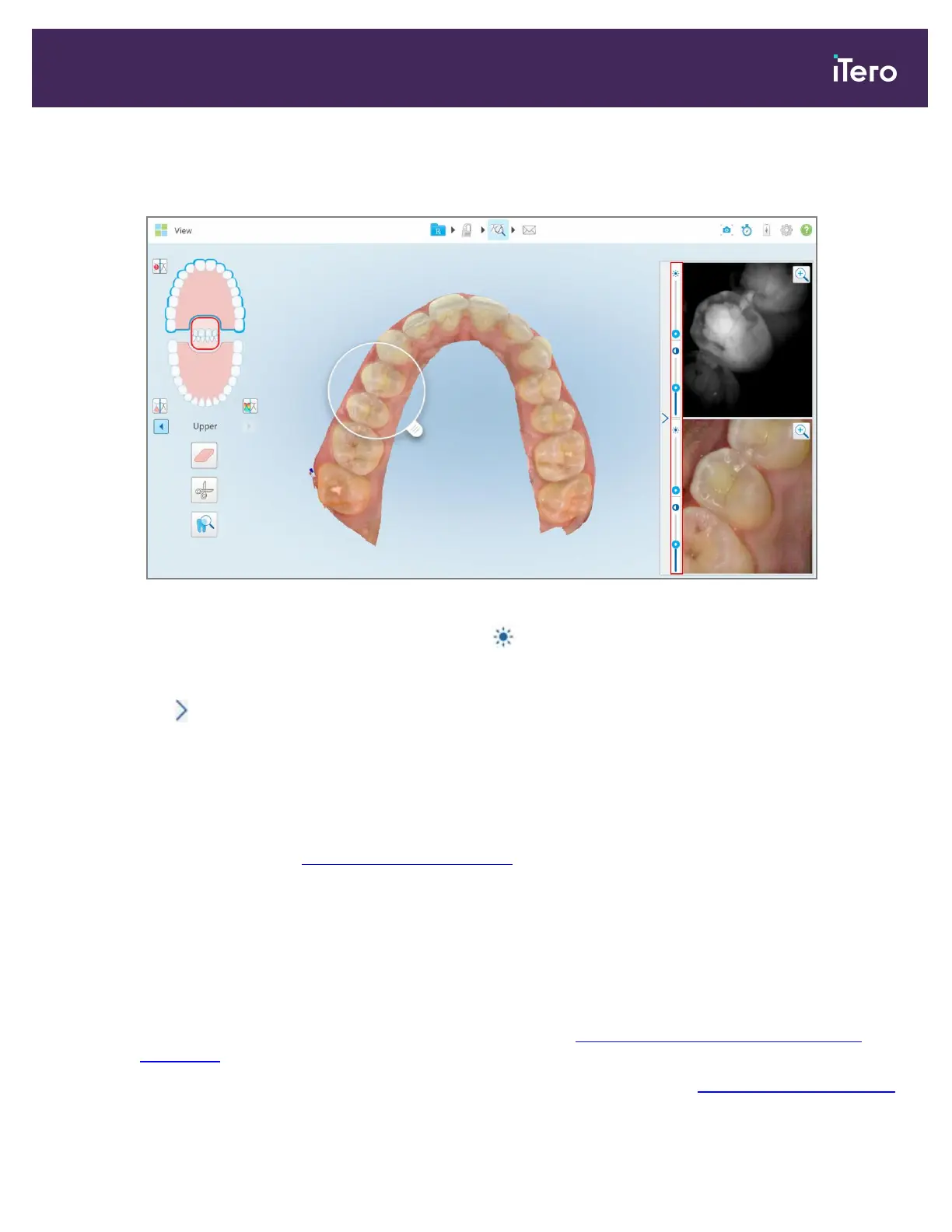
A brightness and contrast adjustment toolbar is displayed on each of the windows in the image pane. By
default, the brightness level is set to the lowest position and the contrast is set to the middle position.
Figure 185: Brightness and contrast toolbars
2.
Move the slider up or down to adjust the brightness or contrast.
Tip: You can tap anywhere in the slider area and drag up or down to adjust the settings.
3.
Tap to collapse the toolbar.
10.11.3Capturing the Review tool images
If required, you can capture the images displayed when using the Review tool. These images become part of the
patient’s export package, and can later be downloaded from MyiTero.
For more information, see Working with the Snapshot tool
10.12 Working with the Review tool (iTero Element 5D Plus Lite)
The View mode includes a Review tool that enables you to view the colored intraoral images captured during the
scan, for every area of interest. These images are displayed in the image pane, on the right of the View window.
In addition, you can:
l
Zoom in and out of the image in the image pane, as described in Zooming in to and out of the images in the
image pane
l
Adjust the brightness and contrast of the image in the image pane, as described in Adjusting the brightness and
iTero Element 5D and iTero Element 5D Plus imaging systems User manual
© 2022 Align Technology, Inc. All rights reserved. 171


 To Next Page