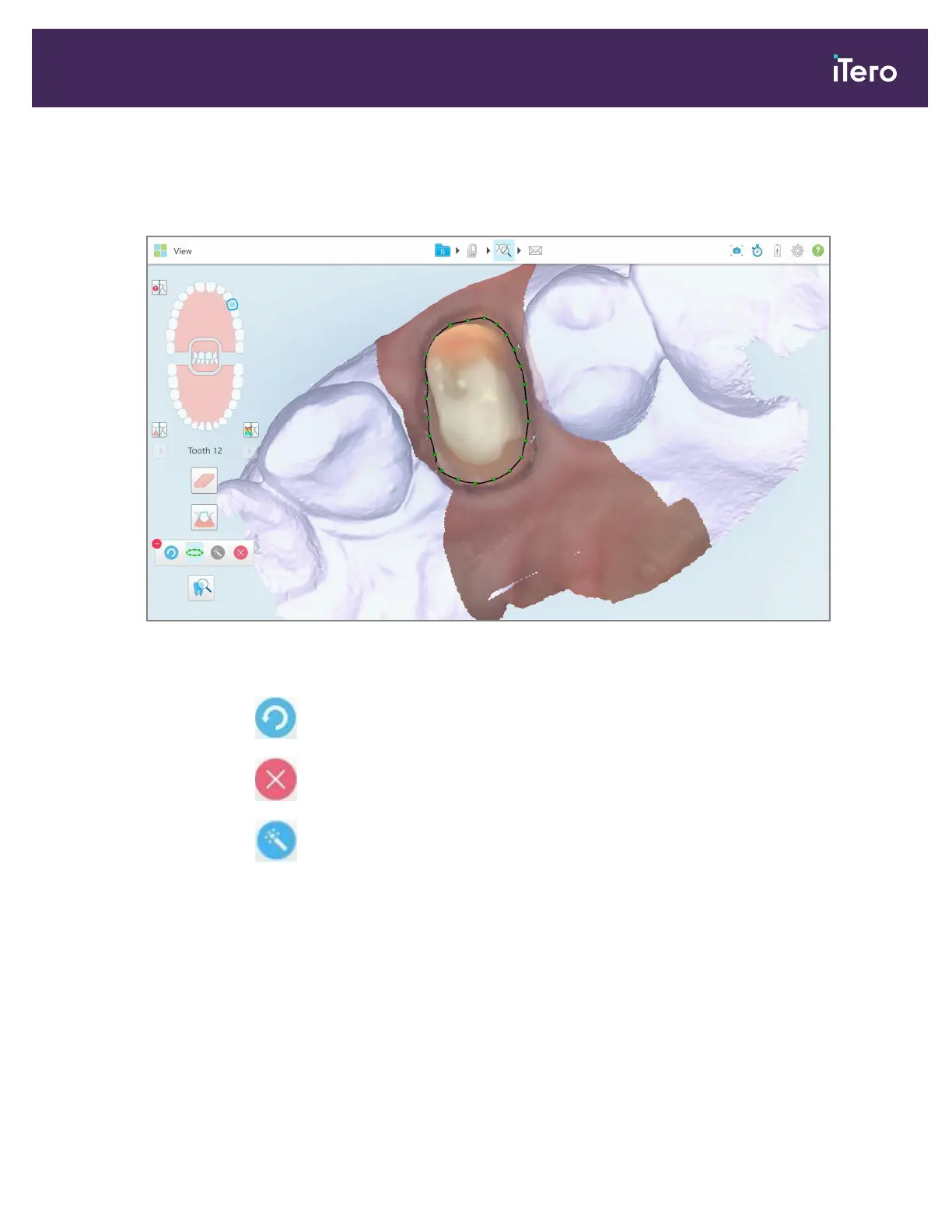
A message is displayed prompting you to wait while the automatic AI-based margin line is being detected. After
a few seconds, the margin line is automatically marked on the prepped tooth. The teeth adjacent to the
prepped tooth appear transparent, enabling you to see the edges of the margin line.
Figure 178: Margin line is marked on the prepped tooth
3. Tweak the margin line if required, by dragging any of the green control points.
4.
If required, click to undo the last action. You can click the button to undo the last 50 actions.
5.
If required, click to delete the margin line.
6.
If required, click to redisplay the deleted margin line.
10.10.2Manually defining the margin line
If the margin line cannot be defined automatically, you can define it manually.
To define the margin line manually:
1. In the View window, tap the prepped tooth in the navigation controls.
The 3D model display moves to the occlusal view and zooms in on the prepped tooth.
iTero Element 5D and iTero Element 5D Plus imaging systems User manual
© 2022 Align Technology, Inc. All rights reserved. 165


 To Next Page