You can make real-time adjustments to the simulated outcome while showing the patient. This tool provides
additional information for the patient in their decision to accept treatment.
To open the Invisalign Outcome Simulator tool, after sending the scan, tap Invisalign Outcome Simulator in the
Orders page, as described in Working with orders .
For more information on the Invisalign Outcome Simulator, refer to the Invisalign Outcome Simulator User Guide
http://storagy-itero-production-us.s3.amazonaws.com/download/en-us/iOSim_User_Guide.pdf .
10.4 Invisalign Progress Assessment
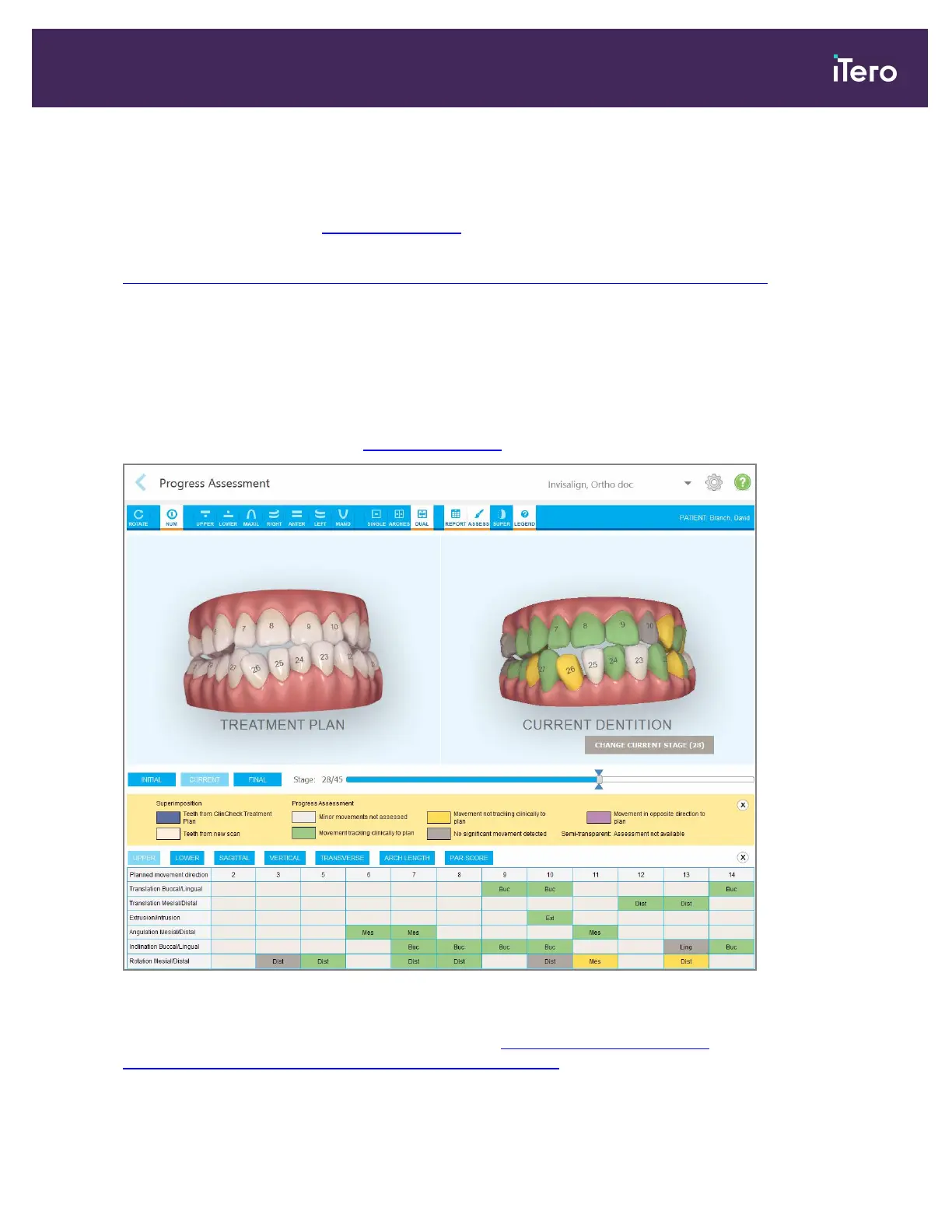
The Progress Assessment tool includes a report that is a color-coded tooth movement table to assist the user in
making treatment decisions to track the patient’s progress in their ClinCheck treatment plan.
To open the Invisalign Progress Assessment tool, after sending the scan, tap Invisalign Progress Assessment
in the Orders page, as described in Working with orders .
Figure 147: Progress Assessment window
For more information regarding the Invisalign Progress Assessment tool, refer to the Progress Assessment
section in the Invisalign Outcome Simulator User Guide http://storagy-itero-production-
us.s3.amazonaws.com/download/en-us/iOSim_User_Guide.pdf.
iTero Element 5D and iTero Element 5D Plus imaging systems User manual
© 2022 Align Technology, Inc. All rights reserved. 143


 To Next Page