2. Tap the thumbnail if you would like to add annotations to the screenshot.
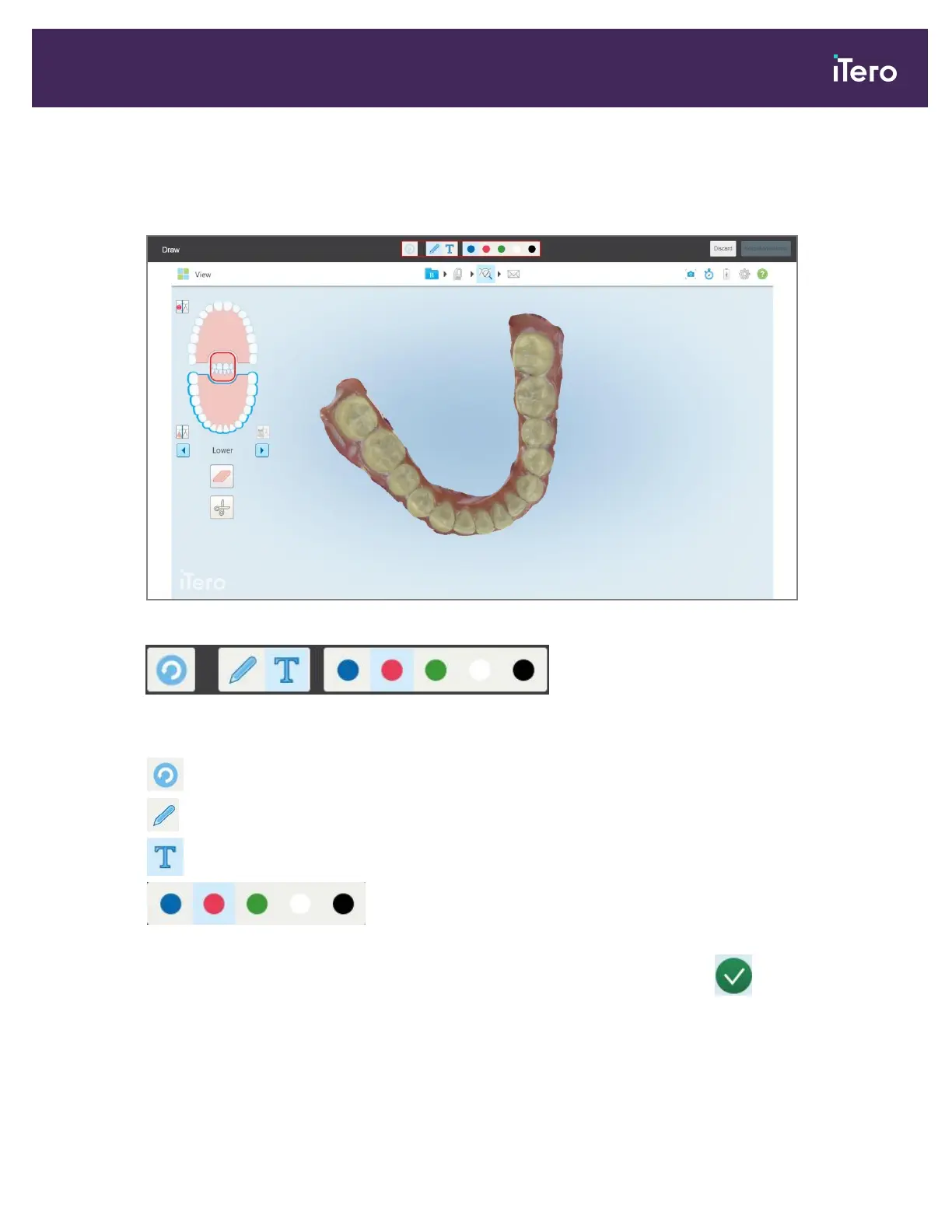
The Draw window is displayed, showing a screenshot of the entire window, with an annotations toolbar on the
top.
Figure 194: Screenshot with an annotations toolbar
Figure 195: Annotations toolbar
The annotations toolbar contains the following buttons:
Tap to undo previous annotations.
Tap to draw on the screenshot.
Tap to enter text on the screenshot.
Tap the color for the drawing and text. By default, these will be
the same color.
3.
Tap the required tool and color and then add your annotations. After adding text, tap to save the text in
the color selected.
iTero Element 5D and iTero Element 5D Plus imaging systems User manual
© 2022 Align Technology, Inc. All rights reserved. 179


 To Next Page