7 Working with orders
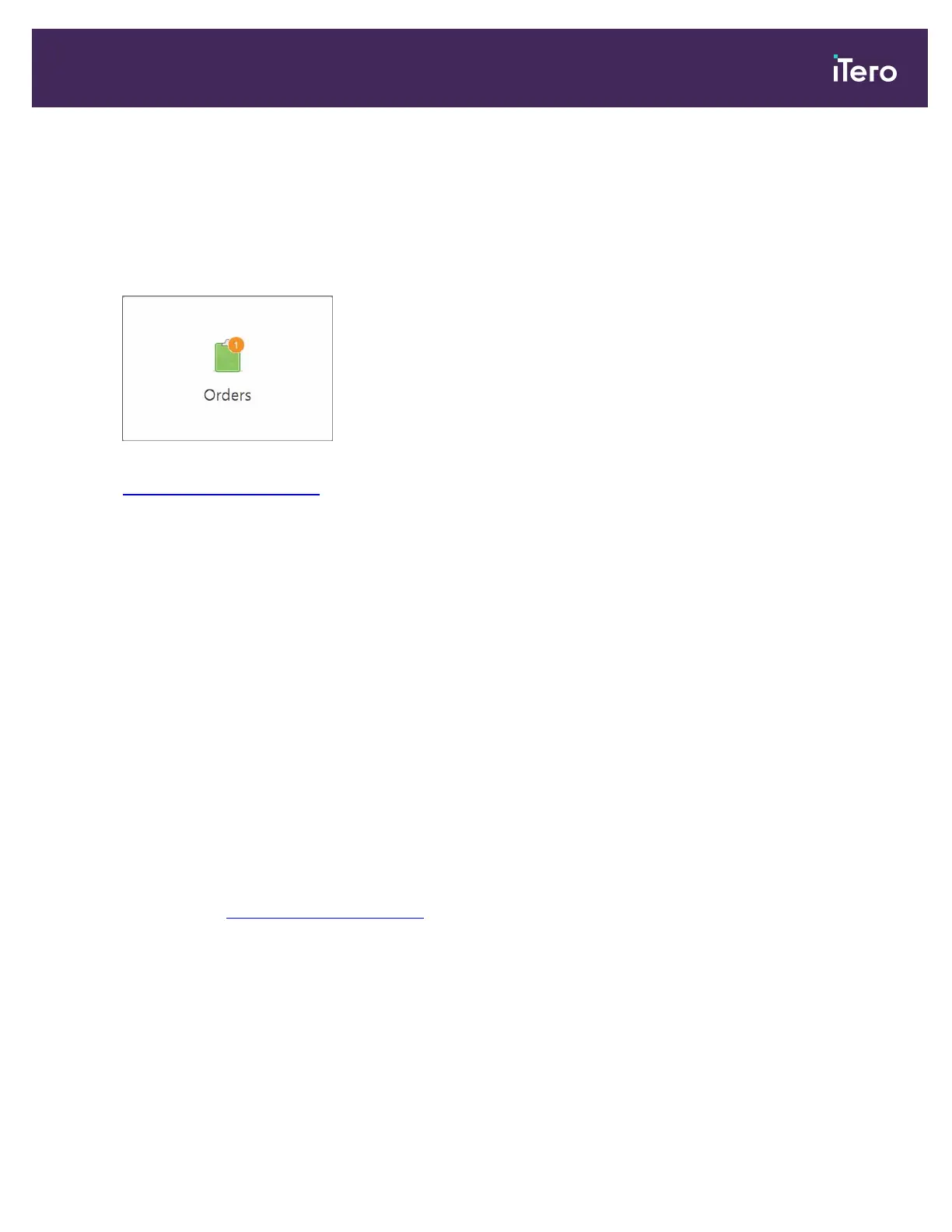
Tap the Orders button to display a list of all your orders. The button may contain a badge that indicates the
number of orders that have not been submitted yet.
If an order has been returned from the lab, the button is displayed in red, with an alarm icon badge, as described in
Working with returned orders.
The Orders page is made up of two panes listing the orders that are still in progress and the ones that have already
been submitted.
You can view the following details for each order: the patient’s name, chart number, the scan date, case type,
whether NIRI data was captured, and the status of the order.
Note: The NIRIcolumn is not displayed for iTero Element 5D Plus Lite systems.
The order could have one of the following statuses, depending on the case type:
l
Rx Created: The Rx has been filled in, but the patient has not been scanned yet.
l
Scanning: The scan process is in progress.
l
Sending: The scan is in the process of being sent.
l
Sent: The case has been sent.
l
Failed to Send: The case was not sent.
l
iTero Modeling: The order has been sent to iTero Modeling.
l
Lab Review: The order has been sent to the lab for review.
l
Returned: The order was rejected by the lab and has been sent back for rescanning or other adjustments, as
described in Working with returned orders.
l
Align Production: The case is undergoing an internal process.
l
Exporting to Doctor Site: The case is on the way to the IDS portal.
l
Completed: The flow is completed.
iTero Element 5D and iTero Element 5D Plus imaging systems User manual
© 2022 Align Technology, Inc. All rights reserved. 131


 To Next Page