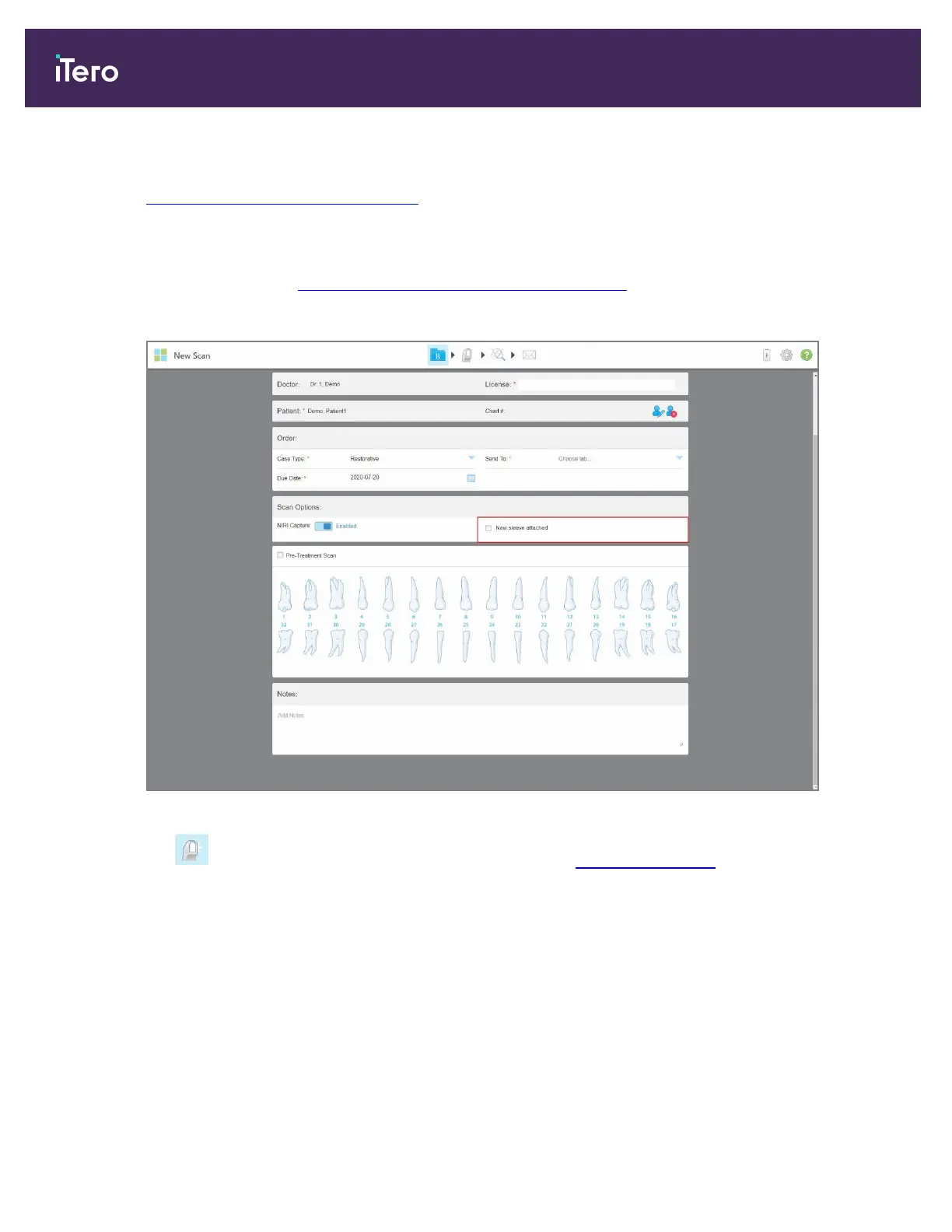
5. In the Scan Options area, select whether to capture NIRI data in the scan. By default, all images are captured
with NIRI data enabled. If required, you can select to disable NIRI data capture. For more information, see
Disabling NIRI data capture for all scans.
Note: This is not relevant for iTero Element 5D Plus Lite systems.
6. Select the New sleeve attached check box to confirm that a new sleeve has been attached to the wand. For
more information, see Confirming a new wand sleeve between patients.
Note: This is not relevant for iTero Element 5D Plus Lite systems.
Figure 95: New sleeve attached check box
7.
Tap on the toolbar to move to Scan mode, as described in Scanning the patient.
5.4.1 Working with restorative scan types
When selecting restorative case types, you need to select the tooth that needs to be restored, the type of
restoration required, as well as the material, shade, etc. of the restoration.
iTero Element 5D and iTero Element 5D Plus imaging systems User manual
98 © 2022 Align Technology, Inc. All rights reserved.


 To Next Page