2.
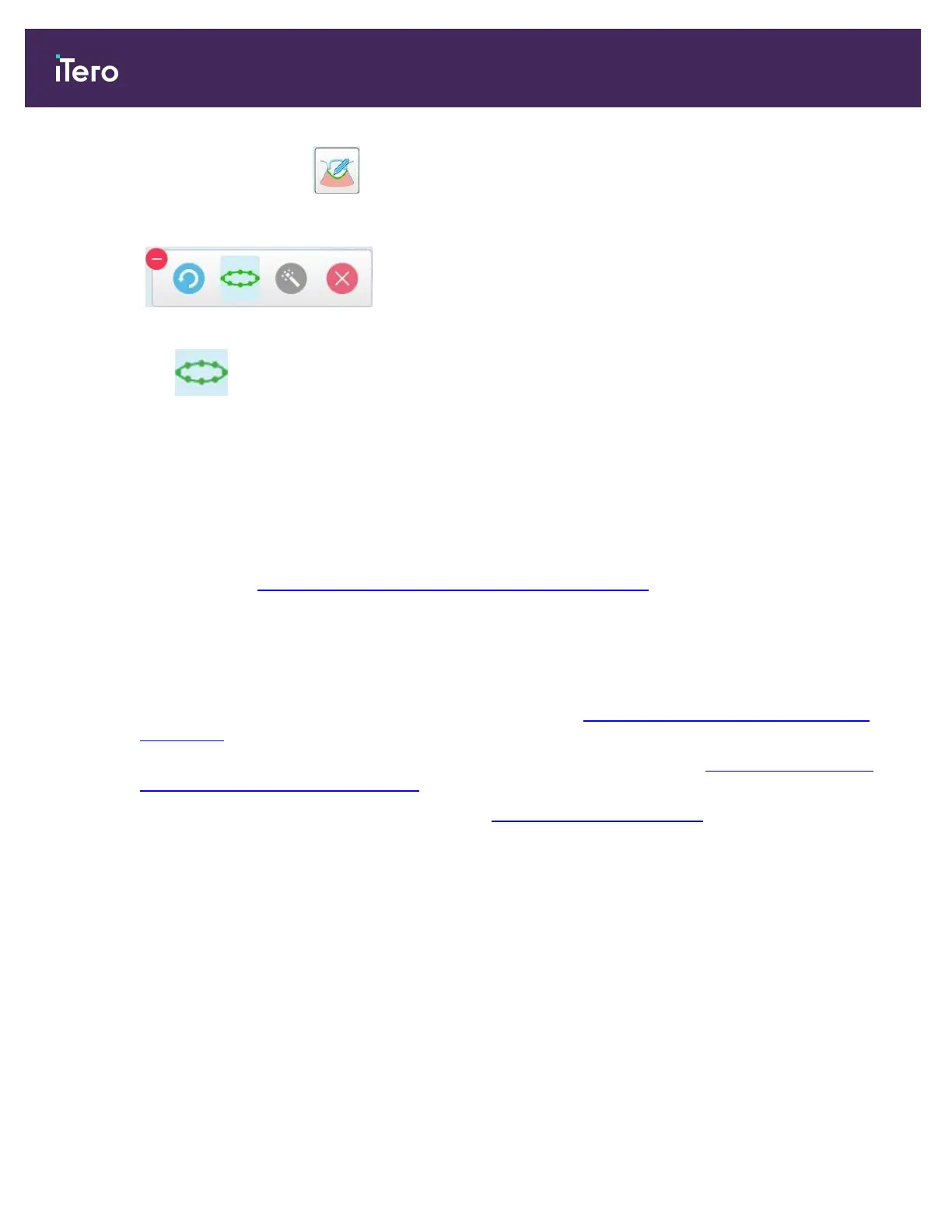
Tap the Margin Line tool .
The Margin Line tool expands to show the following options:
Figure 179: Margin Line tool options
3.
Tap and then tap around the prepped tooth to draw a point-by-point line of at least 6–8 points.
Note: Make sure to close the margin line. If you do not complete the margin line and try sending the case, you
will receive a notification that the partial margin line will be deleted. You can go back and complete the margin
line.
10.11 Working with the Review tool (iTero Element 5D and 5D Plus)
Note: This section is for iTero Element 5D and 5D Plus systems only. If you have an iTero Element 5D Plus Lite
system, please see Working with the Review tool (iTero Element 5D Plus Lite).
The View mode includes a Review tool that enables you to view the NIRI and colored intraoral images captured
during the scan, for every area of interest. These images are displayed one below the other in the image pane, on
the right of the View window.
In addition, you can:
l
Zoom in and out of the images in the image pane, as described in Zooming in to and out of the images in the
image pane
l
Adjust the brightness and contrast of the images in the image pane, as described in Adjusting the brightness
and contrast of images in the image pane
l
Capture screenshots of the images, as described in Working with the Snapshot tool
When reviewing the 3D model as a NIRI image, the upper and lower jaw orientation has been set to look as if you
are looking into the patient’s mouth.
Note: If you notice an issue with a NIRI image, please contact Customer Support.
iTero Element 5D and iTero Element 5D Plus imaging systems User manual
166 © 2022 Align Technology, Inc. All rights reserved.


 To Next Page