To fill in the Rx:
1.
In the Patient area, tap to create a new patient, as described in Adding new patients.
Or
Tap to search for an existing patient, as described in Searching for existing patients.
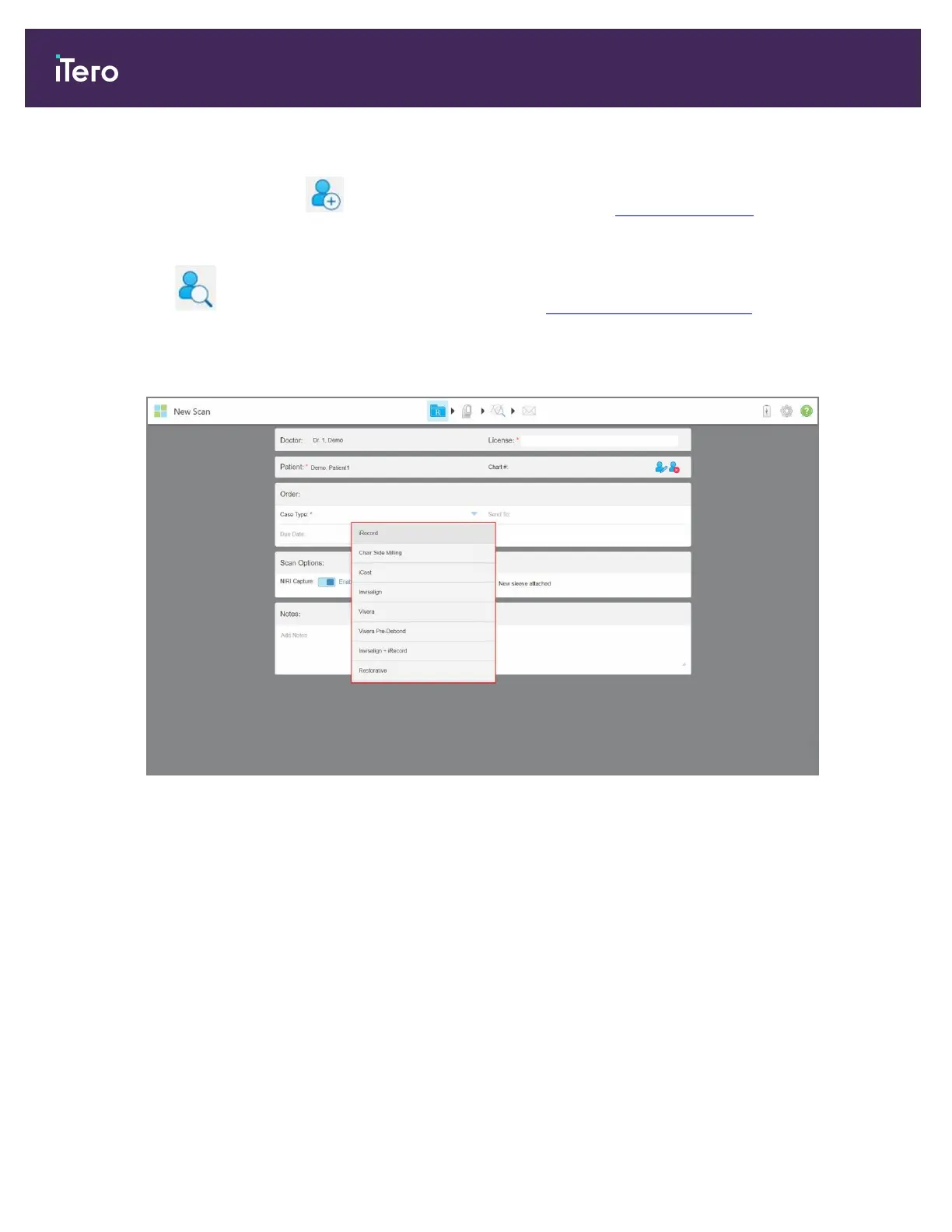
2. In the Order area, from the Case Type drop-down list, select the required case type.
Note: The list of case types displayed depends on your subscription package.
Figure 93: Selecting the required case type
The following case types are available by default, depending on whether you have a Restorative or Orthodontic
subscription package:
o
iRecord: A simple scan with no additional modification, mainly used for referencing and instead of storing
the plaster model, as required by law. (This case type can later be changed to iCast or Invisalign, if
required.)
o
Chair Side Milling: A restorative or orthodontic scan without the need to send the scan to a laboratory for
modeling and milling.
o
iCast: The same as iRecord, but showing the ABO model and a modeling step that can remove unused
data and adjust the bite if needed. (This case type can later be changed to Invisalign, if required.)
o
Invisalign: The basic scan for Invisalign treatment. The model must be scanned without any holes to
ensure that the aligners are a perfect fit with the patient’s teeth.
iTero Element 5D and iTero Element 5D Plus imaging systems User manual
96 © 2022 Align Technology, Inc. All rights reserved.


 To Next Page