3 Getting started
3.1 Logging in to the scanner for the first time
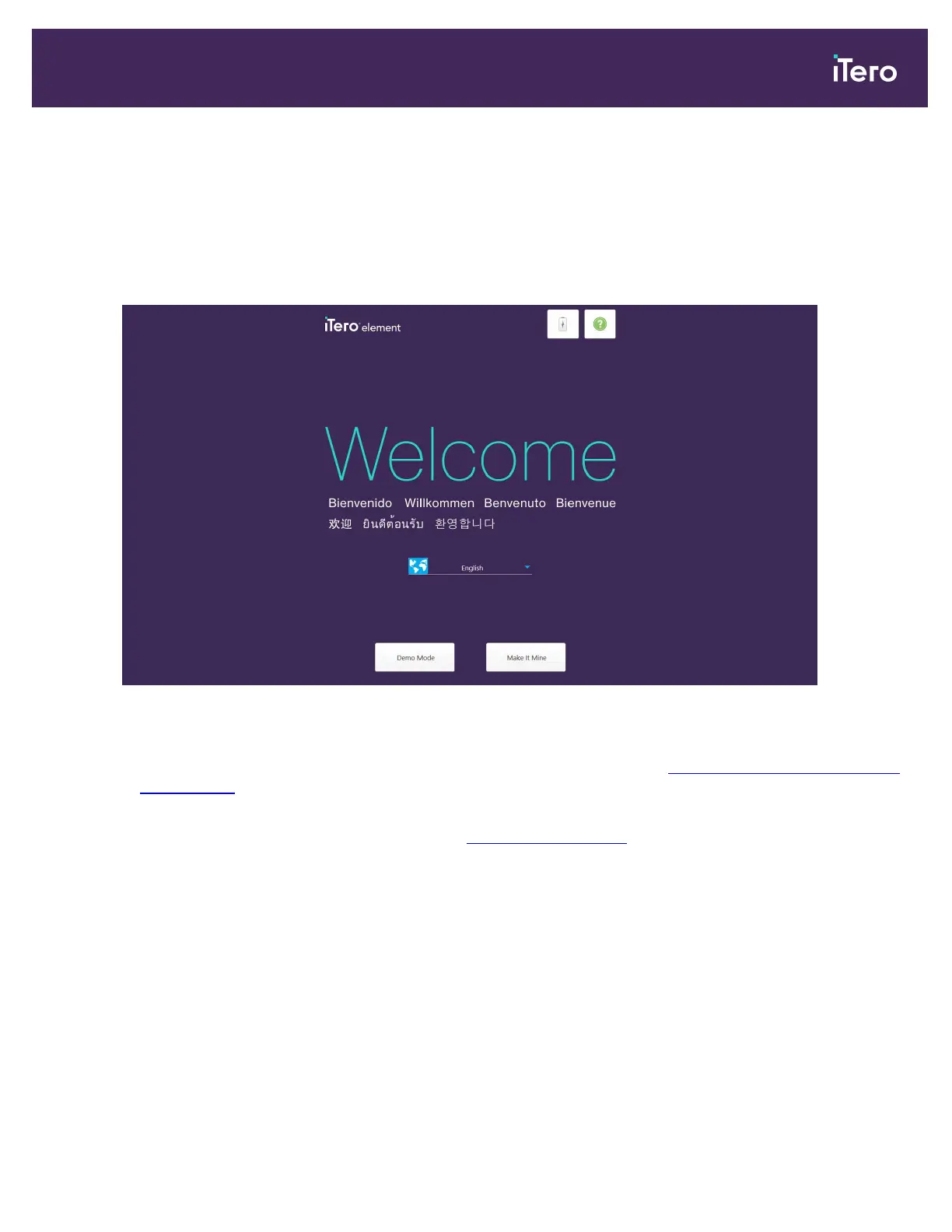
When you turn on the scanner for the first time, the Welcome screen is displayed:
Figure 19: Welcome screen
Select the required language and one of the following modes:
l
Make It Mine: Enables you to register the scanner. For more information, see Registering the scanner – Make It
Mine process , below.
l
Demo Mode: Enables you to familiarize yourself with the scanner’s features and perform practice scans without
submitting the scans. For more information, see Working in Demo Mode.
Note: If you select the Demo Mode option before the Make It Mine option, you will have to restart the scanner to
access the Make It Mine option.
3.2 Registering the scanner – Make It Mine process
When registering the scanner, you need the following details to complete the registration process:
l
User Name
l
User Password
l
Company ID
iTero Element 5D and iTero Element 5D Plus imaging systems User manual
© 2022 Align Technology, Inc. All rights reserved. 33


 To Next Page