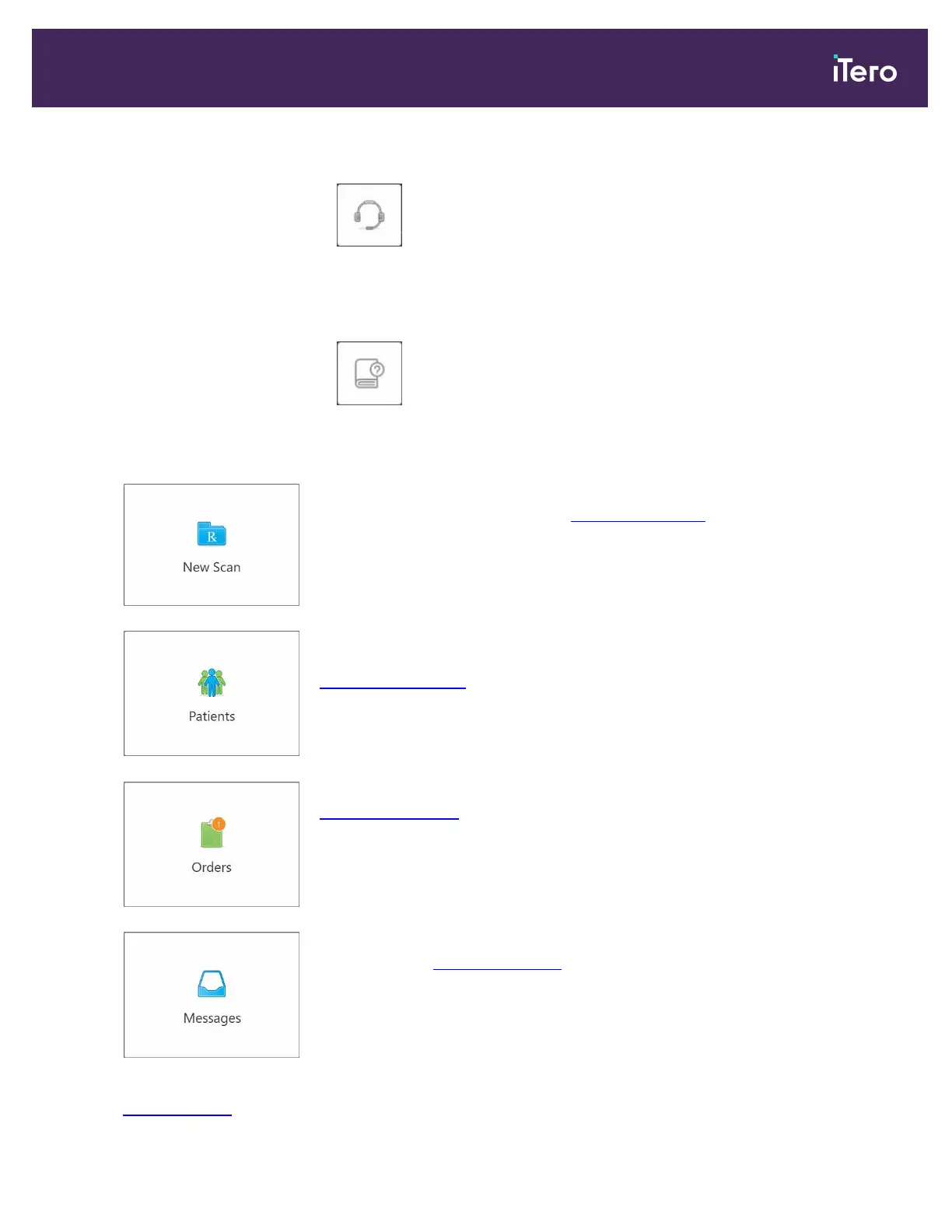
In this view, the button changes to two additional buttons:
l
Tap for remote assistance from Customer Support. Customer Support is
available from every Help overlay.
Note: Please call Customer Support before trying to connect remotely.
l
Tap to access the relevant e-manual.
Tap anywhere to close the Help overlay and return to the relevant screen.
New Scan: Tap to open the New Scan window to fill in the Rx before starting a
new scan. For more information, see Starting a new scan.
Patients: Tap to view the Patients page with a list of all your patients, their
chart number, and the date of their last scan. For more information, see
Working with patients.
Orders: Tap to display a list of all your orders. For more information, see
Working with orders .
Messages: Tap to view the messages from Align Technology. For more
information, see Viewing messages.
The Battery and Settings buttons are displayed on each of the scanner windows as well, as described in
Scanner toolbar.
iTero Element 5D and iTero Element 5D Plus imaging systems User manual
© 2022 Align Technology, Inc. All rights reserved. 59


 To Next Page