Pointer sourcePointer source
ZoomZoom
InsertionInsertion
Select the timing of the error insertion from the drop-down menu.
OffOff: Stops the error insertion.
ManualManual
1E-041E-04 to 1E-101E-10
AlternateAlternate
Burst lengthBurst length
If 'Insertion' is set to ManualManual, touch the button and set the burst length to insert.
Normal lengthNormal length
If 'Insertion' is set to AlternateAlternate, touch the button and set the normal length.
Error lengthError length
If 'Insertion' is set to AlternateAlternate, touch the button and set the error length.
55..99..33..22 Pointer MovementPointer Movement
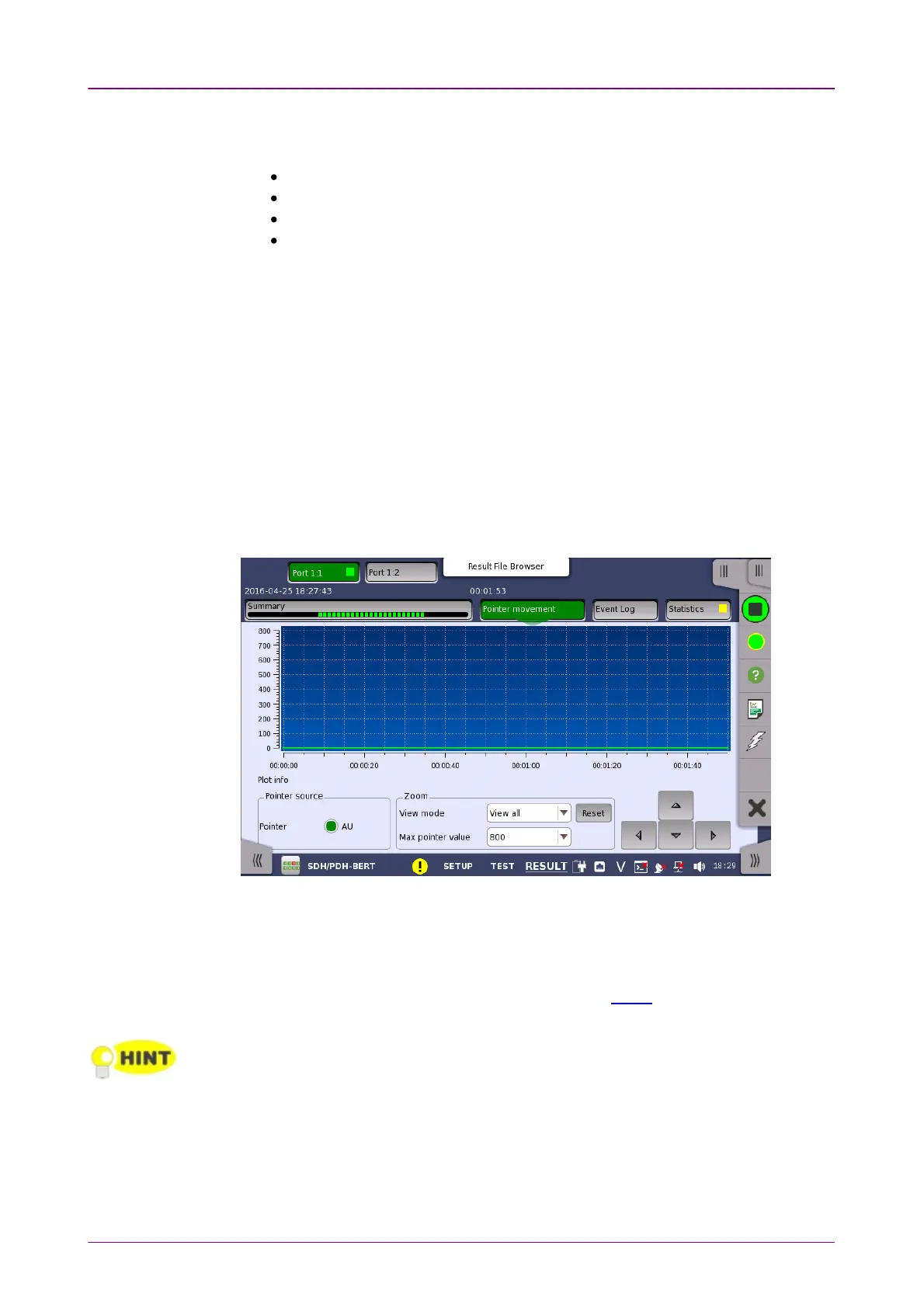
Touching the Pointer MovementPointer Movement button in the navigation area displays the
screen shown below.
This screen presents a detailed analysis of pointer movements in the monitored
signal. The results are displayed as a graph, showing the positions of a specific
pointer over time.
Using the graph area itself and the controls displayed below the graph, you can
specify which pointer's data is displayed as well as zoom in on specific details
of the graph.
In general, you use direct touch-manipulation of the graph area to zoom in and use the
controls to zoom out.
PointerPointer
Select the radio button corresponding to the pointer whose movements you
want to monitor.
To zoom in, select a zoom area directly in the graph area by drawing a
rectangle with a finger or the stylus (delivered with the instrument).














 To Next Page