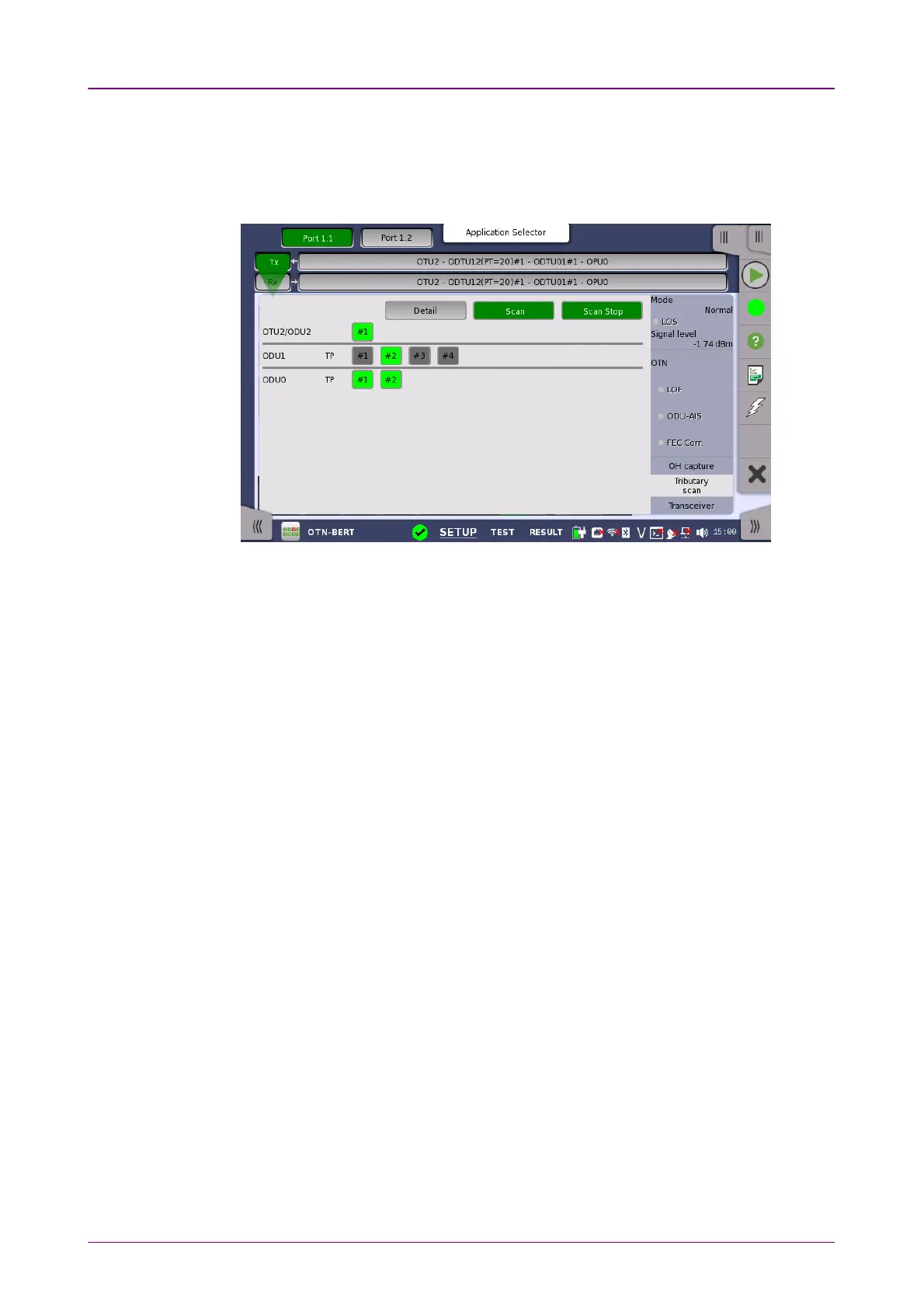
77..11..33..55 Tributary scanTributary scan
Touching the Tributary scanTributary scan button in the status area of the Ports SetupPorts Setup screen
displays the status shown below.
A
Tributary scan
detects errors and alarms over multiple Tributary Ports
depending on the current mapping settings at the receiver port. The screen
displayed by the Tributary scan Tributary scan button can be used to acquire the tributary
status information.
The screen contains the following buttons: DetailDetail, ScanScan, Scan Start/StopScan Start/Stop. The
ScanScan button is active when the screen is displayed.
Start scanningStart scanning
Touching the Scan StartScan Start button scans one level at a time. With the ScanScan button
active (displayed in green), you can select the Tributary Port to scan by
touching the number button. The buttons are shown in green or red according
to the scan result. Note that only one ODUk at the first level is displayed.
DetailDetail
Touching the Detail Detail button enables showing details for a specific ODUk. With
the DetailDetail button active, you can see the detail information by touching the
button in red. The Tributary detailsTributary details dialog box contains the following
information:














 To Next Page