DRAFT
September 1, 2004 11:39 am, App_SWReference.fm
Connecting SDS Software to the Database
Applied Biosystems 7900HT Fast Real-Time PCR System and SDS Enterprise Database User Guide A-23
Reconfiguring the
Database
Connection
IMPORTANT! You must have Administrative privileges to reconfigure the SDS
Enterprise Database connection (see the SDS Enterprise Database for the Applied
Biosystems 7900HT Fast Real-Time PCR System Administrators Guide for more
information on user accounts).
The connection to the SDS Enterprise Database can be reconfigured from the
Options dialog box of the SDS software as explained below.
1. Start the SDS software (see page 2-7 for more information).
2. In the Login dialog box, enter a user name and password of a user account that
belongs to the Administrator user group.
3. Select Tools > Options.
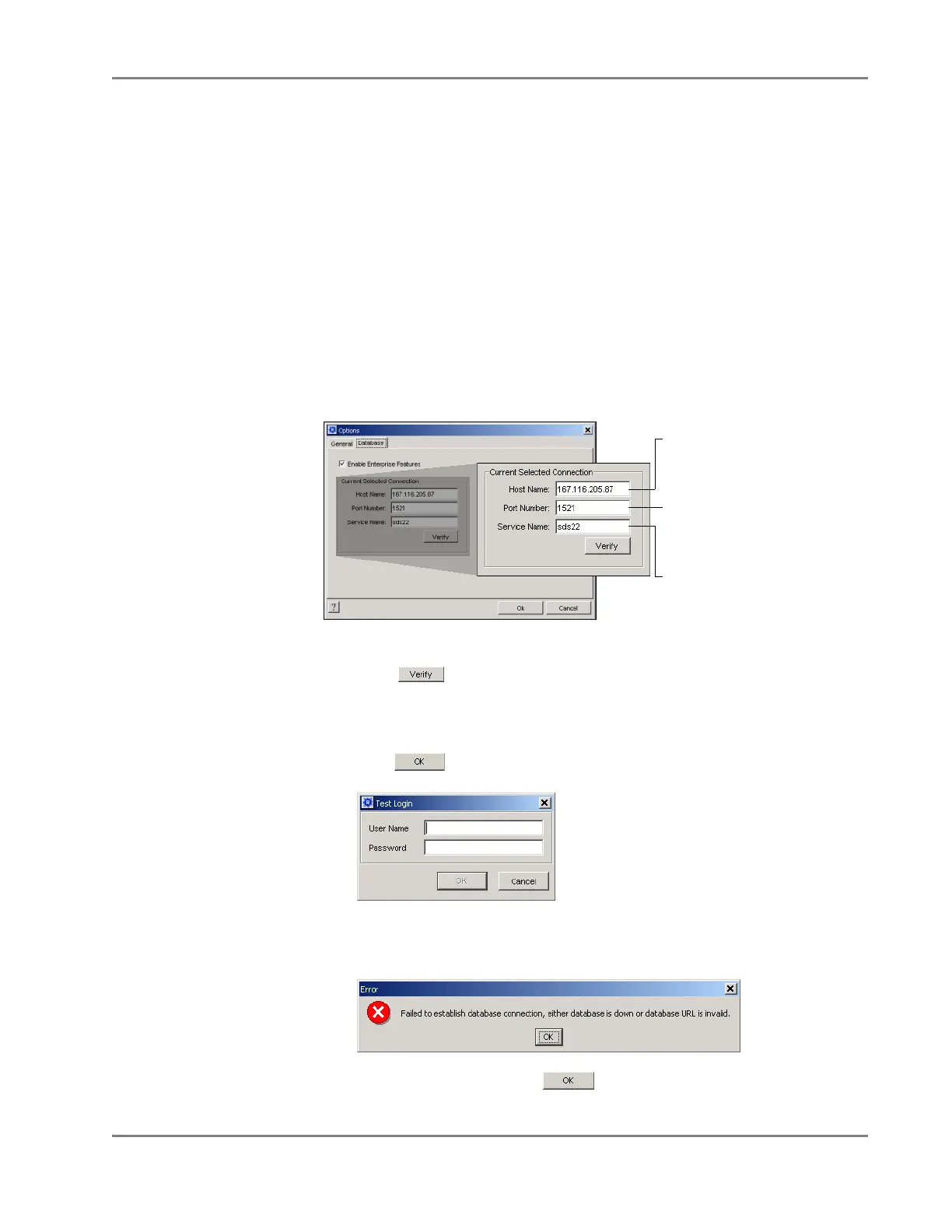
4. In the Options dialog box, select the Database tab.
5. Configure the Current Selected Connection settings:
6. Test the new connection:
a. Click to test the new connection.
The software briefly checks that a database is at the given IP address. If the
connection is successful, the software displays the Login dialog box.
b. In the Test Login dialog box, enter your User Name and Password, then
click .
• If the SDS software is unable to successfully connect to the database, the
software displays the error message shown below.
7. In the Options dialog box, click .
Service Name field
Enter the name of the database
(default is SDS22)
Port Number field
Enter the port number of the
database connection
(default is 1521)
Host Name field
Enter the host name or
IP address of the database



 To Next Page