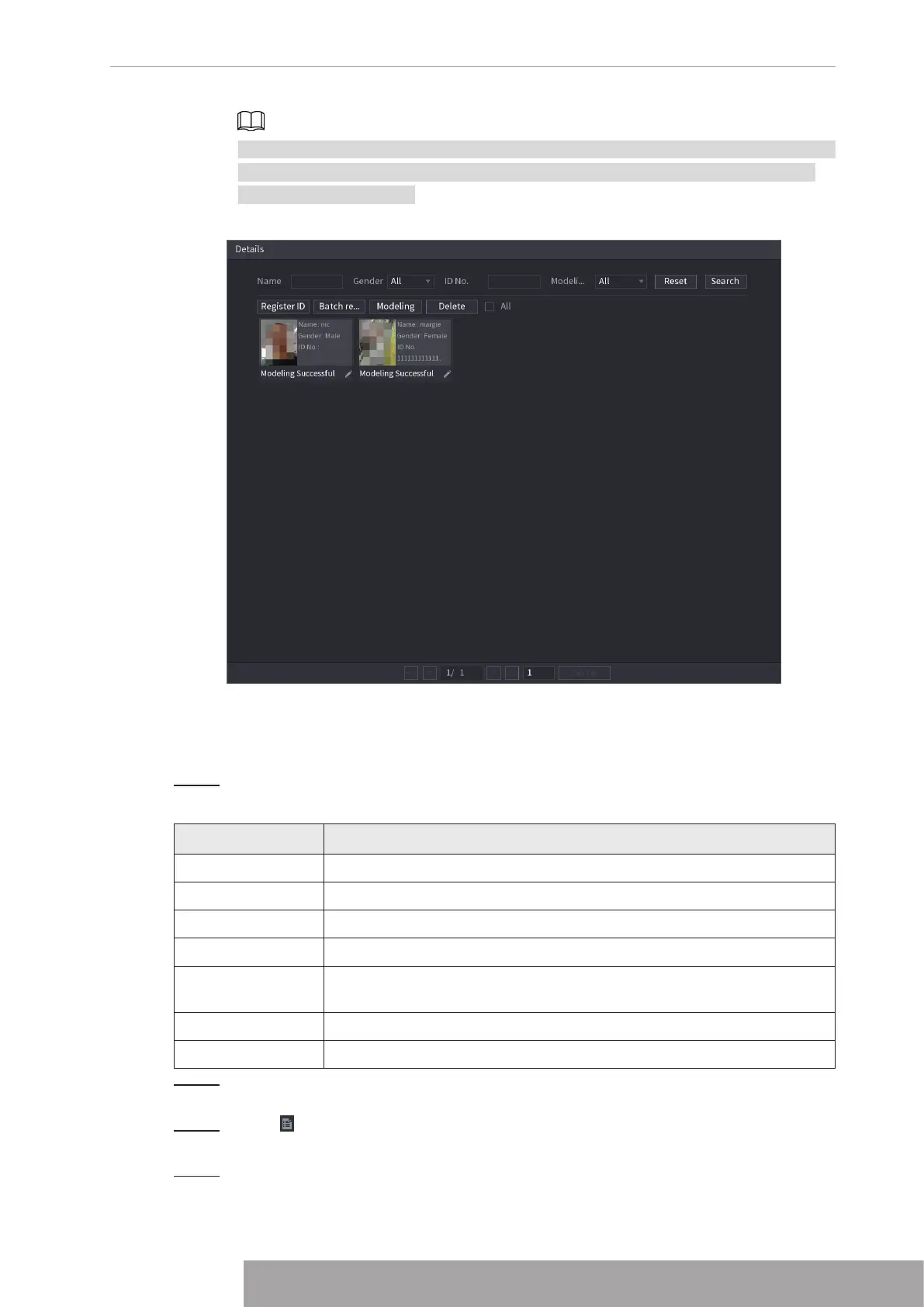
If the system prompts the message indicating modeling is in process, wait a while and
then click Search again. If modeling is failed, the registered face picture cannot be
used for face recognition.
Figure 4-180
1.7.3.1.3 Adding Face Pictures in Batches
System supports batch add if you want to import several human face image at the same time.
Step 1 Give a name to the face picture by referring to the following table. See Table 4-55.
Table 4-55
Naming format Description
Name Enter the name.
Gender Enter 1 or 2. 1 represents male, and 2 represents female.
Birthday Enter numbers in the format of yyyy-mm-dd.
Country Enter the abbreviation of country. For example, CN for China.
ID Type
1 represents ID card; 2 represents passport; 3 represents military
officer password.
ID No. Enter the ID number.
Address Enter the address.
Step 2 Select
Main Menu
>
AI
>
Database
>
Face Database Config
.
The
Face Database Config
interface is displayed.
Step 3 Click of the library that you want to configure.
The
Details
interface is displayed. See Figure 4-176.
Step 4 On the
Details
interface, click
Batch Register
.
The Batch register interface is displayed. See Figure 4-181.
Copyright © NSS Sp. z o.o.
169 User‘s Manual



 To Next Page