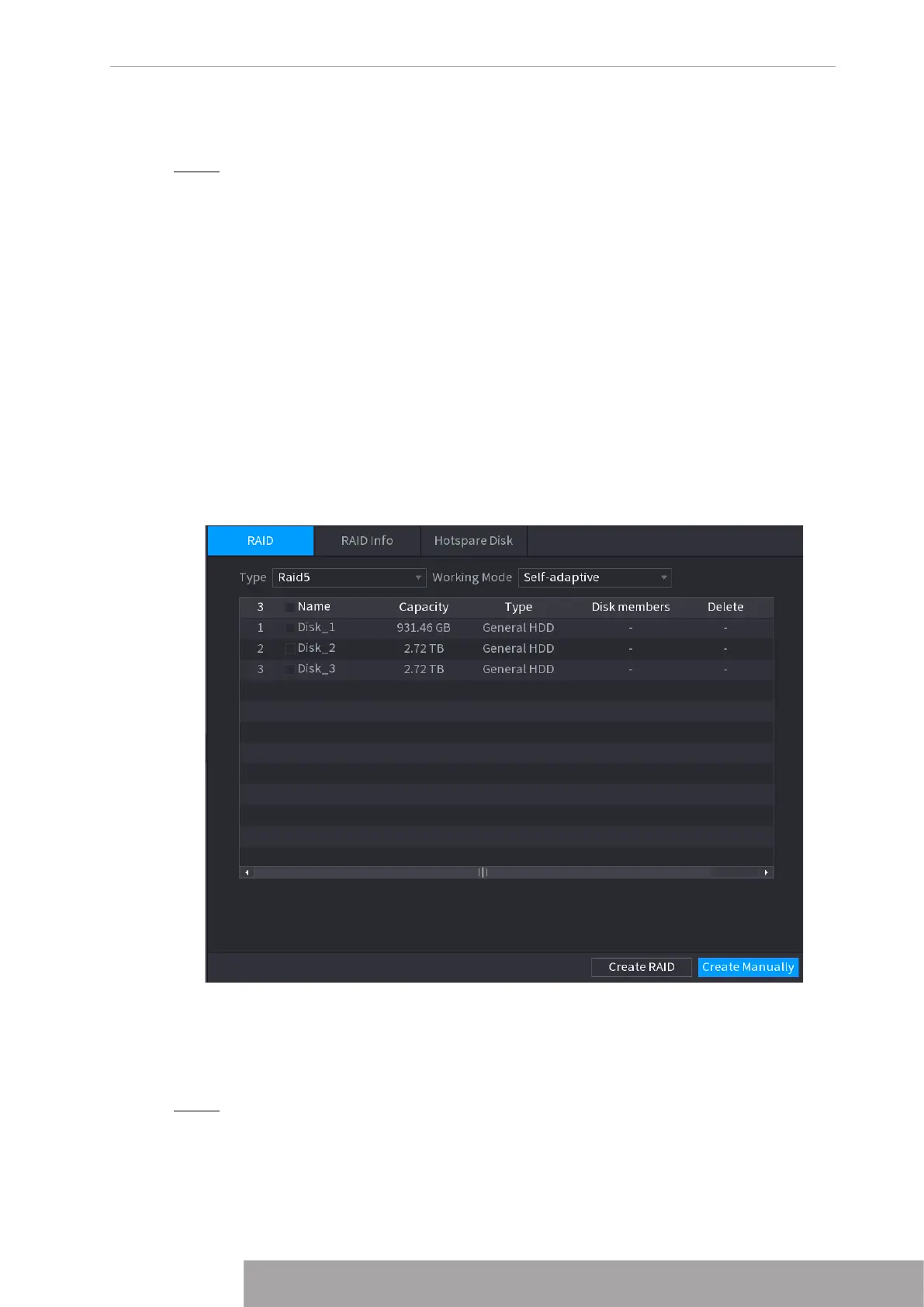
2. Click
Create Manually
, and then the format disk notice is displayed.
3. Click
OK
.
Step 3 After creating RAID, the disks need to sync with each other to finish the process. For
RAID5 and RAID6, you can select different working mode.
●
Self-Adaptive
: Automatically adjust the RAID sync speed according to the
business status.
◇
When there is no business running, sync is performed at a high speed.
◇
When there is business running, sync is performed at a low speed.
●
Sync First
: Resource priority is assigned to RAID sync.
●
Business First
: Resource priority is assigned to business operations.
●
Balance
: Resource is evenly distributed to RAID sync and business operations.
1.12.8.2 Raid Info
You can view the existing RAID information, including type, disk space, hot spare, and status.
Select
Main Menu
>
STORAGE
>
RAID
>
RAID Info
.
The RAID Info interface is displayed. See Figure 4-253.
Figure 4-253
1.12.8.3 Hot Spare Disk
You can add a hot spare disk to a specific disk in the RAID or to the entire RAID, and the hot
spare disk is switched into operation if any disk fails.
Step 1 Select
Main Menu
>
STORAGE
>
RAID
>
Hotspare Disk
.
The
Hotspare Disk
interface is displayed. See Figure 4-254.
Copyright © NSS Sp. z o.o.
247 User‘s Manual


 To Next Page