● Click
Default
to restore the default setting.
● Click
Copy to
, in the
Copy to
dialog box, select the additional channel(s) that you
want to copy the motion detection settings to, and then click
Apply
.
● Click
Test
to test the settings.
1.8.5.1.1 Setting the Motion Detection Region
Step 1 Next to
Region
, click
Setting
.
The region setting screen is displayed.
Step 2 Point to the middle top of the interface.
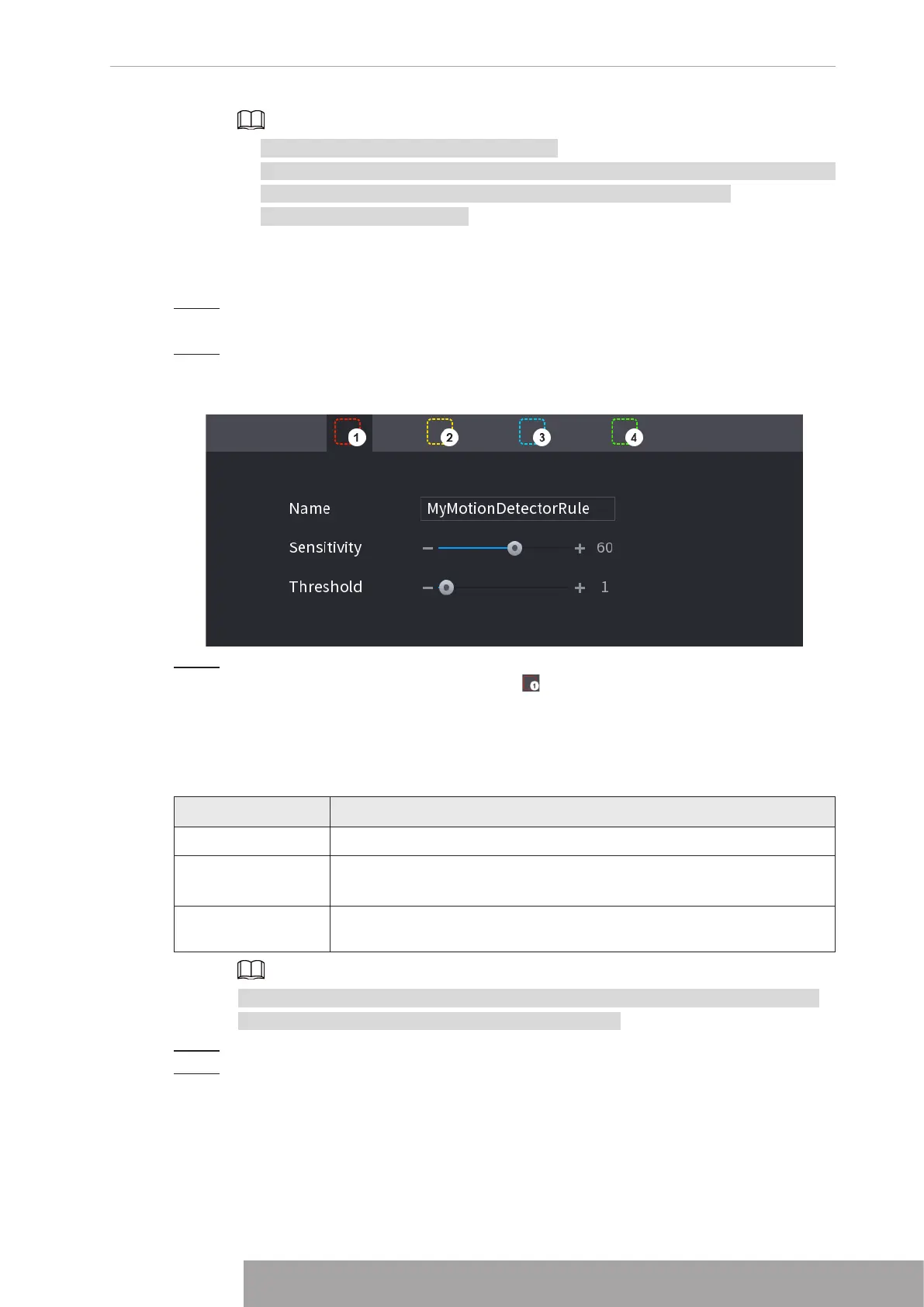
The setting interface is displayed. See Figure 4-191.
Figure 4-191
Step 3 Configure the regions settings. You can configure totally four regions.
● Select one region, for example, click .
● Drag on the screen to select the region that you want to detect.
● The selected area shows the color that represents the region.
● Configure the parameters. See Table 4-58.
Table 4-58
Parameter Description
Name Enter a name for the region.
Sensitivity
Every region of every channel has an individual sensitivity value.
The bigger the value is, the easier the alarms can be activated.
Threshold
Adjust the threshold for motion detect. Every region of every channel
has an individual threshold.
When anyone of the four regions activates motion detect alarm, the channel where
this region belongs to will activate motion detect alarm.
Step 4 Right-click on the screen to exit the region setting interface.
Step 5 On the
Motion Detection
interface, click
Apply
to complete the settings.
Copyright © NSS Sp. z o.o.
181 User‘s Manual


 To Next Page