1.1.4.3 P2P
Scan the QR code on the actual interface to download the cell phone app. Register an account
and then you can use the smart phone to add the device.
Before using the P2P function, make sure that the NVR has connected to the WAN.
1.1.4.3.1 Local Operation
Step 1 Click
Next
button.
The
P2P
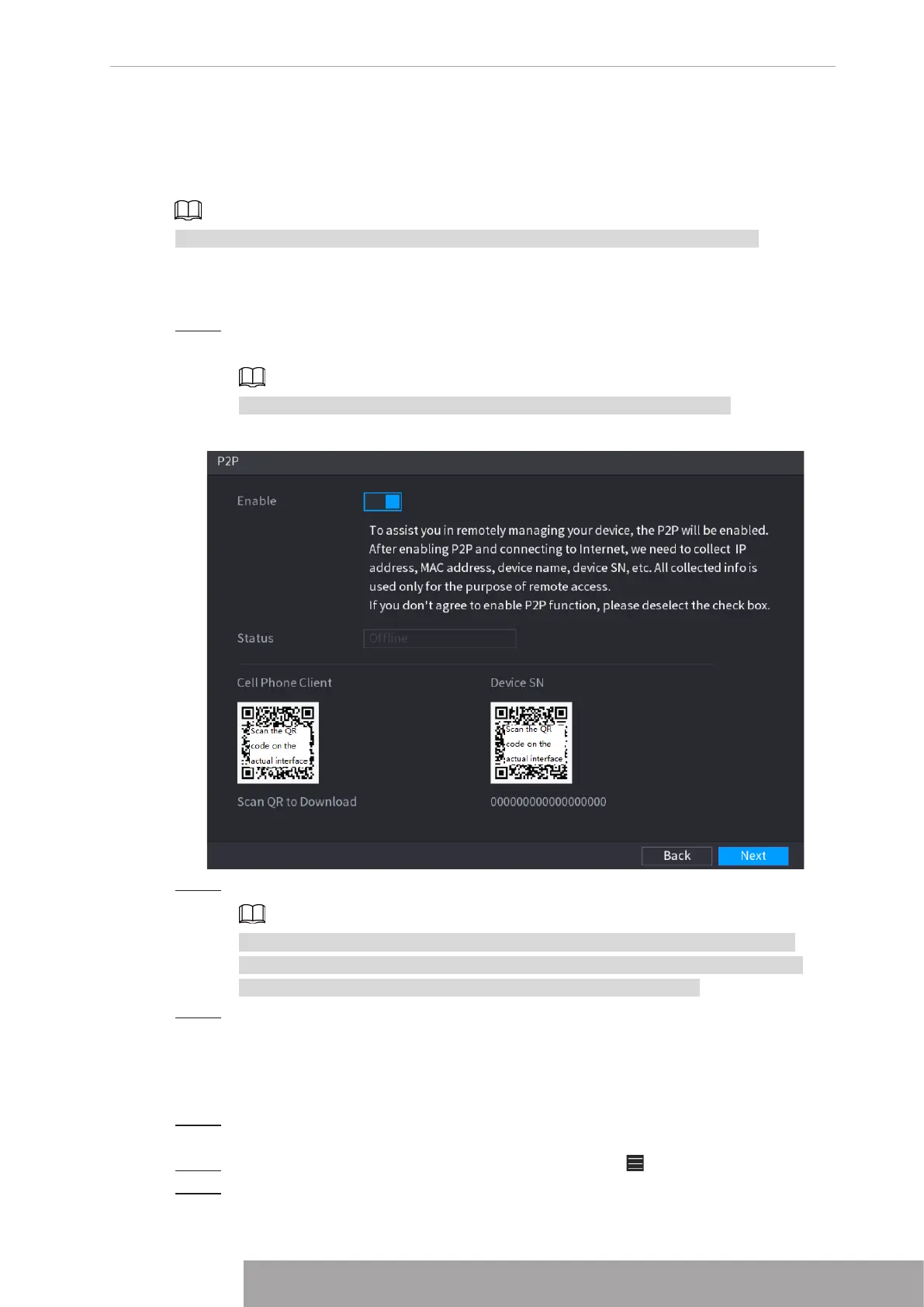
interface is displayed. See Figure 4-23.
Select
Main Menu
>
Network
>
P2P
, you can go to
P2P
interface too.
Figure 4-23
Step 2 Check the box to enable P2P function.
After the P2P function is enabled and connected to the Internet, the system will
collects your information for remote access, and the information includes but not
limited to email address, MAC address, and device serial number.
Step 3 Click
Next
button to complete setup.
The status is online if the P2P registration is successful.
1.1.4.3.2 Client Operation
Step 1 Use your cell phone to scan the QR code under Cell Phone Client to download the
application.
Step 2 On your cell phone, open the application, and then tap .
Step 3 The menu is displayed. You can start adding the device.
Copyright © NSS Sp. z o.o.
23 User‘s Manual


 To Next Page