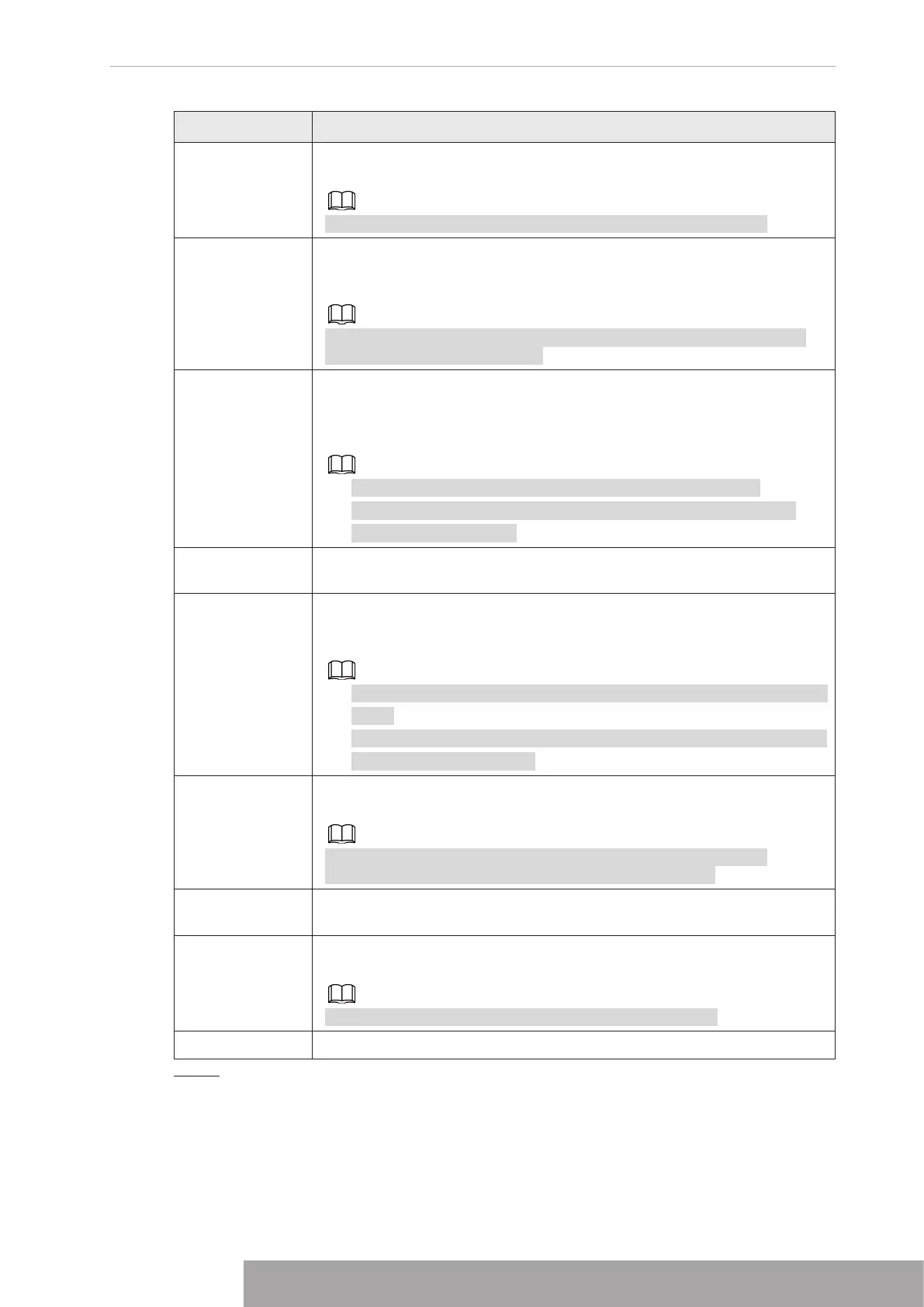
Parameter Description
Send Email
Select the check box. When an alarm occurs, the NVR device sends an
email to the set mailbox to notify the user.
You need to set the email first. For details, see "1.11.10 Email".
Record Channel
Select the check box and select the needed recording channel (support
multiple choices). When an alarm occurs, the NVR device activates the
channel for recording.
You need to enable intelligent recording and auto recording first. For
details, see "1.1.4.6 Schedule".
PTZ Linkage
Select the check box and click
Setting
to select the channel and PTZ
action. When an alarm occurs, the NVR device associates the channel
to perform the corresponding PTZ action. For example, activate the PTZ
in channel one to turn to the preset point X.
● Tripwire alarm supports to activate PTZ preset point only.
● You need to set the corresponding PTZ actions first, see "1.4.4
Calling PTZ Functions".
Post Record
At the end of the alarm, the recording extends for a period of time. The
time range is from 10 seconds to 300 seconds.
Tour
Select the check box and select the channel for tour. When an alarm
occurs, the local interface of the NVR device displays the selected
channel screen.
● You need to set the time interval and mode for tour first, see "1.16.2
Tour".
● After the tour is over, the preview interface is restored to the screen
split mode before the tour.
Picture Storage
Select the
Picture Storage
check box to take a snapshot of the selected
channel.
To use this function, select
Main Menu
>
Camera
>
Encode
>
Snapshot
, and then select
Event (Trigger)
in
Type
list.
Log
Select the check box, the NVR device records the alarm information in
the log when an alarm occurs.
Alarm Tone
Check the box and then select the corresponding audio file from the
drop-down list. System plays the audio file when the alarm occurs.
Refer to "1.17.1 File Management" to add audio file first.
Buzzer Select the check box to activate the buzzer when an alarm occurs.
Step 5 Click
Apply
.
1.8.4 Alarm Control
You can set proper alarm output (Auto/manual/off). Connect the alarm device to the system
alarm output port, and set the mode as auto, system can trigger the corresponding operations
when an alarm occurs.
● Auto: Once an alarm event occurs, system can generate an alarm.
● Manual: Alarm device is always on the alarming mode.
● Off: Disable alarm output function.
Step 1 Select
Main menu
>
ALARM
>
Alarm-out Port
.
The
Alarm-out Port
interface is displayed. See Figure 4-189.
Figure 4-189
Step 2 Select the alarm mode of the alarm output channel.
● Click
OK
in 1
Alarm Reset
area, you can clear all alarm output statuses.
● View the alarm output status on the
Status
column.
Step 3 Click
Apply
.
1.8.5 Video Detection
The video detection adopts the computer image and graphics process technology. It can
analyze the video and check there is considerable changing or not. Once video has changed
considerably (such as there is any moving object, video is distorted), system can trigger the
corresponding alarm activation operations.
Select
Main menu
>
ALARM
>
Video Detection
>
Motion Detection
, you can see motion
detect interface. There are five detection types: motion detection, video loss, tampering, scene
changing and PIR alarm.
1.8.5.1 Motion Detection
When the moving object appears and moves fast enough to reach the preset sensitivity value,
the system activates the alarm.
Copyright © NSS Sp. z o.o.
177 User‘s Manual


 To Next Page