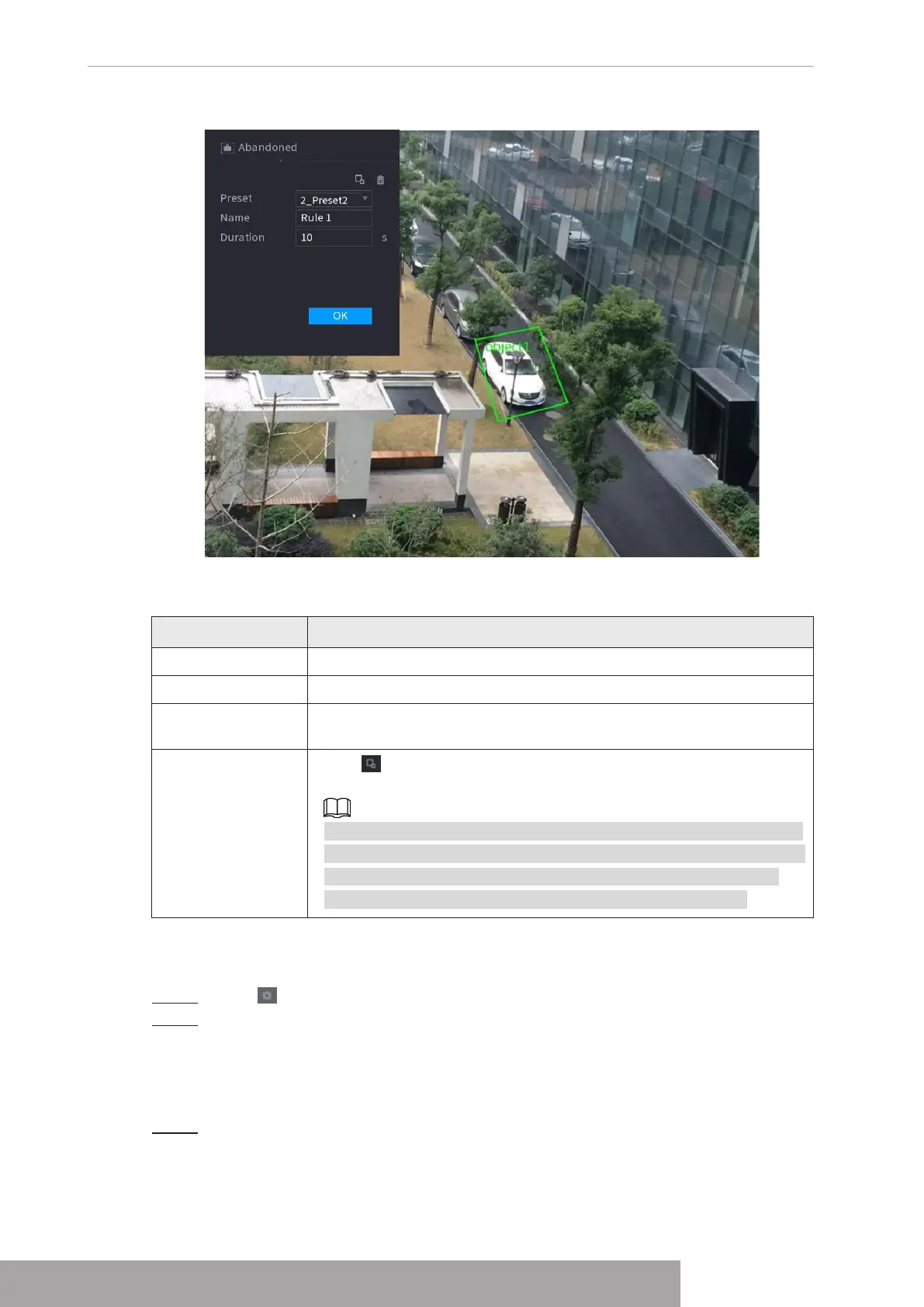
Figure 4-148
2) Set parameters. See Table 4-39.
Table 4-39
Parameter Description
Preset Select a preset you want to use IVS.
Name Input customized rule name
Duration
System can generate an alarm once the object is in the zone for the
specified period.
Filter target
Click to filter the target. Check the blue wireframe and adjust the
size of the area with the mouse.
Each rule can set 2 target filters (maximum size and minimum size),
that is, when the passing target is smaller than the minimum target or
larger than the maximum target, no alarm will be generated. The
maximum size should not be smaller than the minimum size.
3) Draw a rule. Left click mouse to draw a zone, until you draw a rectangle, you can
right click mouse.
4) Click
OK
to complete the rule setting.
Step 3 Click , you can refer to "1.7.2.4.1 Tripwire" to set other parameters.
Step 4 Click
Apply
to complete the setup.
1.7.2.4.4 Fast Moving
You can detect the fast moving object in the specified zone.
Step 1 In the
Type
drop-down list, select
Fast Moving
.
The interface is shown as below. See Figure 4-149.
Copyright © NSS Sp. z o.o.
User‘s Manual 138


 To Next Page