● Check
DHCP
, there is no need to input IP address, subnet mask, and default
gateway. Device automatically allocates the IP address to the camera.
● Check
Static
, and then input IP address, subnet mask, default gateway and
incremental value.
● If it is to change several devices IP addresses at the same time, input incremental
value. Device can add the fourth address of the IP address one by one to
automatically allocate the IP addresses.
● If there is IP conflict when changing static IP address, device pops up IP conflict
dialogue box. If batch change IP address, device automatically skips the conflicted
IP and begin the allocation according to the incremental value.
Step 9 Click
Next
.
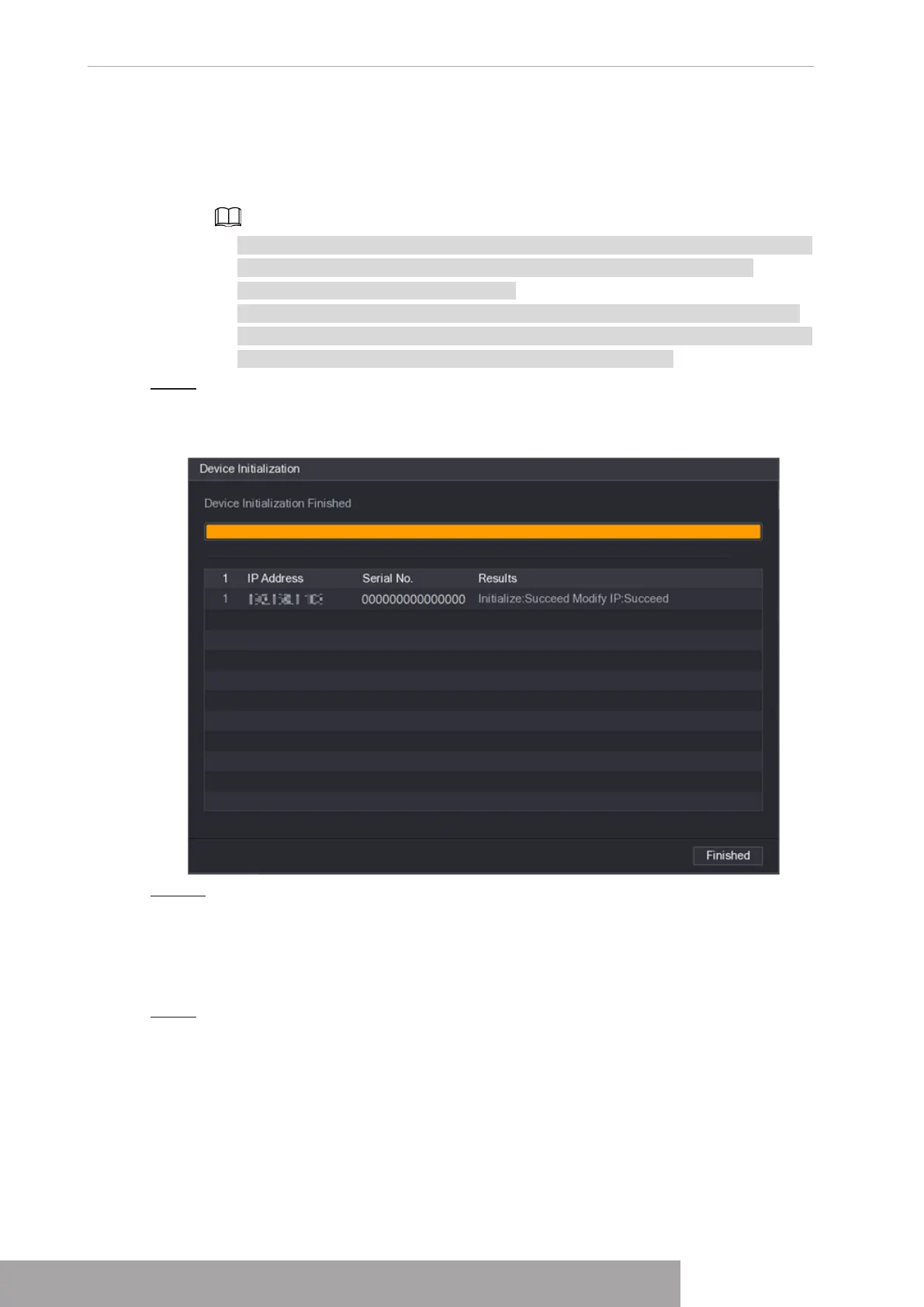
The
Device Initialization
interface is displayed. See Figure 4-53.
Figure 4-53
Step 10 Click
Finished
to complete the setup.
1.2.3 Shortcut Menu to Add Camera
If you have not registered a remote device to a channel, go to the live view interface to add.
Step 1 On the live view interface, move your mouse to window.
There is an icon + on the channel window. See Figure 4-54.
Copyright © NSS Sp. z o.o.
User‘s Manual 48


 To Next Page