● Password is required and must be the same with password for export; otherwise
the imported database cannot be saved.
● The address switches to /NVR/Facelib/ automatically if this directory is not
changed.
Step 4 Click
OK
to start importing face database, and you can view the progress on the
importing interface.
1.7.3.3 Black/whitelist
To manage vehicle management, you can add the corresponding plate number on the blacklist
or whitelist. System can compare the detected plate information with the plate on the
blacklist/whitelist and then trigger the corresponding alarm linkage.
After enable black/whitelist, on the preview interface, the plate in the blacklist is displayed as
red on the plate list, the plate in the whitelist is displayed as green on the plate list. For the plate
not in the black/whitelist, the plate is displayed as white.
1.7.3.3.1 Adding B/W List
Step 1 Select
Main Menu
>
AI
>
Database
>
B/W List
.
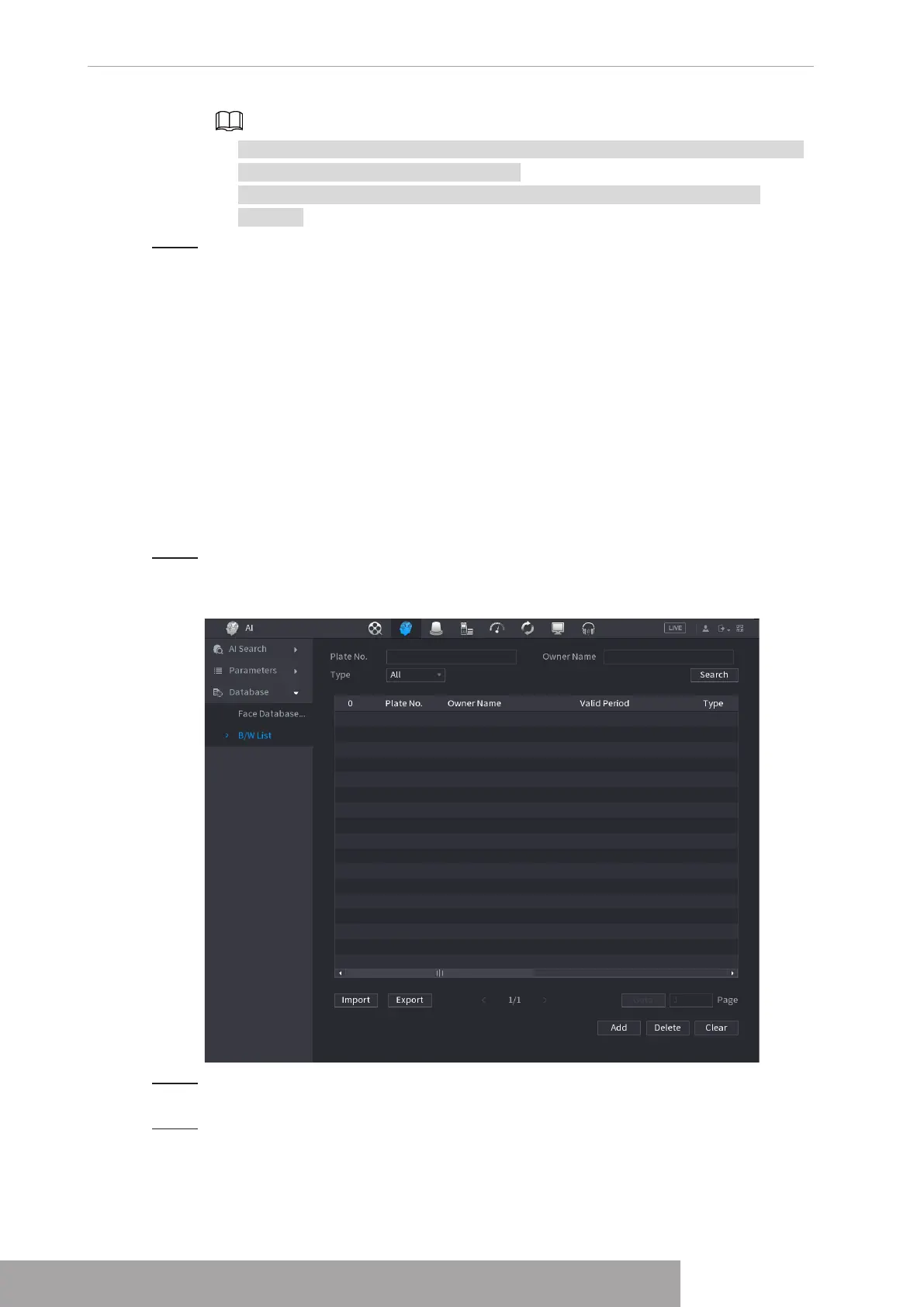
The
B/W List
interface is displayed. See Figure 4-184.
Figure 4-184
Step 2 Set plate information such as plate number, car owner name, and then select
Black
List
or
White List
.
Step 3 Click
Add
.
Copyright © NSS Sp. z o.o.
User‘s Manual 172


 To Next Page