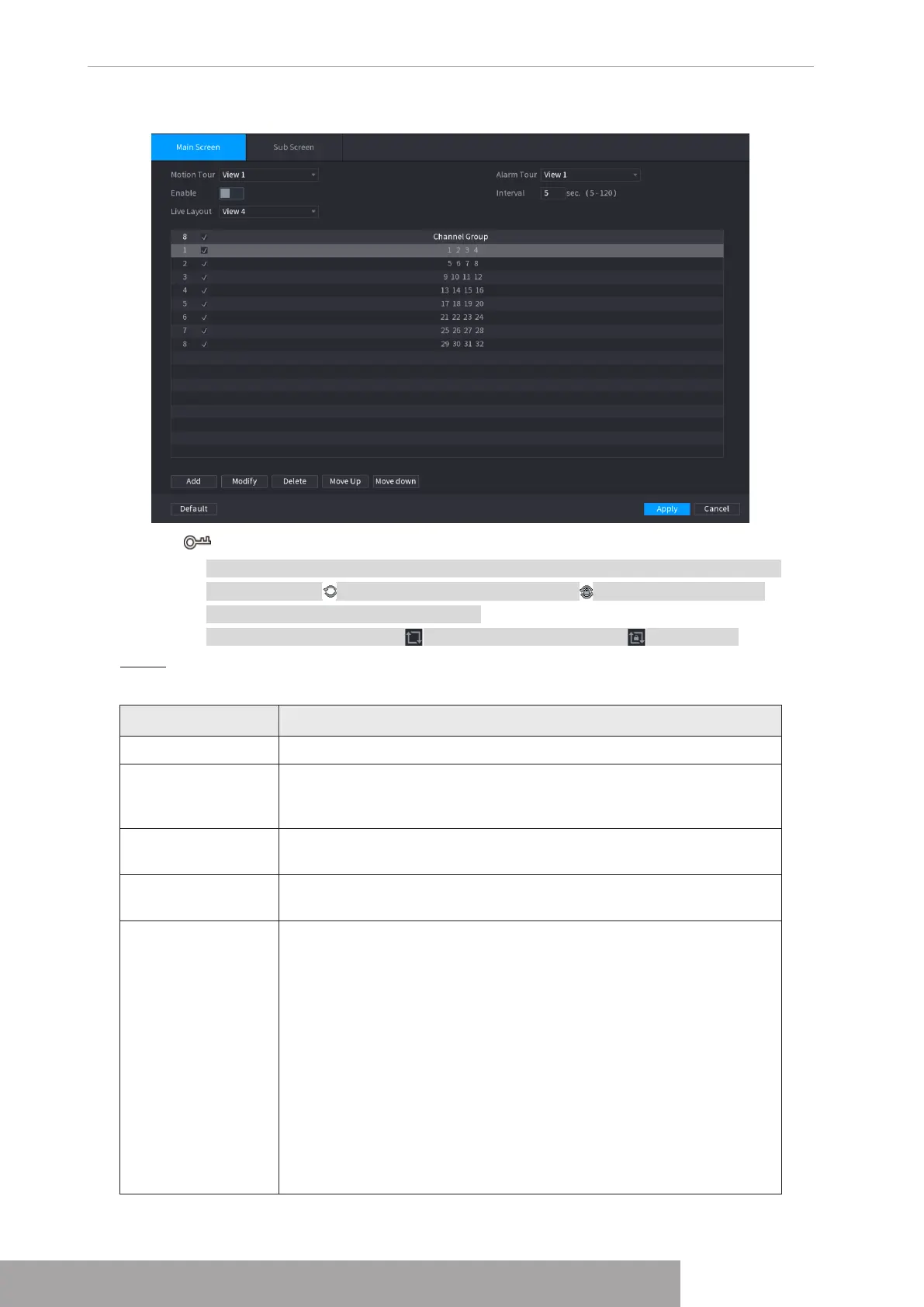
Figure 4-291
● On the top right of the live view screen, use the left mouse button or press Shift to
switch between (image switching is allowed) and (image switching is not
allowed) to turn on/off the tour function.
● On the navigation bar, click to enable the tour and click to disable it.
Step 2 Configure the tour setting parameters. See Table 4-96.
Table 4-96
Parameter Description
Enable Tour Enable tour function.
Interval
Enter the amount of time that you want each channel group displays
on the screen. The value ranges from 5 seconds to 120 seconds, and
the default value is 5 seconds.
Motion Tour, Alarm
Tour
Select the View 1 or View 8 for
Motion Tour
and
Alarm Tour
(system alarm events).
Live Layout
In the
Live Layout
list, select
View 1
,
View 4
,
View 8
, or other
modes that are supported by the Device.
Channel Group
Display all channel groups under the current Window Split setting.
● Add a channel group: Click
Add
, in the pop-up
Add Group
channel, select the channels to form a group, and then click
Save
.
● Delete a channel group: Select the check box of any channel
group, and then click
Delete
.
● Edit a channel group: Select the check box of any channel group
and then click
Modify
, or double-click on the group. The
Modify
Channel Group
dialog box is displayed. You can regroup the
channels.
● Click
Move up
or
Move down
to adjust the position of channel
group.
Copyright © NSS Sp. z o.o.
User‘s Manual 280


 To Next Page