Playback".
● Lock recorded video: If you want to keep the recorded video permanently, select
the picture, and then click
Lock
to lock video so that it cannot be overwritten and
deleted.
● Back up recorded video or picture: Select the picture, and then click
Backup
. The
Backup
interface is displayed. Then you can set save path, backup type, and file
type, and then export to the external storage device.
1.3.4 Wireless Paring
Right-click on the screen and select
Wireless Paring
. The
Wireless Pairing
interface is
displayed. See Figure 4-74.
The device enters a 120 seconds pairing countdown.
You can see the video of the paired IPC after pairing is successful.
Figure 4-74
1.3.5 Sequence
You can set customized view layout.
The preview layout restores default channel layout after Default operation.
Step 1 On the preview interface, right click mouse and then click
Sequence
.
The
Sequence
interface is displayed. See Figure 4-75.
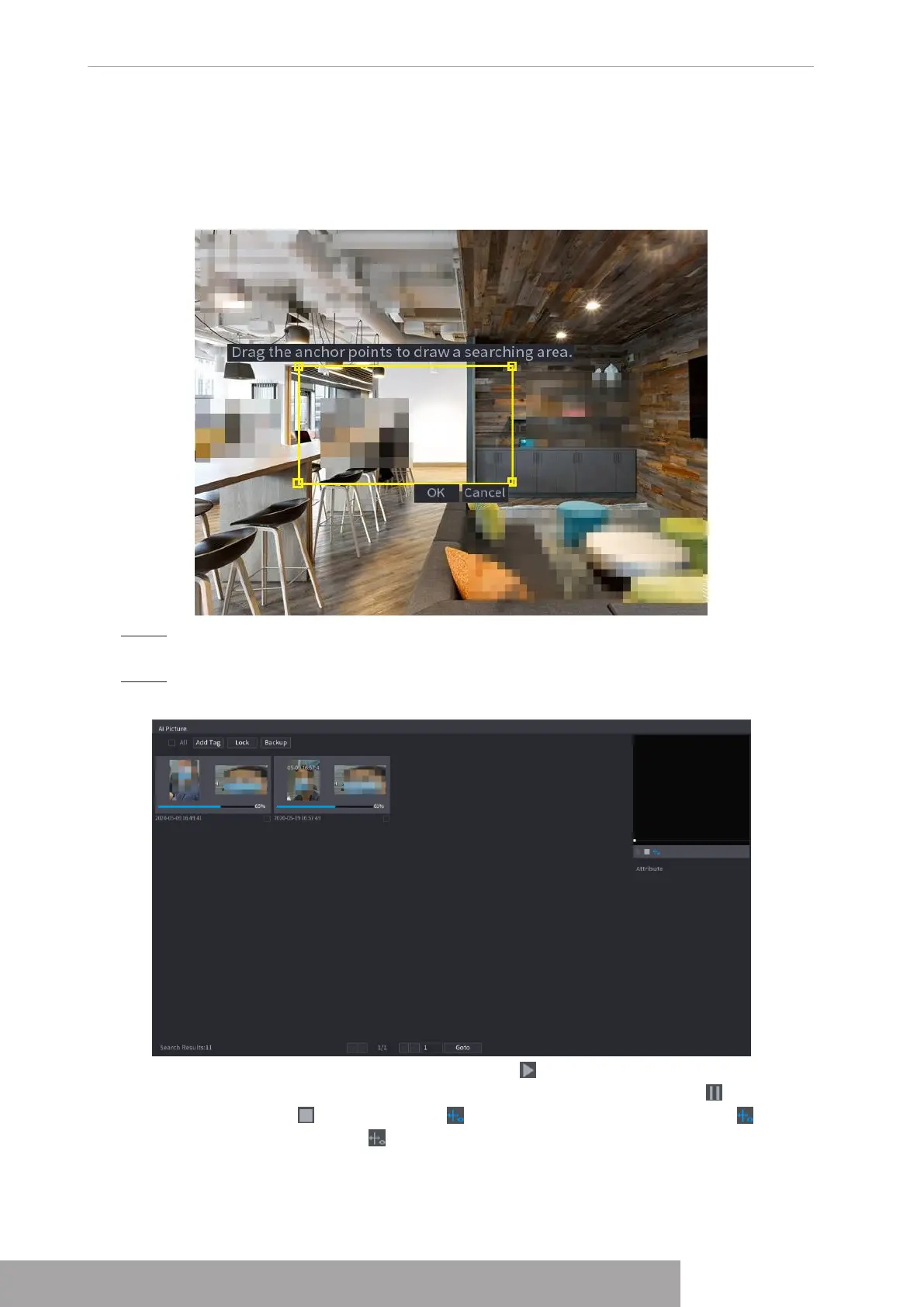
● If there are more than 30 faces, human bodies, and vehicles in the selected range,
a prompt is displayed indicating that there are too many targets and the searching
range should be reduced. The image stays frozen and you can start modifying
range.
Figure 4-72 Draw a searching range
Step 3 Select the target face that you want to search for related videos and configure
parameters. You can select maximum 8 target faces.
Step 4 Click
Search
. The search results are displayed.
Figure 4-73 Picture search results
● Play video: Select the picture and then click to play back the video within 10
seconds before and after the snapshot. During playback, you can click to
pause, click to stop, and click to display or hide the intelligent rules (
means displaying and means not displaying).
● Add tag: Select the picture and then click
Add Tag
to add a tag to the recorded
video to find the target recorded video more fast. For details, see "4.6.5 Tag
Copyright © NSS Sp. z o.o.
User‘s Manual 70


 To Next Page