Parameter Description
Zoom
: Zoom out.
: Zoom in.
Focus
: Focus far.
: Focus near.
Iris
: Image darker.
: Image brighter.
PTZ movement Supports eight directions.
Fast positioning button.
● Positioning: Click to enter the fast positioning screen, and then
click anywhere on the live view screen, the PTZ will turn to this
point and move it to the middle of the screen.
● Zooming: On the fast positioning screen, drag to draw a square on
the view. The square supports zooming.
● Dragging upward is to zoom out, and dragging downward is to
zoom in.
● The smaller the square, the larger the zoom effect.
This function is for some series products only and can only be
controlled through mouse operations.
Click , you can control the four directions (left, right, up, and down)
PTZ movement through mouse operation.
Click to open the expanded PTZ control panel.
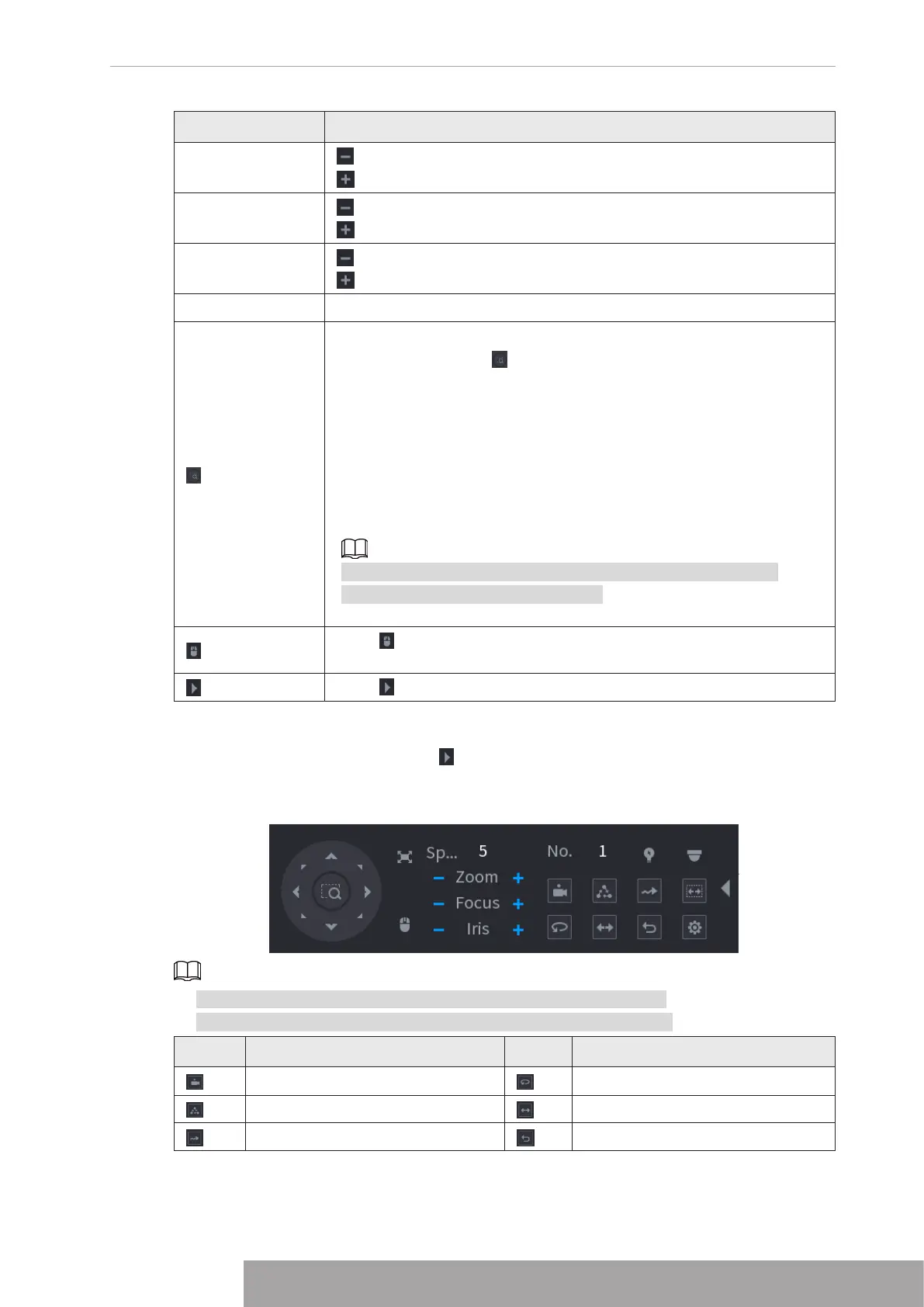
Expanded PTZ Control Panel
On the basic PTZ control panel, click to open the expanded PTZ control panel to find more
options. See Figure 4-95.
Figure 4-95
● The functions with buttons in gray are not supported by the system.
● Right-click once to return to the interface of PTZ basic control panel.
Icon Function Icon Function
Preset
Pan
Tour
Flip
Pattern
Reset
Copyright © NSS Sp. z o.o.
87 User‘s Manual


 To Next Page