Commissioning B 3
ekrPro Com
60
web guide controller EDV No.: MD.191.01.05/1.6.x Chapter: B 3
with analog sensors Date: 23.11.2007 Page: 42/73
Range –
Traversing range limits
The traversing range limits are entered in the menu Range.
They are the basis for displaying the traversing movement in the
operating status screen.
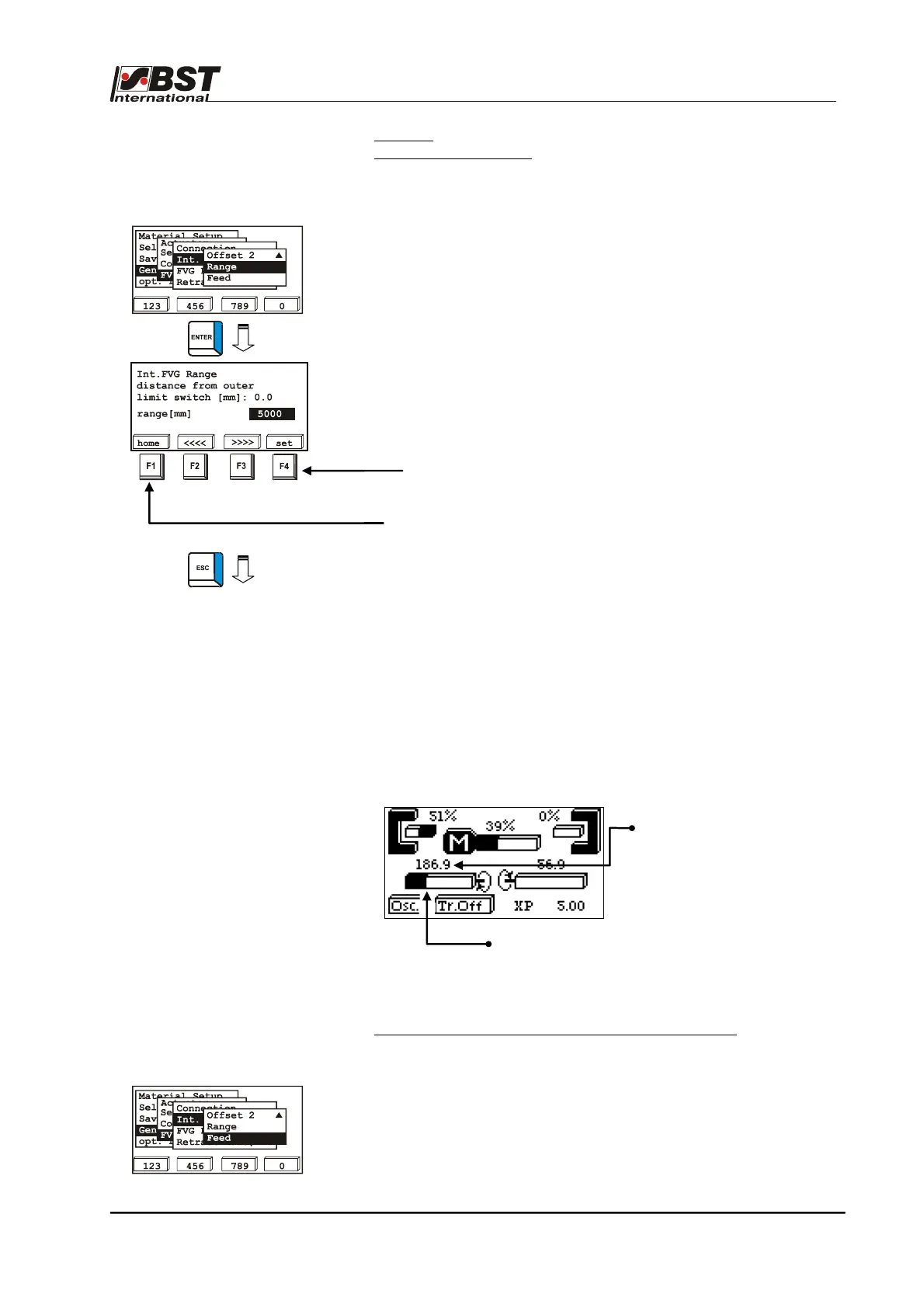
1. Select Range from the sub-directory and then press ENTER
to open the inputting menu.
2. Press the F1 to start the retraction of the slides to the park
position (home position). After this position has been
reached, the FVG stops.
3. Use the F2 or F3 buttons to carefully traverse the sensor in
the direction of the inner limit switch. Once the limit switch
has been reached, press key F4 (set). This completes the
adjustment procedure.
4. Press key F1 to run the sensor to the park position so that you
can draw in the web at a later point.
5. Press the ESC button to exit the inputting menu after you
have entered the settings.
If material has already been placed in the FVG adjustment range,
you can also enter the inside limit position directly into the editing
box.
If you are now working with a position offset, this does not need to
be referred to in this dialog window.
The following arises from the representation in the operating display.
Feed – Feed for stepping motor/gearing combination
This setting is treated as the feed per motor revolution for the
stepping motor / gearing combination.
The manufacturer has entered this default setting and you are only
permitted to modify it (if necessary) after having obtained the
manufacturer’s agreement.
The relevant procedure then has to be agreed.
All warranty claims will be invalidated in any other case.
The relative position (bar representation) relates to
the range value entered.
In other words, the position offset is not included.
The value shown gives the absolute
distance from the fixed point entered in
the offset dialog. In other words, the
position offset is included in the
numerical representation.


 To Next Page