Controls B 2
ekrPro Com
60
web guide controller EDV No.: MD.191.01.05/1.6.x Chapter: B 2
with analog sensors Date: 23.11.2007 Page: 5/6
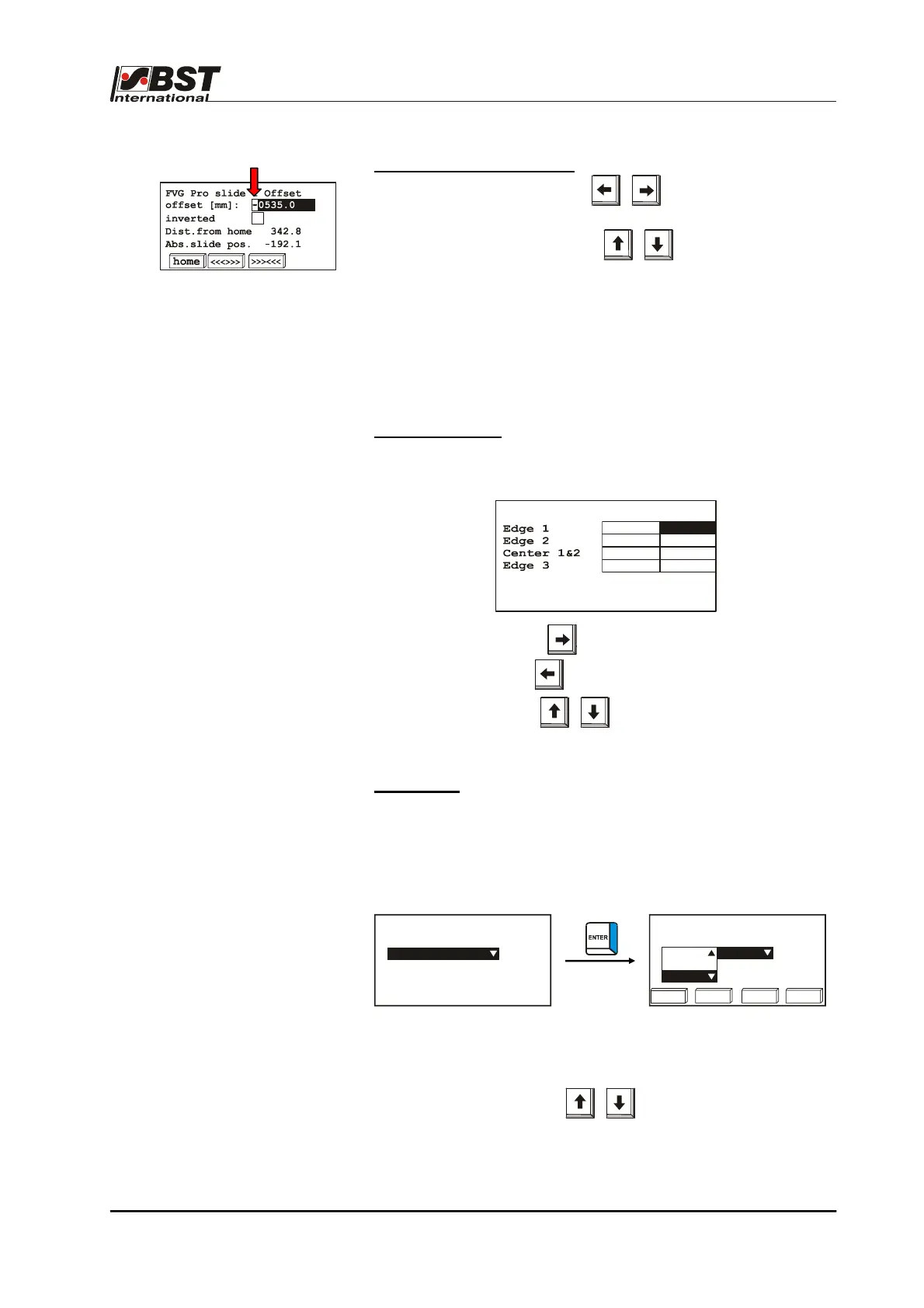
Entering negative numbers
Use the horizontal arrow keys to mark the initial
position for the setting.
Now use the vertical arrow keys so that the minus sign
is entered or removed.
After this, enter the digit sequence as described above.
B 2.2.2 Arrow keys
Various entries can be made and options can be selected from the
menu mode dialog windows.
The procedure for the various controls and lists is as follows:
Control elements
Use the arrow keys to mark the required control if there are several
control elements displayed in the same dialog window.
For example:
Use the ’right’ arrow key to scroll forward and
use the ’left’ arrow key to scroll backwards.
The vertical arrow keys do not have a function here.
Option lists
An entry from a default list can be selected from an option list. This
is realised by pressing the ENTER button to open the selected
option list.
Example:
The “▼“ or “▲“ symbols displayed on the right of the option list
indicate that there are more entries in list than are displayed on the
screen.
Use the vertical arrow keys to mark the position in the
list.
Confirm the selection by pressing ENTER.
sens.mode W XP
0
5.00
5.00
5.00
5.00
0
0
0
Select an actuator type
EMS 17
Select an actuator type
123 456 789 0
EMS 10
EMS 16
EMS 17



 To Next Page