Advanced Guide
>
Printing from a Computer
>
Printing with the Bundled Application Software > Creating
Still Images from Videos
A160
Creating Still Images from Videos
You can capture video frames and create still images.
Important
This function is not available when ZoomBrowser EX Ver.6.5 or later (supplied with Canon digital
cameras supporting MOV format video recording) is not installed.
Videos may not play smoothly depending on your environment.
When the color tone of a video is changed via the settings of the graphic driver (video card) or its
utility, such a change is not reflected in still images captured from the video. Therefore, color tones
may differ between videos and captured still images.
1.
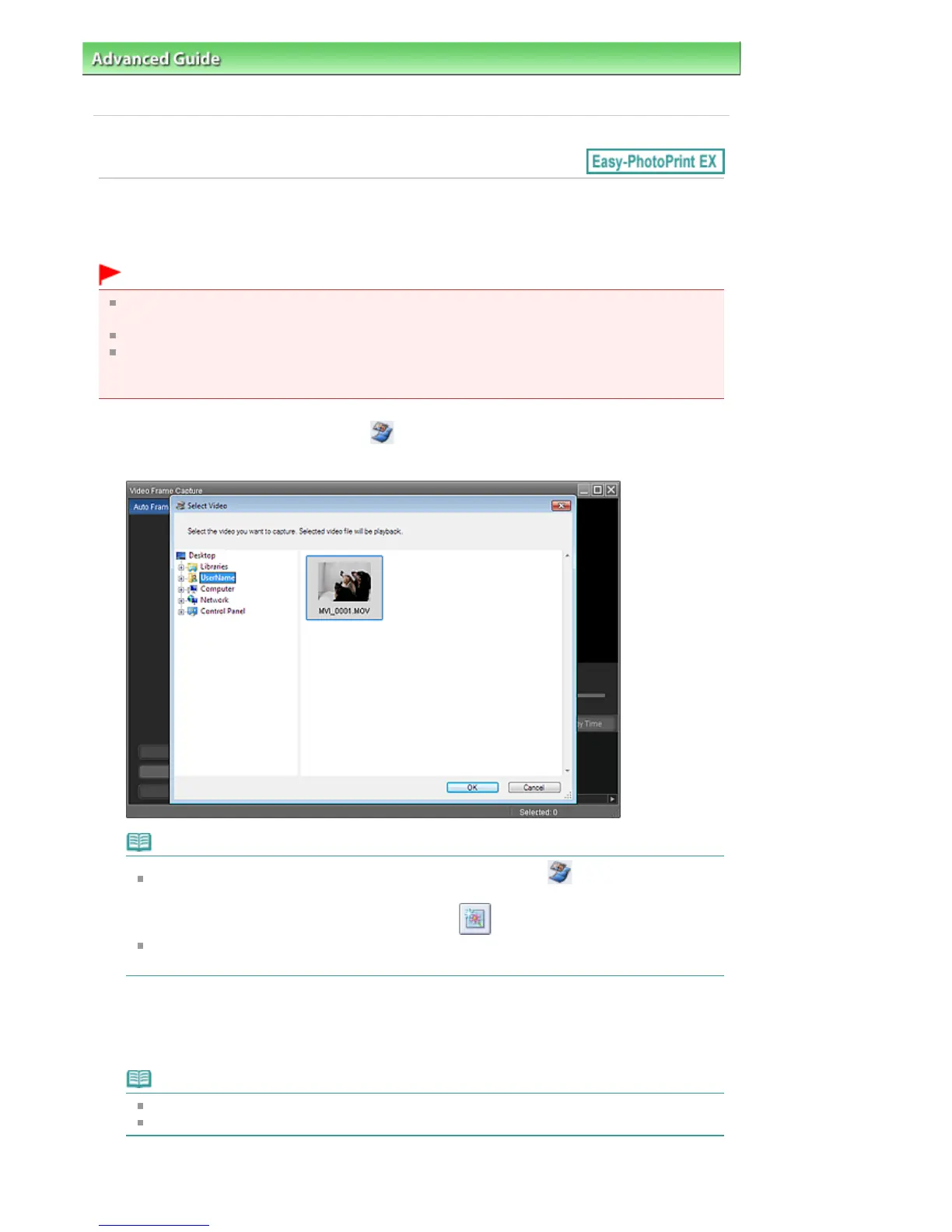
In the Select Images screen, click (Capture frames from video).
The Video Frame Capture window and Select Video dialog box appear.
Note
You can also display the Video Frame Capture window by clicking (Capture frames from
video) in the Add Image dialog box. To display the Add Image dialog box, select the page you
2.
From the Folder Tree area of the Select Video dialog box, select the folder
containing the video from which you want to capture still images.
The videos in the folder will be displayed as thumbnails (miniatures).
Note
Only MOV format videos recorded with Canon digital cameras are displayed.
The selected video plays.
3.
Select the video from which you want to capture still images and click OK.
Seite 216 von 922 SeitenCreating Still Images from Videos















 To Next Page