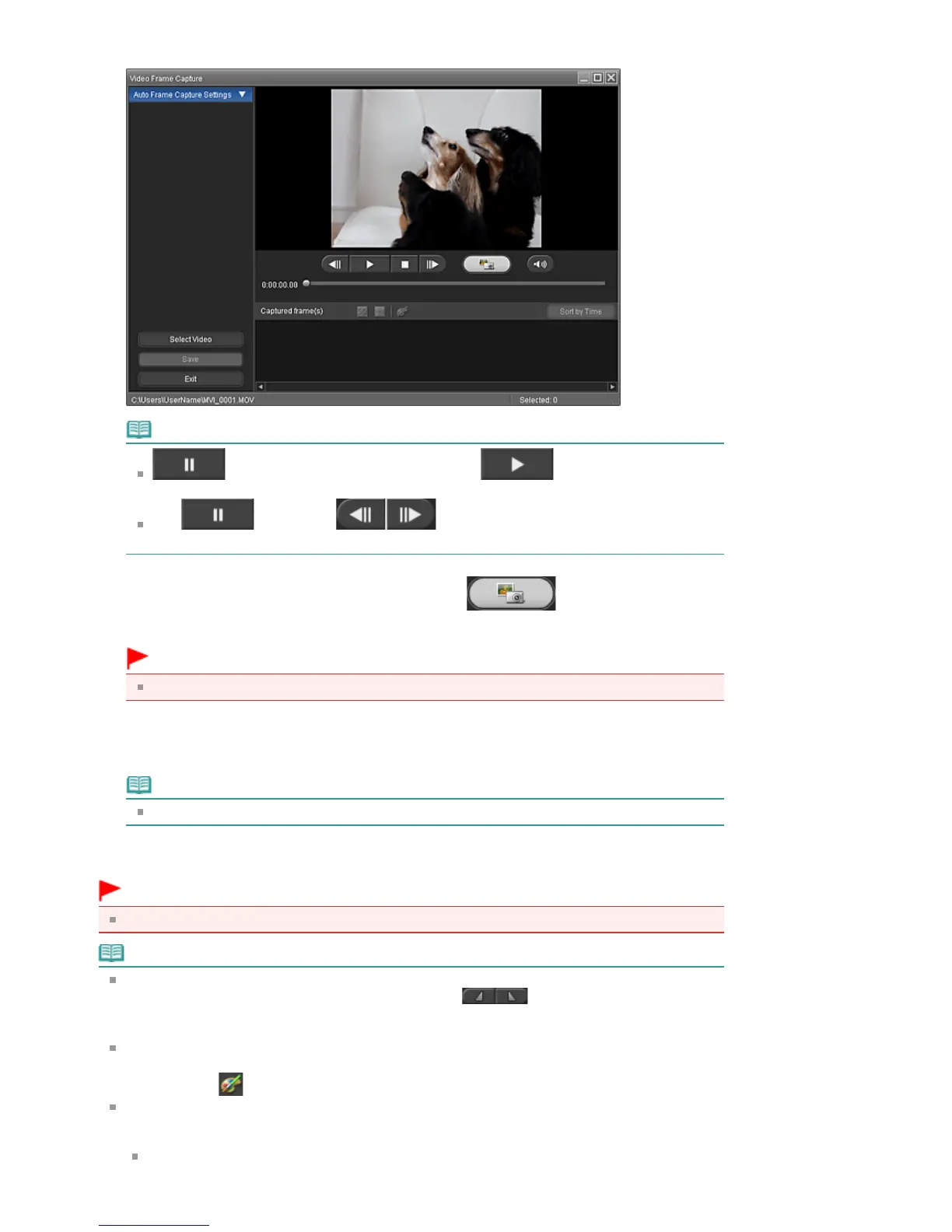
The selected video plays in Preview of the Video Frame Capture window.
Note
(Pause) appears while a video plays, and (Playback) appears while a
video is stopped.
Use
(Pause) and
(Frame backward/Frame advance) to display
the frame you want to capture.
4.
Display the frame you want to capture and click (Capture).
The captured still image is displayed in the Captured frame(s) area.
Important
You can capture up to 150 frames from one video.
5.
Select the image(s) you want to save and click Save.
When the Save dialog box appears, specify the save location and file name, then click Save.
Note
Only JPEG/Exif data format is available for saving created still images.
6.
Click Exit.
Important
The captured still images will be deleted if you exit before saving them.
Note
You can automatically capture multiple still images from a video.
Display the Auto Frame Capture Settings area, then use (Set start time/Set end time) in
the Preview area to specify the time range. In the Auto Frame Capture Settings area, select a
capture method and click Capture.
You can correct the captured still images in the Correct Captured Frames window. To display the
Correct Captured Frames window, select the image(s) you want to correct in the Captured frame(s)
area, then click
(Correct image).
When the Movie Print window is displayed via Solution Menu EX, you can print the captured still
images.
To print, specify the printer and media in the Print area, then click Print.
When you print from the Movie Print window, images are automatically cropped. Therefore,
images will be printed with the left and right sides cut off.
Seite 217 von 922 SeitenCreating Still Images from Videos















 To Next Page